Pull different Aurora community content into an RSS feed using URLs
You can pull different community content from different levels in the community in an RSS feed using URLs. To pull the most recent RSS results for the entire community, use: https://yourdomain.com/t5/s/[CommunityID]/rss/Community For example, for Atlas, you'd use: https://community.khoros.com/t5/s/lithosphere/rss/Community To pull content over the RSS for a category, use: https://yourdomain.com/t5/s/[CommunityID]/rss/Category?category.id=[CategoryID] For example, if Atlas had a category with the ID of "Social," you'd use: https://community.khoros.com/t5/s/lithosphere/rss/Category?category.id=Social Note: Category IDs are case sensitive. To pull content over the RSS for a KB, use: https://yourdomain.com/t5/s/[CommunityID]/rss/Community?interaction.style=tkb For example, for Atlas you'd use: https://community.khoros.com/t5/s/lithosphere/rss/Community?interaction.style=tkb 2KViewsSign in to react to this post
 7Comments
About Aurora Community site structure
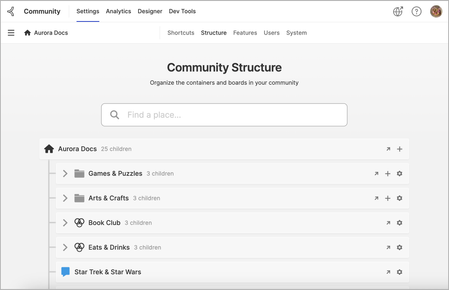
One of the most important aspects of setting up your community is choosing which content types to include and how to organize them. Communities are structured hierarchically—they’re broken down into Places, which are divided into Containers and Boards. Containers consist of Categories and Groups, while Boards consist of Forums, Knowledge Bases, Blogs, Ideas, and Events. Typically, Categories and Groups are made up of Boards—these boards are the areas where community members can post and reply or comment on what they read. Categories can also be broken down into other Categories as necessary. Containers Containers are higher-level Places like Categories and Groups. Categories are areas that can house several types of Boards that are broken out into different types of content. Groups are similar to Categories, but they are designed for specific groups of Community members who want to collaborate on a particular subject or project. Create a Category Create a Group Create a Category Go to the Community Structure page. Select Add (plus icon) at the level of the community where you want to add the category. On the window, enter a Name and ID. The ID displays in the URL for the category. Note: The ID must be a single word made of only letters, numbers, dashes, and underscores with no spaces. It cannot be changed later. Optionally, enter a Description and add an Avatar for the category. Select Create. For more information, see About Categories. Boards Create a Forum Create a Knowledge Base Create a Blog Create an Ideas board Create an Event board Boards are Places that are subsets of Containers. The types of boards available in your community are Forums, Knowledge Bases, Blogs, Ideas, and Events. Boards enable members to post content, write comments, and reply to other members’ comments. The process for creating a board is similar for all content types. To create a board: Go to the Community Structure page. Select Add (plus icon) at the level of the community where you want to add the board. On the window, enter a Name and ID. The ID displays in the URL for the board. Note: The ID must be a single word made of only letters, numbers, dashes, and underscores with no spaces. It cannot be changed later. Optionally, enter a Description and add an Avatar for the board. In the Tags area, specify the types of tags to use, add preset tags, and/or indicate whether you want to require tags for the board. Select Create. Related topics Community Structure Best Practices Community site structure hierarchy and terminology Manage Containers or Boards Container and Board permissions1.6KViewsSign in to react to this post0CommentsAbout Aurora tags
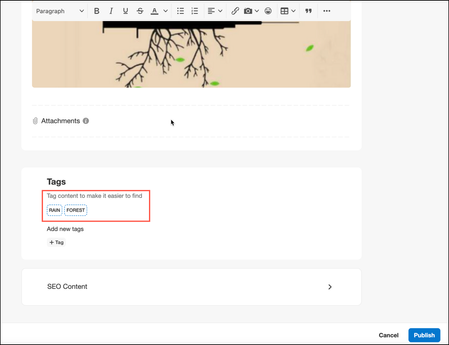
Tags are used within a community to help categorize articles across all content types. A tag is a single, informal keyword or phrase that describes a topic, theme, or some other element of a post. Posts can have multiple tags. Tags are a great way to enable authors to self-categorize site content based on the themes or content in the article. When setting up tags for the community, admins have various options available. For example, tag usage can be enforced, which makes it mandatory for authors to apply tags when submitting posts. Additionally, admins can choose whether to enable preset and/or freeform tags (described below). For example, in a discussion for troubleshooting connectivity issues with smartphones, admins might create preset tags like iPhone, Galaxy, AT&T, Verizon, and so on. Authors could select from these preset tags when posting the article. If freeform tags are enabled for the board, authors can also create their own tags while posting. Why do people tag? Tagging content is an easy way to find content you’re interested in or to put your own spin on content you see in the community. While each person has their own motivation, these are some of the common reasons people tag content: To organize content so it’s easier to find. Tags are an excellent navigational device: they help people remember what they saw or briefly summarize what a post or thread was about. They also help users quickly zero in on posts about a specific topic or find others who are interested in the same topics. To participate in an informal knowledge creation/curation project. One of the interesting aspects of tagging is the way it enables people to act locally but contribute to something of value for the entire community. By tagging items for their own personal use, members help to create something that benefits other community members as well. To call attention to content members think is important to the community at large. The more often a tag is used, the more prominently it’s featured in the community, thus drawing attention to similarly tagged items. Tag Types Aurora communities offers both preset and freeform tags. Preset Tags: Tags can be predefined by admins, giving them control over exactly which tags are used in different boards in the community. Admins can define preset tags only at the board level and not at community, category, and group levels. Based on the tags defined at the board level, authors can select from the list of preset tags while creating a new post or to a published post. Preset tags defined in any board are not available in other boards. While creating a post, preset tags are displayed as shown here: Freeform Tags: Authors or members with the appropriate permissions (Admins or Moderators, for example) can add their own tags apart from preset tags while creating a post or to a published post. These member-generated tags are not scoped to any particular place and exist in the community only if they are used in any topic. To add your own tags, click + Tag as shown below: One board might have tag requirements with a preset pool of tags while another can be completely optional and enable members to create their own tags. Learn more about configuring tag options Related topics: Enable tags and set tag options Add tags to a community post View community posts based on tags1.3KViewsSign in to react to this post3CommentsAurora: Create community experience surveys
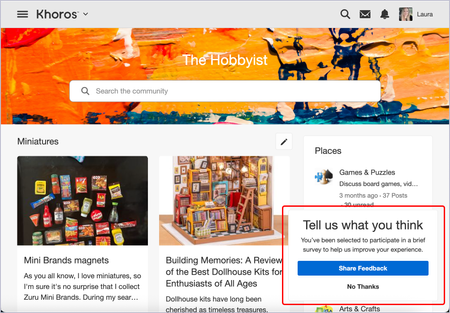
Admins can enable community experience surveys surveys, which prompt members to provide feedback about their experience in the community. Survey responses and scores can be collected via an export (see View community experience survey results). Create a survey Creating a survey requires several configuration steps, including designing the branding, designing its behavior, selecting its questions, and finally, turning it on for visitors. To access survey configuration options: Open the Account menu. Select Settings. Select Content Features. In the left column, select Community Experience Survey. Set up your survey: Design survey branding Design survey behaviors Select your questions Turn on the survey for visitors Design survey branding In the Branding area, select Edit. In the window, update the following as needed: Community name: The community name used in survey questions Brand name: The brand name used in survey questions Survey logo: Use a PNG or SVG logo; horizontal preferred. Text color Header background color: Used in the background of the survey header Select Submit. Design survey behaviors In the Survey Behaviors section, select Edit. Select whether you want to Present To: Signed-in members Anonymous users Both members and anonymous users (Optional) Select the role(s) you want to survey. (Optional) Select the role(s) you don’t want to survey. (Optional) Select the place(s) where you want the survey to be triggered. In the Frequency area, enter the number of Maximum responses to collect per month. This field sets the maximum number of surveys to collect for a given calendar month. After collecting this number of responses, no users will be prompted to take the survey until the first day of the following month. Enter a number of visits in the Present survey after this many visits field. This field sets the number of visits (0-500) to wait before prompting a viewer to take the survey. For example, if set to 3, the viewer isn’t prompted to take the survey until their fourth visit. Default = 0, which is the first visit. Enter a number of minutes in the Present the survey after this many minutes field. This field sets the number of minutes (1-60) to wait before prompting a viewer to take the survey after the defined number of visits have occurred. Default = 2. In the Conditions area, enter a number of days in the If declined/abandoned, repeat after this many days field. This field sets the number of days (1-365) to wait before prompting a viewer to take the survey after they’ve declined to take the survey. Default = 30. Enter a number of days in the If completed, repeat after this many days field. This field sets the number of days (1-365) to wait before prompting a viewer to take the survey again after they have already completed it. Default = 90. Select Save. Select your questions In the Questions and Answers section, select Edit. Use the toggles to turn on or off the questions you want to include or exclude on your survey, respectively. Some questions have follow-up questions based on the selected responses. Note: Because this survey is intended to gather important metrics and feedback, including CSAT (Customer Satisfaction Score), updating question titles and the order of questions is not permitted. Use the checkboxes by responses under your selected questions to designate which responses will be available for those taking the survey. Select Save. Turn on the survey for visitors After you have designed your survey the way you want it, you can enable it for your visitors by turning on the Community Experience Survey toggle at the top of the Community Experience Survey section.1.2KViewsSign in to react to this post3CommentsAurora: Configure Registration and Sign-In settings
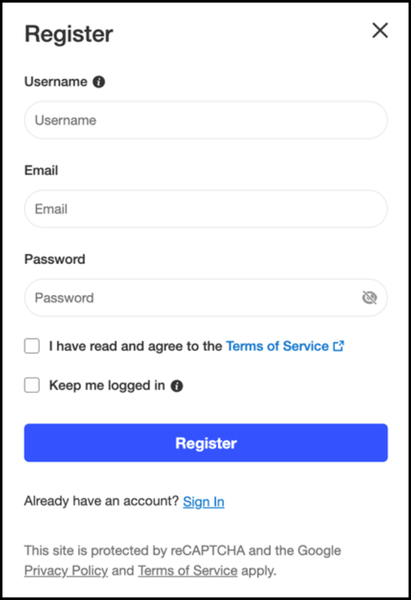
The Account & Privacy page contains settings related to registration, sign-in, and sign-out. This article covers registration and sign-in settings. To learn about configuring SSO options, see Configure SSO settings for the community. Registration settings All anonymous users must register to participate in the community. To register, they must enter mandatory fields such as Username, Password, and so on. By default, the Registration window includes these fields: Admins and members with appropriate permissions can enable or disable these registration fields from the Settings page as needed. To edit registration settings: Sign in to the community as an Admin. Open the Account menu and click Settings. Go to System > Account & Privacy. Go to the Registration section and turn on/off these options: Enable member registration: Turns on or off the community member self-registration flow. By default, this option is enabled. This option is turned off for private and invite-only communities, where anonymous users are not allowed to register in the community. Add date of birth field to registration page: Controls whether the Date of Birth field appears on the Register window. Use Date of Birth to enforce the minimum age requirement: Toggle on this option to validate the date of birth provided by the user against the minimum age required for registration. Require users to confirm that they meet the minimum age requirement: Toggle on this option to add a field on the Registration window for the users to confirm whether they meet the minimum age required for registration. Set the Minimum age required for registration. As per the Children’s Online Privacy Protection (COPPA) rule, users must be at least 13 years old to register to the community. Auto-assign role upon registration: If you want to automatically assign a role to a new member when they register, click Edit by this option. In the field on the window, enter the role you want new members to be assigned. Terms of service acceptance required: Toggle on this option to add a field on the Registration window for the users to read and accept the Terms of Service (TOS). You can turn off this option if Single Sign-On (SSO) is used and you already have TOS acceptance as a requirement in the SSO configuration. Also, Admins can View/Edit Terms of Service in the required language. Learn more about editing the Terms of Service for the community. When all the options are turned on, the Register window looks like this: Sign-in Settings To edit sign-in settings: Sign in to the community as an Admin. Open the Account menu and click Settings. Go to System > Account & Privacy. Go to the Sign in section and turn on or off the Keep me signed in setting. When you turn on this setting, the Sign In window has the Keep me signed in checkbox selected by default for the member signing in.1.1KViewsSign in to react to this post1CommentAurora: Permission descriptions
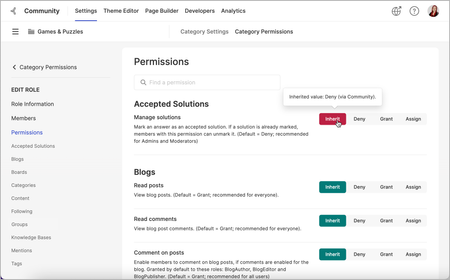
Each Khoros community permission enables users to perform specific actions. These permissions are assigned (either by default or manually) to different community roles. Permissions are grouped by feature area on the node where you’re assigning them: Accepted Solutions Analytics Badges Blogs Boards Case Portal Categories Community Content Escalations Events Following Groups Ideas Inbox Knowledge Bases Likes Media Member Management Member Profiles Mentions Moderation SEO Tags Widgets A description and a recommendation as to the type of member who should be granted this permission are displayed by each of the permissions so you know exactly what you’re granting and to whom. You can set permissions globally or at the node level (category or board) in the community structure. For each permission, you can keep the out-of-the-box default setting or explicitly Grant or Deny permissions as needed. About permission levels Manage community permission defaults About permission levels Permissions can be set to Inherit, Deny, Grant, or Assign. Inherit – Person has the permission defined in the node or node-level role above the current level. Therefore, this level does not display when you’re managing community permissions defaults but does display for the category, group, and board levels. You can hover your cursor over the Inherit button to see whether the inherited value is Deny or Grant (the button is also displayed as red for Deny and green for Grant). Deny – Person does not have the ability to take action described by the permission. Grant – Person has the ability to take action described by the permission. Assign – Person has the ability to take action described by the permission and has the ability to grant the permission to other members. Typically, this should be given only to Administrator roles. If you look at the Administrator role, you'll notice that all permissions are set to Assign since Admins can grant permissions to other users. As a general rule, only Admins should be able to Assign permissions to others. There are a few use cases where this could change, but typically speaking, Administrators should be the only ones that have the ability to manage permissions in the community. The different permission levels cascade down to any nodes below them, but certain permissions at higher nodes will override lower-node permissions: Assign Overrides any other permissions given at lower-level nodes Explicit Grant Overrides Default Deny, Explicit Deny, and Default Grant at lower-level nodes Explicit Deny Overrides Default Grant and Default Deny but not Explicit Grant at lower-level notes Default Grant Overrides Default Deny but not Explicit Deny at lower-level nodes Default Deny Does not override anything at lower-level nodes Note: If there are conflicts within roles, the explicit exists to override the default. So for example, if you set a permission to Assign at a particular level, all levels below that for that permission will be overridden even if they are set to Deny (including if you manually/explicitly set it to Deny). Note: It is a community management best practice to modify permissions at a role level rather than at a user level to ensure consistency across the community. Manage community permission defaults Setting community permission defaults enables you to grant the base permissions for all members of the community. To manage community permission defaults: Go to Settings > Roles and Permissions. In the Community Permission Defaults section, click Edit. (Optional) To jump to a specific permission to manage, enter it in the Find a permission field. Set Deny or Grant access for the settings in each area. Each permission entry displays a description and recommended deny/grant status, as shown in this example:1.1KViewsSign in to react to this post5CommentsAurora: Managing group members
Community Administrators and Group Owners can manage memberships from a group’s Manage Members page. From this page, you can: View group members Assign or edit group member's role Invite new members to the group Remove members from a group Manage pending invitations Manage requests to join Note: Group Inviters and Curators cannot access the Manage Members page. Inviters and Curators invite members using the Invite Members option in the Options menu. View group members Group members (who are not a group owner) can see a list of group members on the main Group page in the Members widget. To view group members in Manage Members page: Sign in to the community and go to a group. Open the Options menu and select Manage Members. The Manage Members page opens with the Members tab by default. Group members are listed along with their membership role and the date that they joined the group. You can sort this list by newest or oldest members or search for a specific member by typing a name in the filter. Change a group member's role Administrators and Owners can change a group member’s role. From the Manage Members page, click the Options icon > Edit Role next to their name in the list, select the role(s) to grant for the member, and click Apply. Invite a member to a group From the Manage Members page, members with the Send group invitations permission can invite other community members to join the group. To invite a community member to join a group: Go to the Manage Members page for a group. Click Send Invitation. Search for the member by entering their username in the To field. Select the Role to grant the person and enter a welcome note (optional). Click Send Invite. Remove a member from a group From the Manage Members page, Administrators and Owners can remove a member from a group. To remove a member in the Community UI: Go to the Manage Members page for a group. Click the Options icon > Remove next to the member you want to remove from the group. Click Remove to confirm. Manage pending invitations To manage pending invitations: Go to the Manage Members page for a group. Click the Pending Invites tab. For each member in the list, you can Resend or Cancel the invitation request. Manage requests to join For Closed groups, community members can request to join the group. You can manage these requests from the Manage Members page for the group. To manage invitation requests: Go to the Manage Members page for a group. Click the Requests tab. Accept or Deny each request in the list.1.1KViewsSign in to react to this post2CommentsAbout Aurora roles and permissions
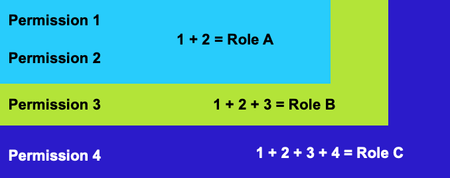
Your community uses permissions to determine the actions that your community members can take and which community areas and features they can access. Instead of setting each of these permissions manually, permission settings are grouped into roles and then you can assign these roles to members. Khoros provides a set of default roles. You can modify these roles (although we don’t recommend it) and create your own roles. You can also create a relationship between your community ranks and roles so that members get new roles and receive additional permissions as they advance through the ranks. Each role has a setting for each permission. When you define a role, you can set some permissions directly and leave the default settings for the rest. After you define your roles, you can set up the ranks in your community to assign (and remove) roles when members change ranks. The higher the rank, the more access it’s likely to grant the member. In addition to controlling member access within a community, you can also use roles to gather metrics on community usage or to establish criteria for gaining a rank. Although it’s more common to use a rank to grant a role, you can also use a role to assign users a rank. Some communities use this technique, for example, to assign a special rank to community moderators by using a role as the criteria for granting a rank. Similarly, you may want to create a role specifically for your employees. They might have the same permission settings as other community members, but you can use a special employee role as the requirement for a corresponding rank to identify them as employees to the rest of the community. Note: Groups use the default community roles as well as a set of roles specific to groups. Learn more in Group roles and permissions. Related topics: Create a role Default Community roles Permission descriptions Add members to roles Best practices: roles and permissions You can also receive self-paced training on roles and permissions in our Build Khoros Communities course.1KViewsSign in to react to this post0Comments
Aurora Product Coaching Session: Spam Management Best Practices
Khoros Communities platform offers several settings and features that allow you to mitigate Spam in your community. Join our Spam Management Best Practices coaching session to identify, filter and deal with spam effectively. Our coaching session will guide you through the practical tips and techniques to help combat spam and help maintain the hygiene of your community. Topics covered in the coaching session Overview of Aurora spam settings and functionality Manage Content dashboard related to spam management and its features Using roles and ranks to configure permissions to check spammers Content Filters Best practice tips Notes - Admin permissions are required to conduct the call. 👉Click here to Sign Up Related Resources Enable Spam Management Community Spam Management Review Posts Captured as Spam Khoros Academy: Communities Moderation Essentials Khoros Academy Instructor Led Training: Spam Management for Communities Aurora1KViewsSign in to react to this post0CommentsAbout Aurora Groups
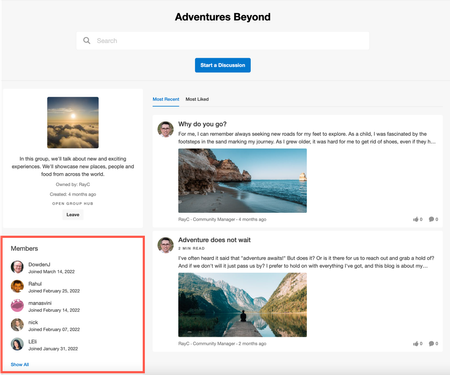
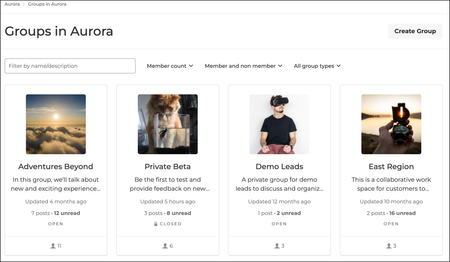
Groups deliver an enhanced experience for Community members to engage around a common theme or purpose. Each group has its own configurable set of content types (forum, blog, knowledge base, ideas, and events) to organize content and communication. This guide provides overview information about: Group membership types Search within groups Group management Group flood controls You can imagine groups for everything from special interests within the community to focus groups to product launches and more. Groups can be visible and open to anyone in the Community, closed (requiring a request to join), or hidden (invisible to the public and accessible by invitation only). Community Administrators can share group management with Community members by giving a member the Owner role, which enables the member to edit group details, manage membership requests and invitations, and assign and change group roles for members. Members can discover and browse groups on the Group landing page: The Group page provides quick access to the hub's info, contents, recent activity, and members. Administrators and group Owners can perform most group management tasks directly in the Community UI without needing access to Community Settings. On the Create Group page, here is a quick look at group configuration options. Note: The Boards section of the page appears to Community Administrators only. The ability to add group child places is dependent on the Add any community-supported boards permission, which is denied by default to the Owner, Curator, Inviter, and Member group roles. Member management is performed in the Manage Members page. An Owner or Administrator can see a list of current members, edit a member's role, remove members from the group, view pending invitations, and accept and deny requests to join. Other important group capabilities include fully-functional search and group subscriptions. Group membership types Every group has a membership type that controls access. A group can be: Open Closed Hidden Important: Membership type and access are managed through Community permissions. There are no other Community Settings to control access. For example, a hidden group is hidden because non-members of that group have the See groups permission set to Deny. Open groups All community members can browse and like all content, reply to posts, and comment on posts of the group. Group members can create new content and browse, reply, and comment on the post. The ability to see and join a group is governed by the access allowed to the container node. For example, an open group placed in a category with the See categories permission set to Deny cannot be joined by a member unless the member is assigned a role with See categories set to Grant. Ways to join: Join Group button on the Group page By invitation from a group Owner, Inviter, or an Administrator Closed groups As with open groups, a closed group is visible only to community members with access to the category in the group lives. Group visibility is governed by the access set on the container node. Non-members do not have read or reply permissions for closed groups. Content in closed groups appears in search results to group members only. Non-members who try to access a closed group are directed to a page explaining that the group is closed and that the user must request access. The request to join is sent to group Owners via email. Members can create new content as well as browse and reply to existing content Ways to join: Join Group button on the Group page. By invitation from a group Owner, Curator, Inviter, or an Administrator. Hidden groups Community members access Hidden groups either by invitation (by group Owner, Inviter, or an Administrator, or by being added to the group directly in Community Admin. Hidden groups are hidden from non-members in the Community UI and cannot be searched. Non-members attempting to access the URL to a hidden group’s page or child places are directed to an error page. Search within groups Content search within a group is fully-functional. All visitors can see content in open groups in community and place-level searches. Open group content is accessible to all. Content in closed groups is accessible only to group members. Hidden group content is searchable and accessible only by group members. Any relevant results in the community-wide search bar also surfaces content inside of groups to users who have permission to access it. Open and closed group nodes and child nodes appear in places search results to group members and non-members. Hidden group nodes appear in places search results to group members only. Group management in the Community UI The Community UI provides basic group management features: Create a group Delete a group Edit group details including group type, child board titles, and avatar Invite new members to the group Remove members from a group Manage group invitations and requests to join Manage group role assignments Group management in Community Admin Community Administrators can define Community Settings at the group container level, just as they can with other containers. In the Manage Members page, Community Administrators can remove a member from a group, edit a member’s role within the group, and manage any pending invitations. Group management by community members with Admin Permissions A community member with the Edit groups and Edit groups in Community Settings permissions can access Community Settings from the Group page in the Community UI and perform group administration actions. The permission adds the Edit Group Settings option to the Group page Options menu. These permissions are denied by default. Important! Be very careful when granting these permissions. It is intended to enable trusted employees to perform group actions that cannot be performed in the Community UI. For example, you may grant this permission to a product manager who is running an Early Access program through a group so that the product manager can quickly add customers to the group. We strongly recommend against granting this permission to your customers. Group flood controls Group members can send up to 50 invitations in an hour and up to 100 invitations per day.900ViewsSign in to react to this post0Comments