About Aurora tags
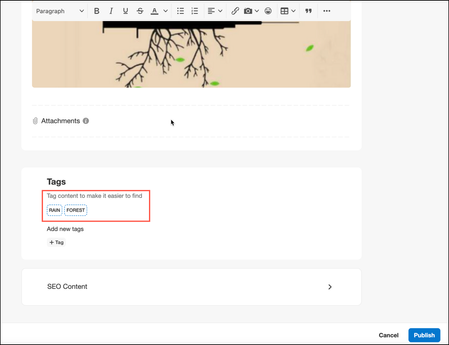
Tags are used within a community to help categorize articles across all content types. A tag is a single, informal keyword or phrase that describes a topic, theme, or some other element of a post. Posts can have multiple tags. Tags are a great way to enable authors to self-categorize site content based on the themes or content in the article. When setting up tags for the community, admins have various options available. For example, tag usage can be enforced, which makes it mandatory for authors to apply tags when submitting posts. Additionally, admins can choose whether to enable preset and/or freeform tags (described below). For example, in a discussion for troubleshooting connectivity issues with smartphones, admins might create preset tags like iPhone, Galaxy, AT&T, Verizon, and so on. Authors could select from these preset tags when posting the article. If freeform tags are enabled for the board, authors can also create their own tags while posting. Why do people tag? Tagging content is an easy way to find content you’re interested in or to put your own spin on content you see in the community. While each person has their own motivation, these are some of the common reasons people tag content: To organize content so it’s easier to find. Tags are an excellent navigational device: they help people remember what they saw or briefly summarize what a post or thread was about. They also help users quickly zero in on posts about a specific topic or find others who are interested in the same topics. To participate in an informal knowledge creation/curation project. One of the interesting aspects of tagging is the way it enables people to act locally but contribute to something of value for the entire community. By tagging items for their own personal use, members help to create something that benefits other community members as well. To call attention to content members think is important to the community at large. The more often a tag is used, the more prominently it’s featured in the community, thus drawing attention to similarly tagged items. Tag Types Aurora communities offers both preset and freeform tags. Preset Tags: Tags can be predefined by admins, giving them control over exactly which tags are used in different boards in the community. Admins can define preset tags only at the board level and not at community, category, and group levels. Based on the tags defined at the board level, authors can select from the list of preset tags while creating a new post or to a published post. Preset tags defined in any board are not available in other boards. While creating a post, preset tags are displayed as shown here: Freeform Tags: Authors or members with the appropriate permissions (Admins or Moderators, for example) can add their own tags apart from preset tags while creating a post or to a published post. These member-generated tags are not scoped to any particular place and exist in the community only if they are used in any topic. To add your own tags, click + Tag as shown below: One board might have tag requirements with a preset pool of tags while another can be completely optional and enable members to create their own tags. Learn more about configuring tag options Related topics: Enable tags and set tag options Add tags to a community post View community posts based on tags 1.3KViewsSign in to react to this post
 3Comments
Aurora: Enable tags and set tag options
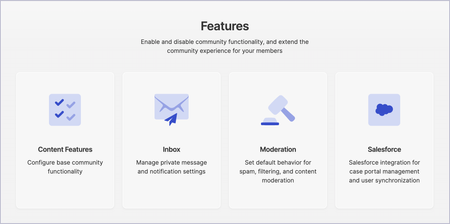
Many communities use tags to organize content that exists in different boards. Settings vary depending on where you are in the community. You must enable tags at community level to make them available at category and board levels. You can later disable the tags at category or board levels, if required. You can configure the tag options only at the board levels. If you disable tags at the community level, the tag option is disabled for the entire community irrespective of any categories or boards. Enable tags at the community level Open the Account menu and go to Settings > Content Features. To enable tags at community level, go to the Tags section and turn on the Tags toggle. After you enable tags at community level, you can disable the feature in any category or group levels as required. Set tag options at the board level By default, tags are enabled at the board level if you enabled them at community level. At the board level, you can configure the various tag options that are applicable to the respective board. You can define preset tags that authors can add while creating a post. Open the Account menu and go to Settings > Community Structure. In Community Structure, click the board where you want to set tag options. For example, let’s consider a forum board. In Forum Settings (or settings for any content type), go to the Content Features > Tags section. Choose the Tag types to be used in posts across the community. Freeform tags enable members to add their own tags. Preset tags enable members to select tags from the pre-defined list. You can choose to allow both of these options. If you choose Tag types as either Preset or Preset and freeform, you can add Preset tags by clicking + Tag. Turn on the Require tags toggle to mandate authors to add at least one tag to publish their content. At the board level, you can remove existing preset tags as required. Note: When you set Tag Types as Preset only and have not added any Preset tags, the Require Tags option is not available. In this scenario, it is recommended that you add preset tags to make use of Require Tags option. Related topics: Add tags to a community post View community posts based on tags Set tag permissions813ViewsSign in to react to this post0CommentsAurora: View community posts based on tags
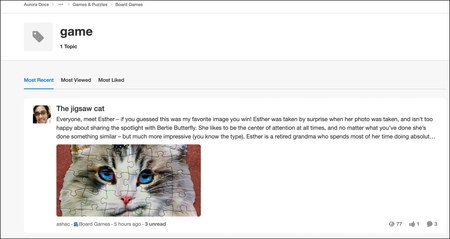
In the community, posts are tagged based on a particular theme, grouping, or idea, which helps users easily find topics they are interested in. To view topics attached to a tag, click the tag name anywhere in the community that lists all the tagged topics. When you click a tag, it opens the overview page for that tag. The page displays the tag name and list of topics related to the tag: In the tag page, you can: Follow the tag View the count of tagged topics View and sort topics based on Most Recent, Most Liked, and Most Viewed tabs Redirect to the topic page by clicking on a respective topic. Note: The tag page is scoped to the respective area or place where you are in the community and displays the list of topics and topic count for the respective place. For example, if you are in a forum, the tag landing page is scoped only to the forum and not the entire community. The breadcrumb at the top of the tag page shows the current scope of content being displayed for this tag. To widen the scope of the content, use the breadcrumb to locate and go to a higher-up place. Any additional posts using this tag are displayed in the list. You can navigate up all the way up to the community level.700ViewsSign in to react to this post6CommentsAurora: Set tag permissions
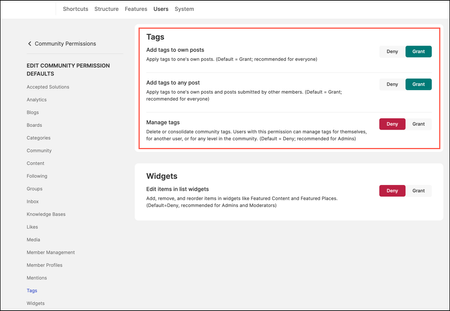
In the community, you can set tag-specific permissions to control who can add and manage tags on posts. At the community, category, group, and board levels, community includes these tag-specific permissions: Add tags to own posts: Authors can add tags to their own posts. By default, this permission is granted to all community members. Add tags to any post: Members can add tags to their posts and other members' posts. By default, this permission is granted to all community members. Manage tags: Members can manage their own tags as well as tags other members have applied to content. Management tasks include removing or consolidating tags across the community. This permission is recommended for Admins or Moderators and is denied by default. Learn more about managing community permission defaults. You can modify these permissions at various levels or assign permissions based on role. We recommend not altering these permissions unless you have a particular scenario where you want to modify the default permissions for specific members. Let’s take an example where you want to deny the Add tags to own posts permission at category level. This is granted by default at other community levels. In this scenario, the permission you set at category level overrides the default community permission. To modify permission at specific community level: Sign in to the community as an Admin. Open the Account menu and click Settings. Go to the Community Structure and click the category whose permission you want to modify. Go to Category Permissions and then click Edit next to the Category Permission Defaults. Scroll down to the Tags section and set the permissions. Grant tag-specific permissions to a role Sign in to the community as an Admin. Open the Account menu and click Settings. Go to Users > Roles and Permissions. Click Edit next to the role you want to assign a tag-specific permission. Scroll down to the Tags section and set the permissions.601ViewsSign in to react to this post4CommentsAurora: Replace community tags
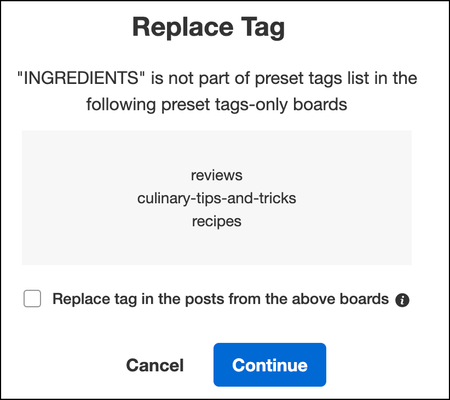
Over time, tags associated with community content may become irrelevant, misspelled, or redundant. You can replace these tags to make more sense and make it easier to find relevant content. From the Tags tab in the Manage Content dashboard, Admins and members with the Manage Tags permission can replace the tags. After you replace a tag, the new tag is reflected in posts that used the previous tag. Key points to understand before replacing a tag: If the tag is associated with posts that are part of boards supporting preset-only tags and the replacement tag is part of the preset tags list, the tag is replaced in these posts. If the replacement tag is not part of the preset tags list, only admins can replace the tags in these posts by selecting Replace tag in the posts from the above boards option: When you replace the tag, the new tag is added to the preset tag list in the respective preset-only boards. Non-admin members (with the Manage Tags permission) cannot replace the tag and can only view a list of these preset-only boards: After replacing the tag in posts that are part of preset-only boards, admins can remove the old tag from the preset tag list of these boards by selecting the checkbox: A preset tag in a post can be replaced by a freeform tag if the board supports both preset and freeform tags. To replace a tag: Sign in to your community as an Admin or a member with Manage Tags permission. Open the Account menu and click Manage > Tags. In the row of the tag you want to replace, open the Options menu and click Replace. On the Replace Tag window, either enter the replacement tag name or select an existing tag. Click Replace. The new tag is reflected in the associated posts across the community.500ViewsSign in to react to this post1CommentAurora: Add tags to a community post
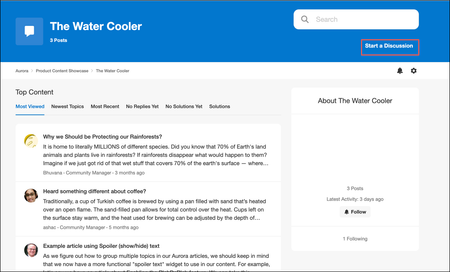
Authors and members with elevated permissions (Admins and Moderators) can add tags while creating a post or after the posts have been published. Tagging content helps organize content and make it easier to find in the community. Based on the tag options configured at the board level, you can add preset tags, freeform tags, or both to posts. To learn more about tag options, see Enable tags and set tag options. Authors can add preset tags or define their own tags (freeform) while creating a new post or editing an existing post across various boards. Note: Members must have the Add tags to own posts permission to add tags to their posts. Let’s look at an example where you want to add tags while creating a new discussion in a forum. To add tags: Go to a forum board and click Start a Discussion. The Start a Discussion page is displayed. Enter a Title and add your content in the editor. In the Tags section, select one of more preset tags from the list. To create your own tag, click + Tag under Add new tags. In Search tags, you can search and add the existing tags added in the community or enter a new tag. Note: The list of preset tags and Add new tags options are available based on the tags options configured at the respective board level. Click Publish. The tags you have added are displayed in the published version of the post. The authors who started the post and members with Manage tags permissions can add new tags (preset and freeform) or remove the existing tags from the published version of the post. To add a new tag to the published version of the post, click + Tag next to the existing tags and add the tag.412ViewsSign in to react to this post0CommentsAurora: Remove community tags
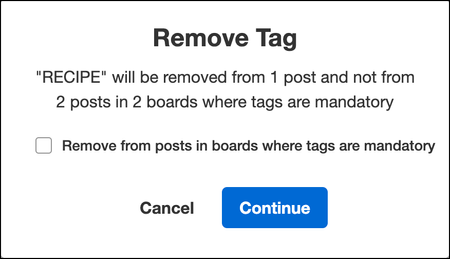
Over time, you may want to review tags that are associated with the content and remove them if found outdated or irrelevant. Also, if the content is associated with numerous tags, it can be challenging for members to find appropriate information. From the Tags tab in the Manage Content dashboard, Admins and members with Manage Tags permission can remove the tags associated with the posts. While removing a tag: If the tag is associated with posts in boards where tags are not required, the tag is removed from those posts. If the tag is associated with posts in boards where tags are required, non-admin members (with the Manage Tags permission) cannot remove the tag from these posts. Admins can remove the tag from these posts by selecting the Remove from boards where tags are mandatory option: If the tag is associated with posts that are part of boards using preset-only tags and is part of the preset tags list in those boards, the tag is removed from these posts and not from the preset tags list. While removing the tag, you can view the list of these preset-only boards: To remove a tag: Sign in to your community as an Admin or a member with Manage tags permission. Open the Account menu and click Manage > Tags. In the row of the tag you want to remove, open the Options menu and click Remove. On the Remove Tag window, verify the changes and click Remove.409ViewsSign in to react to this post2CommentsAurora: Review tags added in the community
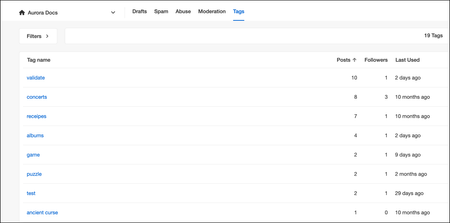
Sometimes you may want to review the tags used across the community to understand how the content is being categorized and organized. This can also be one of the factors to understand members' engagement and contribution to the community. Admins and members with the Manage Tags permission can access the Tags tab in the Manage Content dashboard where they can review the complete list of tags. The tab lists: Tag name Posts: Number of posts that include this the tag Followers: Number of members who follow the tag. The count varies based on the selected place scope. Last Used: The last time a member applied this tag to a piece of content. It is a good practice to audit your tag list occasionally. You might find similarly named tags that can be consolidated or find tags that haven’t been used in a while that may be candidate for removal. To review tags added in the community: Sign in to your community as a Moderator. Open the Account menu and click Manage > Content. The Manage Content page is displayed. Go to the Tags tab. By default, The Tags tab displays a list of tags that are associated with posts across the community. When you scope the tab to a different place, the Tags tab lists the tags that are associated with the posts of the respective place. To search for the tags, click Filters and filter the results by Keyword or Author. With the Author filter, you can filter the tags associated with the posts tagged by a specific member. In the Posts column, the count of the posts varies based on the applied filters. Let’s take an example where the tag “reviews” has 11 associated posts without any filters applied. When you filter the tags by a specific author, the Posts column displays the exact number of posts that are tagged by the specific author. To view the posts associated with a tag, click the tag from the list that redirects to the tag page.302ViewsSign in to react to this post0Comments

You’ve seen all recent content