Khoros Communities 21.7 Release
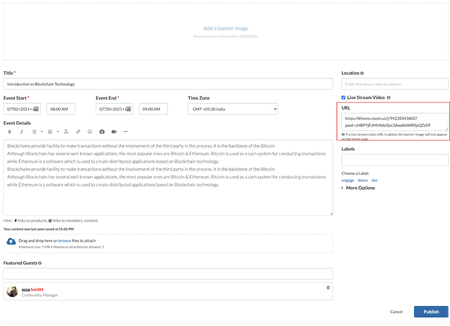
Features Integrate Zoom with Community Events API Updates RSVP API You found it. We fixed it! Features Integrate Zoom with Community Events Today, more and more meetings are moving to virtual spaces. Khoros Community Events now supports full integration with Zoom Meetings and Webinars. Integrating Events with Zoom enables community members to join the Zoom meetings and webinars directly from the community. With this integration you can: Create events to host Zoom meetings and webinars! All you have to do is paste in the Zoom URL. Now you can ask questions, discuss, and share follow ups to increase overall engagement in the threaded discussion. Host Zoom Meetings from a community event while providing full access to the Zoom options and features Host Zoom Webinars from a community event while providing full access to the Zoom options and features More info Learn more about the prerequisites required to host Zoom meetings and webinars from your community. Learn more about hosting a Zoom meeting and Zoom webinar on your community. Learn about mobile view for events with Zoom meetings and webinars. API Updates RSVP API We have updated the Events RSVP API to enable a member to add or remove the RSVP response on behalf of another member. Members with the “Create Events” permission now gain this ability. Learn more about move events API You Found It. We Fixed It. Earlier, the Internet Calendar Scheduling(ICS) files for community events uploaded incorrect schedule information in the Outlook calendar. This issue is now fixed, and all community events are now added to external calendar programs with correct information. We have fixed the issue where your editing position jumped to the beginning of a post while formatting any text at the bottom of a lengthy post. The issue with the preview of attachments to posts throwing misleading error messages is now resolved. You can now preview all attachments successfully. We have fixed the issue where some HTML characters in the case related fields in the Case Portal were encoded while sending information to Salesforce. Now, these HTML tags are no longer encoded. We have fixed the issue where the Top Tagged Posts widget displayed archived content. We have fixed the issue where the post count for a particular label on the Labels page did not decrease when posts with this label were archived. With this release, the post count for labels associated with archived posts will decrease as the post is archived. The Forum Topic Pages in Forums v5 with the Inline Editor enabled took more time than expected to load. We have improved the load time with this release, and all the inline reply controls load faster. We have fixed the performance issues with the load time when users with a large number of subscriptions navigate from the Notification Feed page. There was an issue with the notifications feed page, that when members use the notification bell icon to view new messages, the page was empty. The messages are loaded only after a page refresh. With this release, the notification feed page will display the notifications correctly when members access them from the bell icon. Khoros Communities has upgraded to the latest version of the XStream library. We have fixed the issue where users with simple HTML privileges could access and edit unpermitted HTML classes. This issue was specific to communities using a security feature designed to restrict allowed class values. This fix is available to all communities using this feature and are on version 21.5 or later. Note that this will prevent the use of all but a predefined list of values for HTML classes and can be customized on request. Reach out to Support if you have any questions or concerns. Accessibility fixes Earlier, the tooltip popup did not collapse when you clicked the Esc key, thus preventing users from viewing other controls. We have fixed this issue. On pressing the Esc key, the tooltip popup collapses for all tooltips across the community platform. There was an issue where the color contrast between community page elements and the background was insufficient for low-vision users to view the elements clearly. This fix ensures the contrast between foreground and background colors meets the WCAG 2 AA contrast ratio thresholds. We have fixed the issues where the JAWS screen reader did not identify the mandatory fields on the forms. Now, screen reader-dependent members can recognize the required fields, controls, and functionality. We have added titles for iFrame in the HTML code for all the dialog and drop-down menu components with this release. We have fixed the issue where the error message “Please input a complete URL”, while uploading an Image via URL to a given post, was not being read by VoiceOver. We have fixed the issue where while navigating on the search page, the tab focus and element role was not present on the “clear” link on the search form component. 2.1KViewsSign in to react to this post
 18Comments
Khoros Communities 21.5 Release Notes
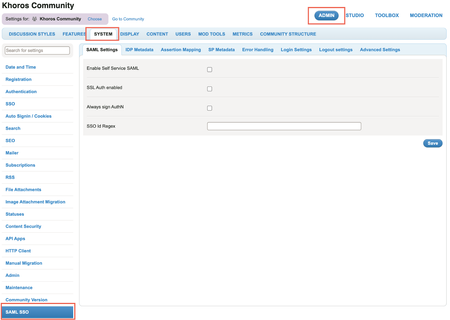
21.5 Release delivers self-serve SAML SSO as an out of the box core product feature, instead of a plugin-based approach. This release also includes enhancements around Events, Group Hubs and Community Analytics, and API updates. Content Features Self-serve SAML SSO Enhancements Remove the restriction on the number of Events node within a category Increase in the date range limit in Community Analytics reports Specify the default sort order for Group Hub List component Set the avatar size in a Group Hub card API Updates New FreeMarker sequence builder method Get node IDs of nodes displayed in the Group Hubs Listing Page You Found It. We Fixed It! Features Self-serve SAML SSO With this release, we’ve redesigned our existing SAML 2.0 integration to enable Community Admins to configure authentication for their Communities and integrate with their SAML IDP by themselves. SAML SSO is now available out of the box as a core product feature, instead of a plugin-based approach used earlier. This simplifies setting up SAML SSO in Communities and helps reduce the total cost of ownership. The key features in Self- serve SAML SSO include: Dynamic metadata: Supports up to three identity providers. Admins can integrate a maximum of three IDPs (that are XML strings) in the Admin panel instead of maintaining it in a config file. Dynamic entity identification: Admins can add the attribute name for the SSOID for their community. If this value changes, Admins can change the value and save it without restarting the Community. Dynamic assertion mapping: Admins can add all the attribute names in the SAML assertion in the Assertion Mapping tab in the Community Admin panel. This eliminates the need for maintaining a config file for Assertion mapping. Note: Communities launching post Community version 21.5 can opt to configure Self-serve SAML SSO while launching. Existing customers who want to switch to using self-serve SAML SSO must contact their Customer Success Manager or Account Executive. This process involves Professional Services (PS) engagement for user/SSO ID migration and may need to address other customisations such as user authentication workflows, custom user profile fields, and other customisations or integrations relying on user data. You can find the settings for Self-serve SAML SSO under Community Admin > Admin > SYSTEM > SAML SSO. Learn more about SAML SSO Learn more on how you can configure SAML SSO from the Admin panel Learn more about the SAML SSO tabs and settings in the Admin panel In the 21.4 release, we introduced the Feature Logs framework. This framework helps generate and view feature specific logs in components and endpoints. Developers and administrators can use these logs to monitor and debug during Community customisation. We are happy to announce that we are now explicitly providing you with status and error logs to help with monitoring and debugging issues when you configure Self-serve SAML SSO for your community. Learn more about Feature Logging in the Developer Documentation Portal. Note: Along with enabling Self serve SAML SSO, the PS/Support team can also enable Feature Logs in your Community so that you can access the logs from the ToolBox while setting up SAML SSO. Enhancements Remove the restriction on the number of Events node within a category With this release, we have removed the limit on the number of Event nodes/boards you can create within a category or Community. Removing this limit allows you to host events specific to a product or exclusive to a particular set of members at the community level or within the same category instead of creating another category to create a new event board. However, you can have only one Event board within a Group Hub. Learn more about Events Increase in the date range limit in Community Analytics reports Earlier Community Managers had to stitch together multiple reports to build Year to date(YTD) reports since the maximum time range for Community Analytics reports was six months. With this release, the date range is increased to one year making it possible to easily view and download YTD reports. Note: You might experience a slight delay when the system fetches or downloads a year’s worth of data. There are no other changes to the way the Community Analytics report works. The look-back period remains two years, and 2000 is still the maximum number of rows available in all CSV exports(except the Bulk Download Member Data Report). Specify the default sort order for Group Hub List component You can now specify the default sort order for the grouphubs.widget.grid component, which displays Group Hub cards in the Group Hub Listing Page. You define the default sort order using a new initialSort parameter in the quilt XML. If the initialSort parameter is not included in the quilt XML for the component, the component is sorted by Member Count. Example: <component id="grouphubs.widget.grid" initialSort="alpha" /> Learn more about setting the initialSort parameter. Set the avatar size in a Group Hub card You can now control the image size of the group hub avatar displayed in a group hub card displayed in the Group Hub Listing Page. Set the default avatar size using the size XML parameter for the node.widget.avatar-limurs component in the Group Hub Card quilt. Supported options are tiny (the default), small, medium, and large. Example: <component id="nodes.widget.avatar-limuirs" size="small" /> Learn more about setting the avatar size in a group hub card. API Updates New FreeMarker sequence builder method We have added the utils.sequence.builder() method to the utils FreeMarker context object to create a sequence builder and build a sequence using a large number of items. Using a builder instead of concatenation improves performance and stability. Get node IDs of nodes displayed in the Group Hubs Listing Page We have exposed a new node subobject on env.context in the FreeMarker API. Returns a node context object. Chain calls from the node context object to get the node ID of the node in context. env.context.node has a single method, .displayId. and is supported only on the GroupHubCard (GroupHubCard.quilt.xml), which is used to format the grouphubs.widget.grid component on the Group Hub Listing Page. You found it! We fixed it! We have fixed the issue in Forums v5 where the HTML option was not available to members with the Allow user to use advanced HTML in posts and signatures permission grant and the Use full HTML in posts and signatures permission denied. We have fixed the issue where the solution count on the leaderboard did not match the user's actual number of solutions. We have fixed the issue that the preview of the avatar did not match the cropped image. We have fixed the issue where deleting the labels of a TKB article via API deletes the list of contributors along with the labels. Now, the list of contributors stays intact after deleting the labels. We have fixed the issue when members with periods or spaces in their usernames receive an error message while uploading or copy/pasting images. We have fixed the issue where the toolbar options in the message editor did not support keyboard shortcuts. Now, you can also access these options without the mouse and only with the keyboard keys. We have fixed the issue where the + sign to open the Community’s Tree Structure in the Admin panel was not available. We have fixed the issue where the Community structure in the Admin panel breaks after the Communities that use the Accessibility feature restart their Community. We have fixed the issue in Forum v5 where opening any post marked as spam did not display that post is marked as spam. We have fixed an SEO issue where the Open Graph URL did not match the Canonical URL. Now, they will be same, thus benefiting SEO.2.2KViewsSign in to react to this post13CommentsKhoros Communities 21.12 Release
Content Enhancement Slack application with Private Communities Create events with past dates API Updates Create events with past dates You Found it! We Fixed it! Enhancement Slack application with Private Communities You can now integrate the Slack application with private communities and perform the same actions (search, kudo, and reply) as you can with public communities. Learn more about the Khoros Community Slack Integration. Create events with past dates With this release we’ve removed the restriction on creating community events that were conducted in the past. You can now add past events to your community by creating them with older dates and uploading the recordings of the event. Note: This enhancement is available with Events Version 1.2. Learn how to achieve the same via APIs Learn more about Events API Updates Create events with past dates As mentioned above, you can now create events (occasions) that were conducted in the past via API. Note: This functionality is available in the Events version 1.2 & above. Learn more about the events, see messages and create occasion use-case. You Found it! We Fixed it! General Fixes Earlier, when you replied by quoting and editing another comment, you received an “invalid HTML” error message. We have fixed this issue. Now, you can successfully edit a reply by quoting and editing it. Earlier, pagination on a TKB board with more than 2000 articles did not behave properly. In cases where more than 2000 articles existed, clicking to go to the last page or a page that would have articles after the 2000th in the list took you to the page that listed the 2000th article instead. This issue is now fixed. Earlier, the "View solution in original post" link on accepted solutions did not direct to the floated solution. We have fixed this issue. Now, the link leads you to the original post in the thread. The issue that the Blog dashboard is visible to anonymous users is now fixed. The issue where the API (in v2) to update the featured guests for an event updated the event's time is now fixed. The issue where Group Hub owners were unable to access the Group Hub Admin panel is now resolved. There was an issue where topics from some communities did not escalate to Salesforce until the community was restarted. This issue is now fixed. Earlier, when visitors agreed to take the Value Analytics survey but submitted the answers after some time, they received an error message. This issue is now fixed. Now, visitors are properly redirected to the community page. Earlier, when an uploaded cover image for an event/forum message was deleted from the member’s image gallery using the API and then you used an API call to get the cover image information via API v2 , the call failed with an unexpected error. This issue is now fixed. The issue where users cannot create a draft in Blogs Version 2 is now fixed. Previously, on communities where multiple hosts serve the community, the SSO registration form is enabled, and users were required to only accept the community's Terms of Service during registration, the user could get into a registration loop. This loop could be broken only by clearing the user’s cache. This issue is now fixed. The issue where a group hub owner received the “join request” emails only in English and not in their preferred language is now fixed. Accessibility Fixes Earlier, when you tried to insert an image and choose the type of album from the drop-down menu, the screen reader did not read out the drop-down menu options. This issue is now fixed. There was an issue that when you tried to embed an external video (from YouTube, Dailymotion, Vimeo, and so on), you were unable to provide a title for the video. This issue is now fixed. Now, the "title" attribute for uploaded videos uses the title provided by embed.ly.1.1KViewsSign in to react to this post3CommentsKhoros Communities 22.7 Release
22.7 is a minor release. As communicated earlier, minor releases contain defect fixes and minor enhancements. Minor releases are not made available in production by default. To request an on-demand upgrade, contact Support. Content Announcement Bug Fixes Announcement Virus Scanner Enablement We are happy to announce that we will be enabling Virus Scanner by default on communities. While this feature has been available and turned on currently for a number of communities, it was not enabled by default. Over the coming releases, it will be enabled by default across communities. This enablement is planned in a phased manner, starting version 22.8. Learn more about Real-time virus scanner Bulk Archive enabled for all communities With this release, the bulk archive feature is enabled by default for all communities. You no longer need to contact the Support team to have it enabled. Learn more about the Bulk Archive feature You found it! We fixed it! General fixes Previously, when community admins sent Event invitations to more than 2000 members via Private Message, the Private Message was not delivered to members and displayed an error message. This issue is fixed. Now, members receive Event invitations via Private Message successfully. Previously, when community admins sent Group Hub or Event invitations to users via email or Private Message and the maximum number of users per invite exceeded the defined limit, the system did not display an error message. This issue is fixed. Now, the system displays an error message that indicates that the number of recipients per invite has exceeded the limit. Previously, when users accepted a post with an image as a solution, and the image was in an album they did not have access to, the EntityUpdated event was not triggered, and nothing was written to the event log. This issue is fixed. Now, the events for accepted solutions with images are triggered and logged in the event log. Previously, when members executed an API v2 call to create posts and the maximum number of attachments per post exceeded the defined limit, the API response did not return a proper error message that indicated the respective limit. The issue is fixed. Now, the API response returns a proper error message. Previously, when community admins or moderators added a comment to a post, a Moderator flag was added to the post. This issue is fixed. Now, comments from admins and moderators do not display the Moderator flag. Previously, members received an incorrect notification count from the notification cache. This issue is fixed. Now, the notification cache returns valid values in the notification count. Previously, members could not find the Knowledge Base articles they had edited in the Salesforce platform. This issue is fixed. Now, the Salesforce platform displays all the Knowledge Base articles created or edited in the community. Previously, community admins or moderators who approved threaded comments added to a blog post did not find the pagination for pre-moderated comments. This issue is fixed. Now, the pagination is available for the pre-moderated comments. Community admins/moderators can review and approve these comments. Previously, when community admins sent Group Hub invitations to members via email and user-preferred language was different from the Group Hub node language, members received invitations in Group Hub node language instead of user-preferred language. This issue is fixed. Now, members receive Group Hub invitations in their preferred language. Previously, when community admins sent invitations to users via Private Message and user-preferred language was different from the preferred language of the sender who sent the invitations, users received invitations in sender’s preferred language instead of user-preferred language. This issue is fixed. Now, members receive Group Hub invitations in their preferred language. Previously, the Group Hub email invitations sent to members included the sender's email address, which raised security issues. This issue is fixed. Now, invitations sent to members do not include the sender's email address. Previously, the draft articles (Blogs or KBs) of any authors displayed on My Contributions page were visible to all the signed-in users (when My Contributions URL was edited) even if they did not have any specific permissions. The issue is fixed. Now, users cannot view the draft articles of other authors without appropriate permissions. This fix is available in community version 22.6. Previously, when admins ran catalog sync to restore the deleted products, the deleted products were not restored after the sync and error messages were logged in the system. The issue is fixed. Now, the catalog sync restores the deleted products. This fix is available in community version 22.6. Accessibility Fixes Previously, tables on the community pages (Forum, KBs, and All Topics) did not have defined table headers. Members who used screen readers had difficulty understanding the purpose of the data. This issue is fixed. Now, table headers are defined and the screen reader reads out a detailed description of the table. Previously, members who used screen readers could not navigate between the tabs on the screen using arrow keys and were instead using the Tab key to do so. This issue is fixed. Now, members can use arrow keys to navigate between the tabs on the screen. Previously, the screen reader focus moved twice on any element on the community page while members navigated via down arrow key in SCAN mode. Members who used screen readers had difficulty understanding the context of the respective element. This issue is fixed. Now, the screen reader focus moves only once on the element of the community page.802ViewsSign in to react to this post0CommentsKhoros Communities 22.9 Release
22.9 is a minor release. As communicated earlier, minor releases contain defect fixes and minor enhancements. Minor releases are not made available in production by default. To request an on-demand upgrade, contact Support. Content You found it! We fixed it! Previously, members with cloned ownership roles were not able to manage members of a hidden Group Hub as the Member Management option was not available to them. This issue is fixed. Now, the Member Management option is visible to members with ownership (cloned/non-cloned) roles, and can manage other members of the hidden Group hubs. The issue where the label filter component slowed down loading the community search page is fixed. Previously, when members tried to rate posts using the Me Too button, the button disappeared and the count of Me Too ratings was not displayed. This issue is fixed. Now, members can rate posts using the Me Too button and can view the count of Me Too ratings to the posts. Previously, the query to retrieve Event’s RSVP details in Community Studio returned the userid instead of the message’s ID. This issue is fixed. Previously, communities that allowed .tgml, rerx, .rpx, .fpg, .arw, and .lis files failed to upload such files successfully. This issue is fixed.584ViewsSign in to react to this post0CommentsKhoros Communities 22.6 Release
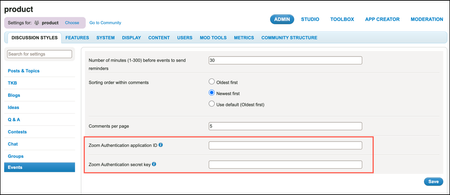
Content Enhancements Encryption of Zoom apiKey Salesforce Connector 4.3 (Early Access) Bug Fixes Enhancements Encryption of Zoom apiKey Earlier, Community Admins shared their organization’s Zoom apiKey and apiSecret values with the Khoros Support team to integrate the Zoom application with Community Events. With this release, Community Admins can now manually enter, update, and delete the Zoom API ID and secret key values in the Community Admin panel. These values are encrypted and stored in Khoros’ database. Since they are encrypted, external parties cannot access the API ID and secret key values. To add API keys: Go to Community Admin > Discussion Styles > Events. Specify the Zoom Authentication application ID and Zoom Authentication secret key fields. Click Save. Learn more on Integrate Zoom with Community Events Salesforce Connector v4.3 (Early Access) This version includes enhancements and addresses issues of the previous versions to improve overall Salesforce-Community integration experience. This version provides the following enhancements: Better controls over triggers and case-related emails Ability to use custom fields to map community and Salesforce contact objects SDFC API upgrades to the latest versions, and few other enhancements NOTE: If you want to be considered for the Early Access (EA) program, contact your CSM. If selected, CSM works with the Support and product teams to upgrade the Community Connector for the Salesforce version. Learn more on Connector for Salesforce package versions and upgrades Learn more about the issue fixes and enhancements on all Salesforce Connector Versions You found it! We fixed it! General fixes Earlier, there was an issue in some communities where digest notification messages were not sent out. This was due to the limit on the value of the unique identifier of messages specified in the database table. The issue is fixed. The digest notification tables are now independent of the unique identifier. Communities can now send as many digest notification messages as needed. When community admins or moderators added a comment to a post, a Moderator flag was added to the post. The issue is fixed. Now, comments from admins and moderators do not display the Moderator flag. When a community member other than an admin, moderator, or the owner of a post ran the API query to retrieve the details of a cover_image, they received a permission denied message. The issue is fixed. Now, members with appropriate permissions can successfully run this API call. Previously, when you removed a community member from a community, the database tables did not delete the subscription details. This led to failures when the community restarted or when a backup was done. This issue is fixed. Now, after removing a member, the community restarts successfully. Previously, when community admins sent Group Hub invites to users via email, users received invitations from the email ID of the community admin who sent the email instead of the community email ID. The issue is fixed. Now, users receive invitations from community email ID. When community admins sent Group Hub invites via Private Message and the community’s preferred language was not English, the Private Message received by the members used to have invalid group hub invitation link and creation date values. The issue is fixed. Now, members receive Group Hub invitations with a valid invitation link and creation date values. When community admins sent Group Hub invites to more than 1000 users, many users did not receive the invitations. The issue is fixed. Now, users receive the Group Hub invitations. Event invites used to display the time of an event in the timezone of the member who sent the invite. This issue is fixed. Now, the event’s timezone displays according to that of the receiver. When you used the Advanced search option in Private Messages, the search text field used to display invalid text instead of the specified text or blank text. This issue is fixed. Now, the search text field displays the specified search keyword or is empty. When you assigned editor and publisher roles for a board in Blog v3 and TKB V4 (or any later versions of Blogs and TKB), members used to be assigned to these roles for all the boards in that node. The issue is fixed. Now, members are editors and publishers only for the assigned boards and receive notifications for these boards only. Previously, the draft articles (Blogs or KBs) of any authors displayed on My Contributions page were visible to all the signed-in users (when My Contributions URL was edited) even if they did not have any specific permissions. The issue is fixed. Now, users cannot view the draft articles of other authors without appropriate permissions. Previously, when admins ran catalog sync to restore the deleted products, the deleted products were not restored after the sync and error messages were logged in the system. The issue is fixed. Now, the catalog sync restores the deleted products. Accessibility Fixes The View Link link on the community page did not have a description other than the name of the link. Members who use screen readers had difficulty understanding the purpose of the link since it did not have enough text to read out. This issue is fixed. Now, the screen reader reads out a detailed description for the link.1.3KViewsSign in to react to this post8CommentsConfigure Salesforce integration in an Aurora community
The Khoros Community integration package leverages custom Salesforce settings, which are used by many components and relate to the Khoros Community configuration settings on Salesforce. After you set up your Salesforce environment, you must configure your community environment to complete the integration. From the community Settings area, admins can access and configure Salesforce settings (Settings > Features > Salesforce). To configure the Salesforce integration: Sign in to the community as an Admin. Go to Settings > Features > Salesforce > Settings. From the Settings section, configure the following: In Username for Salesforce, select Edit and configure the following: Username for Salesforce: Enter your full sign-in name (usually an email address) for a user with the System Administrator profile in your Salesforce environment. Password: Enter your password and your “Salesforce.com” security token in this field. For example, if your password is “secret” and your security token is “1234,” you would enter “secret1234” in this field. Read more on how to reset your security token. Salesforce API URL: This is a mandatory field. Enter a URL for the Salesforce SOAP API based on the environment type you’re connecting to: Production: https://login.salesforce.com/services/Soap/u/ Sandbox: https://test.salesforce.com/services/Soap/u/ Authentication endpoint for Salesforce: Enter the authentication endpoint based on the Salesforce environment you’re connecting to: Production: https://login.salesforce.com/services/oauth2/token Sandbox: https://test.salesforce.com/services/oauth2/token Email for Salesforce integration failure notification: Enter the email addresses (separated by commas) of the members to be notified when the Salesforce integration point fails. Changes to the Salesforce Integration API App If you're using connector version 4.4 or higher, make the following changes to the Salesforce Integration API app. These changes are not required for versions earlier than 4.4. Contact support to enable the appropriate configuration for your community for Salesforce connector v4.4. The new setting automatically appears in Aurora Admin as shown below. Open the Options menu for this app (three dots) and select Edit web app. The Edit Web App window opens. In the Authorization redirect URL field, enter the redirect URL (or the callback URL). The redirect URL is the URL of the VisualForce page for Custom Settings in Khoros Salesforce Connector. Select Edit. The entries are saved.1KViewsSign in to react to this post0CommentsAurora: Create a new Salesforce email service
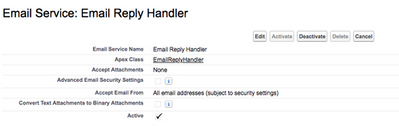
After configuring the custom Salesforce settings with the help of Khoros Community integration package, you must: Create a new email service Create a new email address under email reply handler Disable workflows (for upgrades only) Important: If your community is connected to a Salesforce instance that has a namespace prefix, the Community config 'salesforce.api_namespace = <Namespace of org you are connected with>' needs to be updated. To have your namespace updated, open a Support ticket. Create a new email service In the Salesforce portal, go to Setup > Develop > Email Services. Click New Email Service. In the Email Service Name field, enter "Email Reply Handler.” Search and attach "EmailReplyHandler" in Apex Class. For Accept attachments, select None. Click Save. Create new email address under email reply handler In the Salesforce portal, go to Setup > Develop > Email Services. Click Email Reply Handler. Select New Email Address. For Email Address Name, enter "Default." For the Email address, enter email_reply_handler. Remove values from Accept Email From. Click Save. Disable workflows (for upgrades only) If you have upgraded the Salesforce Connector from a version lower than v4.2, all existing workflows for sending emails to Case contacts are moved to triggers. Since it is not possible to deactivate existing workflows via upgrades, you must do so manually. Go to Setup > Workflow rules > Mark below mentioned workflows as inactive. Notify customers (with access) on Case creation. Notify customers (with access) on Case status change. Notify customers (without access) on Case creation. Notify customers (without access) on Case status change. If this is not done, users will receive two email alerts for each case activity relating to case creation, case status updates, and case comments.532ViewsSign in to react to this post0CommentsAurora: Configure custom Salesforce settings
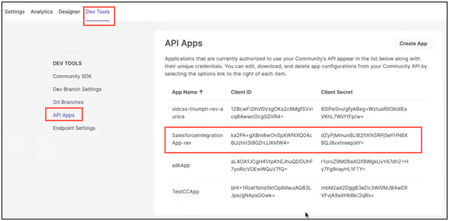
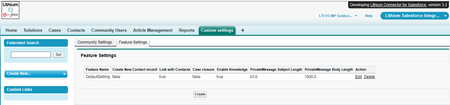
The Khoros Community integration package leverages custom Salesforce settings, which are used by many components and relates to the Khoros Community configuration settings on Salesforce. To apply settings for your Khoros environment: Sign in to your Salesforce.com environment. From the dropdown on the top right of the page, select App as "Khoros Salesforce Integration." Select the Custom Settings tab. Go to the Feature Settings tab. Select Create. Enter the Feature Settings: Feature Setting Name: Default is "DefaultSetting." Do not change this setting, as it is non-editable in newer packages. Create New Contact record: Select this option to enable the creation of a new Contact during user sync if a Contact with the matching email ID is not present. During User Sync, Contact and Community users are linked together. The linkage is necessary for Case Portal functionality. (You must enable the Community User Trigger below for this setting to work.) Link Community User with Contacts: Select this option to allow linking of Community user and Contact during user synchronization, if a contact with same email ID already exists. The linkage is necessary for Case Portal functionality. (You must enable the Community User Trigger below for this setting to work.) Case closure: Select this option to allow automatic case closure when a comment on a post is accepted as solution on community. (You must enable the Case Trigger below for this setting to work.) Max Allowed Private Message Subject Length: Sets the maximum length the Private Message subject (up to 43 characters). Max Allowed Private Message Body Length: Sets the maximum length the Private Message body. No of Federated Search Results from Salesforce: Limits the number of Federated Search results (applies to Salesforce results only). Default value is 100 (Package 4.1 onwards). Enable Community User Trigger: Select this option to enable Community User Trigger. This trigger runs on community user creation/update and links community users with contacts. This linkage is necessary for Case Portal and User Sync functionality. Enable Case Trigger: Turns on or off triggers on cases, which synchronize case status changes with community and also mark a case as closed. Enable Case Comment Emails: Toggle Case Comment email on and off. (Package 3.7 onwards) (Optional) Fallback Community Username: Enter username of the Community user to which postbacks should fall back to when a Community user is not found corresponding to the email address of the user replying. This is also used in case of multiple users with the same email address. Entered Community user should be a valid value. (Package 4.0 onwards) Allow Case Comments for public Community Cases: Select this option to enable the creation of Case Comment on Public Community Cases in Salesforce. (Comment does not sync to community.) If not selected, it does not allow case comment creation for public community cases in Salesforce. (Upcoming, Package 4.2 onwards) Note: The Enable Knowledge and Lightning Knowledge options must be turned off as they are not supported in the community. These options allow knowledge base articles to be created, updated, deleted, and searched from the community. Select Save. Configure your remote site access. Set profile permissions: Go to Setup > Manage Users > Profile. Select the profile used for integration. Ensure the appropriate Field Level Security Permissions are granted for Standard and custom objects (Account, Case, Contact, Postback Comment, Community Users, Private Message). The recommendation is to grant the administrator role so that members can have read/write access to all fields for objects that are required for integration to work. Go to Custom Settings > Community Settings > Create. Enter community settings details (If you are using v4.3 connector version, go to step 12 instead). Community ID: The ID of the integrated application. Contact your CSM or Support to get this value for your community. Client ID: The Client ID of the SalesforceIntegration API App on the community (Admin > Dev Tools > API Apps). This is configured from <link to these instructions - https://docs.google.com/document/d/1MuDPjcuO2hPjFPzlXfktjO8tkWr3xhjysgsHZJSo-BI/edit?tab=t.0#heading=h.bfd4q6thij1w ) Secret: The Secret corresponding to the Client ID. Redirect URL: The URL of the VisualForce page for Custom Settings. Base URL: The community base URL. For subpath-enabled communities, append the subpath. Is Proxy Enabled?: Always select this for Aurora applications. Context Name: Tapestry Context name/Webserver char path. Example: t5/s. Authorize the connection. After saving, the connection status shows Not Active. Select Authorize. You are redirected to the authentication window. Select Authorize. You are redirected to the authentication window. Note: Authorize with an Administrator or a member with admin-like permissions to prevent API call failures. After successful authentication, you are redirected to the custom settings page with the message "TenantId: is successfully authorized." The Connection Status updates to Active. The Username field displays the username used for authorization. This generates Access and Refresh tokens, and they are stored in a Salesforce object. Note: When the access token expires, the Connection status changes to Halted. A "RefreshAuthToken" link appears. You can always re-authorize by selecting the Authorize link. By default, the refresh token expiry of the salesforceIntegrationApp is set to 5 years. If you are using v4.3, then enter the Community Settings as shown below (If you are using v4.4, skip this step): Community Id: Enter your community ID. (You can get your ID from your Customer Success Manager, if you don't have it. If you've already entered this information, select Edit.) Username: Enter the Khoros username to be used in Khoros API calls. Note: This user must be a non-SSO user with administrator permissions, and the email address for this user must be verified in the community. If an agent has an account on the target community that uses the same email address as their Salesforce account, their personal community user account is used as the author of the postback. We recommend that your brand's Salesforce agents create their own community accounts for this purpose. Password: Enter the Khoros password associated with the above username. Base URL: Enter the Base URL value according to your Khoros environment (see below). Note: Be sure to include the https:// and HT credentials. Use the following format: https://<HTUSER>:<HTPASSWORD>@<***Community URL> Example: https://test123:[email protected]/ Select the Is Proxy Enabled? checkbox. Context Name: Set Context Name to “t5" unless your Community has a Reverse Proxy implementation in place, in which case, contact your Customer Success Manager or Khoros Support and request the value of tapestry.context.name from your community config. Select Save. To set the maximum number of search results to be returned in the Federated Search component, go to the Feature Settings tab and set the No. of Federated Search value. Select Save. With HT-Access turned off in the Khoros community: Khoros Communities Stage Base URL Sandbox https:// [community_id].stage.lithium.com Production https:// [community_id].lithium.com Note: If you have a more descriptive CNAME/vanity address for your community, use that name when creating the URL (for example, https://community.mycwebaddress.com). With HT-Access turned on in the Khoros community: Note: Contact Support to get the ht-access credentials for your community. Contact your Customer Success Manager to get your Community ID. Khoros Community Stage Base URL (Example with community id as “abc”) Sandbox https://htusername:[email protected] Production https://htusername:[email protected]1.2KViewsSign in to react to this post0Comments


You’ve seen all recent content