Beginner’s Guide to Atlas
Welcome to Atlas! This is the place to learn and connect with digital pioneers and social business experts from around the industry - plus you'll find a wealth of resources and knowledge to get the most out of Khoros products and Atlas, the Khoros Community. Quick Start Guide Get registered Find answers Ask others for help or advice Mark posts as solutions (and give kudos) FAQs Access What areas of Atlas do all registered users have access to? What areas of Atlas do customers and partners have access to? How do I request elevated access to different areas of Atlas? Support How can I get help with technical aspects of a Khoros product? I’m having issues logging into Atlas - who should I ask for help? Training Where can I find training materials for Khoros products? How can I get one-on-one coaching for products? Contributing How can I help the community? What is the Titans program? Questions? Where should I post if I have questions? I’m stuck and I could use an assist. Helpful Resources Release Notes & Announcements Khoros Care Khoros Communities - Aurora Khoros Communities - Classic Khoros Marketing Tips & Ideas Khoros Insights Quick Start Guide 1) Get registered On the Atlas homepage, you can register by clicking "Register" at the top right of the navigation bar, then creating a username and password and entering your email address (only used for community notifications). 2) Find answers Use the search bar on the Atlas homepage to find answers to common Khoros product questions You can also find some helpful resources in the Khoros Insights blog under the Discover tab at the top of the page. 3) Ask others for help or advice (Customers and Partners only) Can’t find what you’re looking for? Visit any of the Discussions areas under the Help & Support tab in the top nav bar and click Create New Post to get some help. Be sure to briefly review the Community Guidelines before posting. 4) Mark posts as solutions (and give kudos) (Customers and Partners only) Don’t forget to use the thumbs-up button on helpful posts! If any solution was especially helpful, be sure to choose Accept As Solution at the bottom of the user’s reply. That’s it! If you can, be sure to pay it forward by subscribing to boards where your knowledge might help others, so you can get e-mails to help you chime in on questions from other community members. FAQs Access What areas of Atlas do all registered users have access to? Without customer/partner access, you can view product blogs and release notes for our products, as well as join webinars, and learn about our super user programs. What areas of Atlas do customers and partners have access to? Customers and partners get exclusive access to help and advice from the s… 5.1KViewsSign in to react to this post
 0Comments
Atlas Single Sign-On (SSO) & Registration for Marketing Customers
Marketing customers previously had to email Support or CommunityHelp to gain access to gated content in Atlas if they were using a Marketing Product. On March 17, 2020, we implemented single sign-on (SSO) so these requirements are no longer necessary. If you’re a marketing customer and would like to know more about how SSO will affect your access to Atlas, please read the FAQ below. How can Marketing customers register for Atlas? How can Marketing customers log in to Atlas? How should I log in or register if I use Khoros Marketing and another Khoros product? What if a Marketing customer clicks a link within the Marketing product? What if the Marketing customer uses a different email for Marketing and Atlas? What if the Marketing customer has multiple logins for different Marketing environments? What is SSO? What about Care and Community customers? Still having trouble? How can Marketing customers register for Atlas? The Marketing Customers button will allow Khoros Marketing users (formally Spredfast) to sign or register into Atlas via Signal Sign On (SSO). If you use Khoros Marketing and another Khoros product, we recommend you sign in using Marketing SSO. How can Marketing customers log in to Atlas? Marketing customers will be given the opportunity to log in to Atlas using their Khoros Marketing credentials. If the user has already registered for Atlas, Khoros will utilize SSO, to automatically log them into the page they were trying to get to. How should I log in or register if I use Khoros Marketing and another Khoros product? If you use Khoros Marketing and another Khoros product, we recommend you sign in using Marketing SSO. What if a Marketing customer clicks a link within the Marketing product? If a Marketing customer follows a link to documentation from within a Marketing product, this will trigger the flows above. What if the Marketing customer uses a different email for Marketing and Atlas? They will need to update their Atlas email to match the email they use for the Marketing platform. They can change their email address in their email settings page. If the user doesn’t change their email, they will have duplicate accounts. What if the Marketing customer has multiple logins for different Marketing environments? They can either set up multiple Atlas profiles or choose to log in with one natively through Atlas. What is SSO? Single sign-on is an authentication scheme that allows a user to log in with a single ID and password to any of several related, yet independent, software systems. What about Care and Community customers? We are investigating ways to provide SSO to all of our customers, but for now, Care and Community customers will still need to request customer access by emailing [email protected]. For more details, visi…113KViewsSign in to react to this post2CommentsHow to Register for Atlas
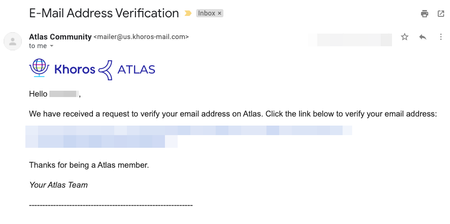
If you haven't already registered for Atlas, the Khoros community, this tutorial will show you how. All you need is a username, password, and a valid company email address. After you register, you can post to the community, receive email notifications, and lots more. It's quick and it's free! Option 1. Marketing Customers Registration Click on Register at the top right of the community, then the Khoros One SSO option. Learn more about logging in via SSO here. Option 2. Manual Registration Registering for Atlas Verifying your email Requesting Customer Access (if applicable) Requesting Case Portal Access (if applicable) 1.) Visit community.khoros.com. 2.) Click Register at the top-right corner. 3.) Click Register Now. 4.) Fill out the form and read and accept the Terms of Service. 5.) After you register, you must verify your email. Check your inbox and look for an email from the Atlas Community ([email protected]) and click the link to verify your email. If you don’t see the email after a few minutes, check your spam and promotional folders. If you still don't see the email, please contact us at [email protected]. 6.) If you are NOT a Khoros customer or partner, your registration is now complete. Welcome to Atlas! 7.) Customers and partners, once you have registered, please email [email protected] to request elevated access to Atlas. Without customer/partner access, you’re missing out on exclusive forums, customer ideas, the knowledge base articles, and much more! So don't hesitate to reach out, we'll get you sorted. 8.) If you also need access to Khoros Support Case Portal, please sign up here. Further instructions on signing up for Khoros Support here. SSO is used in the Atlas community and will not work in the Khoros Support Case Portal. You will need to make an account. Once you’re registered, visit the About Our Community area for more resources. Do you have any questions? Email us at [email protected]!29KViewsSign in to react to this post0CommentsHow to Use Atlas
Welcome to the Atlas Community. We've put together this guide to help you perform common tasks on the community, so you can get started participating sooner. Register with the community In order to get the most out of the Atlas community, you'll first need to register an account. Learn how to register and get started using Atlas here. Personalize your community experience Once you've created an account, you can personalize and customize your community experience in several ways. Most community members: Change their community avatar Set common viewing preferences Change your community avatar Changing your avatar is an easy way to personalize your community identity. You can change your avatar as often as you like. Your current avatar appears at the right side of the top navigation bar. To change your avatar: Go to your profile menu at the top right > My Settings. Click on the pencil icon next to your profile photo. Choose a new avatar in one of these ways: Choose a generic avatar from the Community collection on the right. Click the pencil icon on the new pop up to upload an image of yourself from your personal collection. Once you're done, click the Save button. Set your viewing preferences You can control display preferences, including your time zone, the date display format, and the date display style. To set your viewing preferences: Go to your profile menu at the top right > My Settings > Preferences. Click into each field and make the changes you want. Getting the most value out of Atlas Your role on the community A community is a place to search for information, read and post about topics of interest, and learn from each other. You are essential to keeping the community vibrant, even if all you ever do is read messages or articles that someone else has posted. We encourage you to visit often and participate. Ask your toughest questions. Chances are someone has a solution or can point you in the right direction. If you find a solution that works, let others know and pass on your own tips and insights. You might just have the answer someone else needs. Remember to thank community members who have helped you. Show your appreciation by giving kudos to helpful posts, accepting a solution that answers your question, or posting thank-you replies. We want the community to be appropriate, friendly, informative, and fun for everyone. Be sure to read the Community Terms of Service and the community's Rules and Guidelines so that you know what to expect and what is expected of you when you're here. Posting and replying on the community Posting on the community is easy. Simply go to any area you have permission to see and post in, and click the Start a discussion button - or if you are replying to another person’s post or comment, click the text box toward the bottom of the page. After that, type your text in the message editor and …49KViewsSign in to react to this post0Comments



You’ve seen all recent content