Aurora Community static IP addresses
A variety of Aurora Community integrations may require allowlisting IP addresses associated with requests to external resources or services. Some example integrations include: API Event Subscriptions (webhooks) Certain types of SSO, like OAuth 2 or OpenID Connect Custom Freemarker components using the http.client context object Custom back-end integrations built by Professional Services If your Community-related security architecture includes IP based allowlists, the following values can be used: AMER production AMER stage 34.218.217.104 35.167.51.70 34.208.76.195 35.155.246.43 35.155.246.68 52.41.143.85 EMEA production EMEA stage 52.213.102.195 52.214.128.6 34.246.41.42 52.51.95.11 34.246.43.26 52.208.187.165 APAC production APAC stage 54.206.152.214 3.105.80.217 52.65.188.98 3.105.88.113 13.239.46.46 13.55.41.72 Note: The listed IP addresses are associated only with outbound requests from Community and are not valid for inbound requests to the Community. Community IPs used with inbound requests are variable and change over time. Do not use these IPs as an element of any DNS record. If you're unsure if your Community is hosted in the AMER, EMEA, or APAC region, contact Khoros Support. 420ViewsSign in to react to this post
 0Comments
Aurora: Enable a site-wide cookie usage notification banner
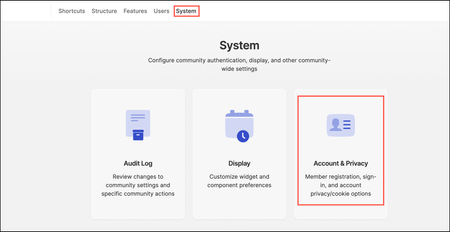
As part of the new data privacy regulation in the European Union (EU), websites are required to provide an explicit user consent for the usage of tracking cookies. Companies must also provide access to a description of the information collected/stored in those cookies. To enable the cookie banner for your community: Sign in to your community as an Admin. Open the Account menu and click Settings. Go to System > Account & Privacy. Under General, Select the Turn on cookie policy notification banner option and enter the URL for your cookie/privacy policy. Note: If you leave the URL field blank, the Learn more link in the banner goes to Khoros’ public Cookie Datasheet page. Click Save. When the cookie banner notification is enabled, every page on your community site displays the “this website uses cookies” banner: The banner is displayed on your community site for each visitor until that visitor clicks the Accept or Decline button. Visitors who click Preferences are presented with more granular cookie privacy options to manage. After visitors confirm their selections, these preferences are saved in their browser and the banner disappears. Users must click Accept in the cookie banner and explicitly confirm their consent to activate the community cookies. Once accepted, the cookie does not appear in subsequent sign-ins. If visitors click Decline, only the Type 1 cookies (“Strictly Necessary”) are set, and all other cookies are held back. Once rejected, the cookie banner does not appear in subsequent logins. If visitors do not accept or decline and continue to browse the community, only the Type 1 cookies (“Strictly Necessary”) are set, and all other cookies are held back. The banner continues to show in subsequent sign-ins. About the use of the cookie banner and its impact on visitor metrics As required by the ePrivacy Directive in EU, this banner also blocks tracking cookies until there is an affirmative action from the visitor. This is accomplished by rejecting (clicking the Reject button on the banner) or continuing to browse the site. Note that blocking tracking cookies until there is an affirmation from the member will have an impact on “Visits” and “Unique Visitors” metrics accuracy. Each new request of such member is considered a new, billable visit. Customers on billing visits will be affected. Learn more about Khoros cookies in our Khoros Cookies Data Sheet.642ViewsSign in to react to this post0CommentsGDPR “soft-delete” period for Aurora
As part of our support for GDPR, we have provided for a soft-delete period for all member account deletions. During this period of time, you can undo an account deletion and restore the deleted account. To request an account restore, open a Support ticket and include the user ID of the account you want restored. This soft-delete window provides a built-in safety feature to handle any accidental or malicious deletes. After the soft-delete window (default is set to 10 days) has passed, deleted accounts cannot be recovered. During the soft-delete period, the username is reserved and cannot be used when creating a new account. After the soft-delete period elapses, the deleted username is made available again for new members. Note: This 10-day period is subsumed in 30-day SLA for user deletes. Note: When querying for the number of deleted accounts via the API, the response does not include any accounts in a soft-delete state, only accounts that have been hard deleted. The soft-delete period set to 10 days by default but is configurable. The recommended maximum value is 10 days so as to not risk the GDPR-mandated 30-day SLA for account deletions. To request a change to the default value of 10 days, open a Support ticket. No action is required on your part to activate this feature and use the default configuration.443ViewsSign in to react to this post0CommentsGDPR and CPPA FAQs for Aurora
What is GDPR? GDPR stands for General Data Protection Regulation. GDPR went into effect on May 25, 2018 and is a regulation by which the European Parliament, the Council of the European Union, and the European Commission intend to strengthen data protection for all individuals in the European Union. What is CCPA? CCPA stands for the California Consumer Privacy Act of 2018. The CCPA went into effect on January 1, 2020 and grants California consumers certain rights over their personal information. Who has to comply with the GDPR and CCPA? Under GDPR, data controllers and Data Processors who are based in the EU and/or collect or process personal data of EU residents (regardless of where the Data Controller or Data Processor is located). Under CCPA, companies doing business in California, which such entity is defined under the act as a legal entity that collects personal information from consumers and it determines the means for processing that information. The CCPA also applies to service providers, which are defined under the CCPA as a company handling PII on behalf of a business for a business purpose. How do I get GDPR/CCPA enabled for my Aurora community? GDPR/CCPA is enabled by default for all Khoros Communities. Who's who under GDPR and CCPA? Under GDPR, a Data Controller is the entity that determines the purposes, conditions, and means of the processing of personal data, while the Data Processor is an entity which processes personal data on behalf of the controller (Learn more). A Data Subject is an individual person who is an EU resident. Under CCPA, a Business is the entity that determines the purposes, conditions, and means of the processing of personal data, while the Service Provider is an entity which processes personal data on behalf of the business. A consumer is an individual person who is a California resident. In the context of “Online Communities”, the business or brand running the Community is the Data Controller under GDPR or "business" under CCPA, and Khoros is the Data Processor under GDPR and "service provider" under CCPA. The Community end-user is the Data Subject under GDPR and "consumer" under CCPA. What constitutes PII in Online Communities? The list of PII fields are email, login, first name, last name, title, URL home page, biography, notes, location, signature, browsing history, search history, avatars, cover image, language, IP address, and device ID. What does Khoros do to provide GDPR/CCPA support? Khoros provides support for GDPR/CCPA compliance by offering ways to view, edit, obtain a machine-readable copy of, and delete members’ Personally Identifiable Information (PII). Enhancements will cover three areas: PII retrieval PII deletion Demonstrating Compliance PII deletion, when exercised, will permanently anonymize the PII of the members and attribute the content to an “Anonymous User”. The “Anonymous User” will have a standard username and a default avatar to dis…485ViewsSign in to react to this post0CommentsAurora: Manage your community content and personal information
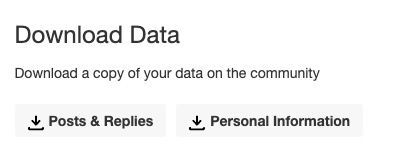
As a community member, you have control over your personal information and can perform these PII-related tasks: Retrieve PII Delete PII Delete device-related information Retrieve Personally Identifiable Information To view and edit your PII data: Sign in to Community. Open the Account menu and click My Settings. Click Security & Account. In the Download Data section, click Posts & Replies to download a copy of your community contributions and/or Personal Information to download your personally-identifiable data. Delete Personally Identifiable Information To delete your personal data, you need to close your community account: Sign in to Community. Open the Account menu and click My Settings. Click Security & Account. In the Close Account section, click Close Account. Admins Only: You can delete personal data for a member's account in these ways: Admin Close Account: Admins with elevated permissions can close member accounts directly from Community Admin. Learn how to close member accounts. Community Member Close Account: You can also delete a user’s PII directly from the user's profile in the community. When PII deletion is initiated, a member's profile is permanently anonymized, and their content is attributed to an “Anonymous User.” The “Anonymous User” has a standard username and a default avatar to distinguish the profile from other users. The deleted data includes only the PII of the user, while the user's contributions (posts, comments, kudos, and so on) will be maintained as and associated with an anonymous user. Delete device-related information As a member, you can opt to delete device-related information from your account, specifically the IP addresses that have been used by this account and the mobile device associated with the account. To delete personal device information from your community account: Sign in to Community. Open the Account menu and click My Settings. Click Security & Account. In the IP Addresses section, click Delete ALL IP Addresses. Note: If you delete your Device ID, you will no longer receive notifications. Notifications will be restored the next time you sign in to the community.534ViewsSign in to react to this post0CommentsAbout GDPR for Aurora
Khoros Communities support for GDPR (General Data Protection Regulation). GDPR is a data protection regulation that aims to give individuals higher control over how their personal data is collected and used. Using GDPR, the European Parliament, the Council of the European Union, and the European Commission intend to strengthen data protection for all individuals in the European Union. The regulation is intended to go into effect on the 25th of May 2018. This means that organizations that collect and use personally identifiable data of individuals must comply with the GDPR guidelines by the 25th of May 2018. GDPR applies to any organization functioning within the European Union (EU), as well as any organizations functioning outside the EU that offer goods or services to customers or businesses within the EU. GDPR aims to ensure that the personal data of individuals is gathered legally with careful considerations to individual consent. It also requires organizations that collect and use personal data to ensure the safety of this data. It gives individuals greater control over deciding how their data must be collected, stored, or processed. For more information about GDPR and what it means to you, check out our GDPR FAQ. Khoros and GDPR Khoros supports GDPR compliance by offering ways for users to view, edit, obtain a machine-readable copy of, and delete a member’s Personally Identifiable Information (PII) or personal data. PII deletion, when exercised, permanently anonymizes the member's PII and attributes the content to an “Anonymous User”. The “Anonymous User” had a standard username and a default avatar to distinguish itself from other users. Learn more about GDPR. Managing GDPR for Aurora GDPR Support is enabled by default for all Khoros Communities. Privacy-related tasks you can perform include: Enable side-wide cookie usage notification banner (admin only) Manage your community content and personal information429ViewsSign in to react to this post0CommentsAurora: Consent to add external videos to posts
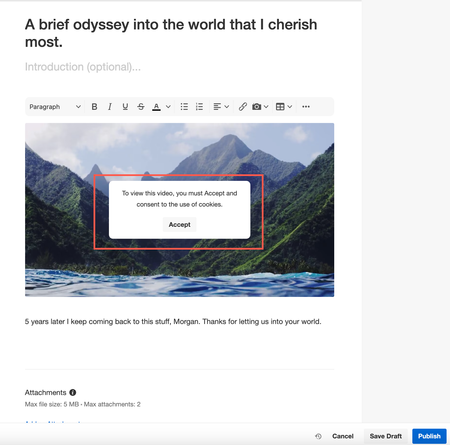
To further comply with the latest privacy regulations, we have introduced a new enhancement to view external videos on the community. We have prioritized member’s compliance by ensuring that external video providers cannot drop cookies without explicit user consent. Members are now required to explicitly consent to the use and storage of third-party cookies from external video providers before streaming content on the community. This measure ensures that both community and external video provider cookies comply with regulations, protecting member data and maintaining compliance standards. Note: This feature is set by default. If you want to change the default settings, contact Support. Below is an example of how this banner appears when you add external videos to Blog posts. Learn more about adding media to your content261ViewsSign in to react to this post0Comments



You’ve seen all recent content