About Content permissions
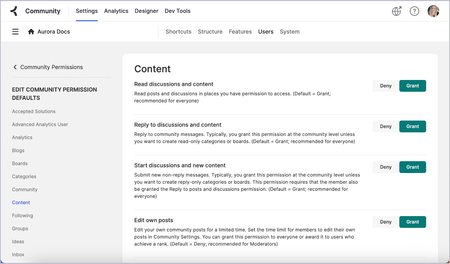
You can adjust permissions related to content at the community, container (category & group), and board level. Some permissions are set to Deny by default while others are set to Grant by default. At the container level and the board level, permission defaults and role permissions are inherited from the parent level. In those cases, the Inherit button is displayed in green to indicate that the permission was set to Grant at the parent level or red to indicate that the permission was set to Deny at the parent level. As an admin, you can manage these permissions. To manage content-related permission defaults at the community level: Note: To manage this permission at a lower level, go to the [Place] Permissions page and edit the permission defaults for that level. To manage this permission for a particular role, go to the [Place] Permissions page at the desired level of the community and edit the permissions of the individual roles. Go to the Roles and Permissions page for the community. Beside Community Permissions Defaults, select Edit. Review permissions in the following areas: Blogs Content Events Ideas Knowledge Bases Select Deny or Grant as required. Unless you have specified different permissions for certain roles or levels below the community level (a category, group, or board), these selections affect all members of the community. Content permissions While Forum permissions are granted by the Content permissions, Blogs, Event Boards, Ideas boards, and Knowledge Bases have distinct permission sections for content type-specific tasks. The Content permissions are provided for general content access and tasks and relate to all content types. Follow the links in the table below to learn more about the tasks granted by these permissions. Permission Default Related permissions in content type sections Read discussions and content Grant Blogs: Read posts and Read comments Ideas: Read ideas and comments Reply to discussions and content Grant Blogs: Comment on posts Events: Comment on events Ideas: Comment on ideas Knowledge Bases: Comment on articles Start discussions and new content Grant Blogs: Start new posts Events: Post new events Ideas: Post new ideas Knowledge Bases: Create, edit, publish, and manage articles Edit own posts Deny Blogs: Edit own published posts Events: Edit own events Ideas: Manage ideas and comments Knowledge Bases: Edit own published articles Edit any post Deny Blogs: Edit any published post Events: Edit all events Ideas: Manage ideas and comments Knowledge Bases: Edit any published article Move content Deny Blogs: Manage any posts and Manage own posts Delete own post Deny Blogs: Manage own posts Events: Delete own events Knowledge Bases: Delete own articles Delete any post Deny Blogs: Manage any posts Events: Delete all events Ideas: Manage ideas and comments Upload file attachments Deny Embed external content Grant Turn on link hyperlinking Grant Use simple HTML in posts Grant Use advanced HTML in posts Deny Use full HTML in posts Deny Make content read only Deny Post read-only content Deny Bypass moderation Deny Blogs: Bypass comment moderation Events: Bypass comment moderation Ideas: Bypass moderation Knowledge Bases: Bypass comment moderation Related topics: About Aurora Community site structure About Aurora Content Types 850ViewsSign in to react to this post
 0Comments
Aurora Community site structure hierarchy and terminology
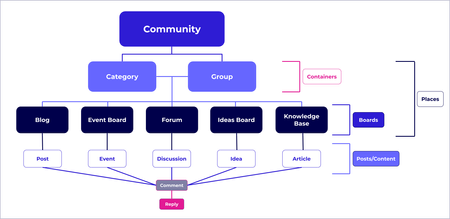
This quick reference guide lays out the hierarchy and meaning of some of the site structure terminology in Khoros Community Aurora. Hierarchy Glossary Term Definition Blog Board that houses blog posts Blog post Individual post on a Blog board Board General term for lower-level Place that holds content; encompasses Blog, Event board, Forum, Knowledge Base, and Ideas board Category Highest-level Container in your community; can contain Groups and Boards Comment A top-level response to a post on a Board Container General term for higher-level Place that houses Boards; encompasses Category and Group Content Collective term for posts (for example, “Our community contains a lot of content about our products.”) Content Type General term for the style of content that coincides with the Board types: Blogs, Events, Forums, Knowledge Bases, Ideas Discussion Individual post on a Forum Event board Board that houses events Event Individual post on an Event board Forum Board that houses discussions Group Higher-level Container that enables community members to engage around a common theme or purpose; can contain Boards of one content type Ideas board Board that houses ideas Idea Individual post on an Ideas board Knowledge base Board that houses knowledge base articles Knowledge base article Individual post in a knowledge base Place General term that encompasses Containers and Boards Post General term for an individual piece of content if type is irrelevant; encompasses blog post, event, forum discussion, knowledge base article, idea (for example, “If you want to make a post in our community, sign in first.”) Reply A response to a comment Related topics: About Community site structure Community Structure Best Practices865ViewsSign in to react to this post0CommentsAurora: Make a category or board private
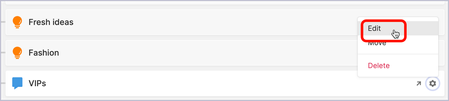
In addition to public categories and boards, you can create categories or boards that restrict access to selected community members. You might set up a private category or board to be used exclusively by administrators and moderators or to test changes to your community behind the scenes. You might also use a private category to archive unused boards or create a private board for VIP members. Restricted access is what makes a category or board private, as opposed to the Hide [place] posts in content widgets and search and Hide [place] in place widgets, place picker menus, and search settings, which make the category or board invisible to everyone except administrators. You control access to a private category or board by creating and assigning roles with selected permissions. To make a category or board private: Open the Account menu and go to Settings > Community Structure. For the place you want to hide, open the Settings menu and click Edit. Under Display Settings, turn on Hide [place] posts in content widgets and search (for boards only) and Hide [place] in place widgets, place picker menus, and search (for boards and categories). Go to the [Place] Permissions page. Beside [Place] Permission Defaults, click Edit. (For boards) Under Boards, set See [content type board] to Deny. (For categories) Under Boards, set See boards to Deny and under Categories, set See categories to Deny. At this point, administrators are the only ones able to access this private board or category. As necessary, create and assign roles to members that permit them to see the board or category. Their roles must have permissions with See boards and/or See categories set to Grant at the appropriate level of the community. If at any point you want to make the place public: (For boards) Turn off Hide [place] posts in content widgets and search. (For boards and categories) Turn off Hide [place] in place widgets, place picker menus, and search. Change the [Place] Permission Defaults to Grant for the following permissions: (For boards) See [content type board]. (For categories) See boards and See categories. Related topics: Create a role Add members to roles Permission descriptions Hide places and content from lists, menus, and search464ViewsSign in to react to this post0CommentsAurora: About the "Categories" set of permissions
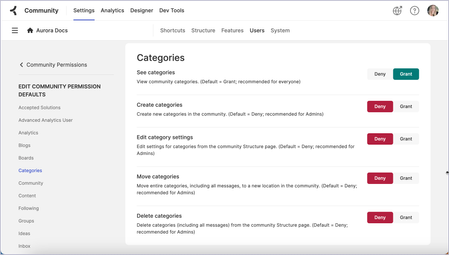
Note: This article refers to the Categories set of permissions available at any level of the community. If you’re looking for information about how to set permissions at the category level of the community, see Set permissions at the category level. You can adjust permissions related to categories at the community and category level. Some permissions are set to Deny by default while others are set to Grant by default. Permission defaults and role permissions are inherited from the parent level (the community or another top-level category). In those cases, the Inherit button is displayed in green to indicate that the permission was set to Grant at the parent level or red to indicate that the permission was set to Deny at the parent level. As an admin, you can manage these permissions. When available, links to more information regarding a feature or permission have been provided. To manage category-related permission defaults at the community level: Note: To manage this permission at a lower level, go to the [Place] Permissions page and edit the permission defaults for that level. To manage this permission for a particular role, go to the [Place] Permissions page at the desired level of the community and edit the permissions of the individual roles. Go to the Roles and Permissions page for the community. Beside Community Permissions Defaults, click Edit. In the left panel, click Categories. Select Deny or Grant as required for the following permissions: See categories (Grant by default) Create categories (Deny by default except for Admins) Edit category settings (Deny by default except for Admins) Move categories (Deny by default except for Admins) Delete categories (Deny by default except for Admins) Unless you have specified different permissions for certain roles or levels below the community level (a category), these selections affect all members of the community. Related topics: About categories344ViewsSign in to react to this post0CommentsAurora: Set permissions at the category level
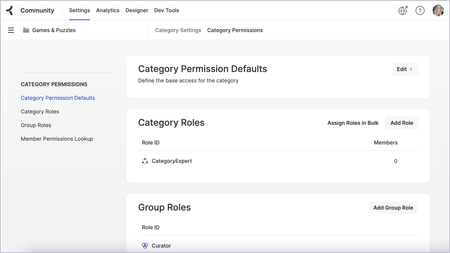
Note: This article refers to setting permissions at the category level of the community. If you’re looking for information about the Categories set of permissions, see About the "Categories" set of permissions. Most permissions that you can set at the community level can also be adjusted at the category level. Roles and permissions at the category level apply to any nested places, such as boards or other categories, unless you change roles and permissions at a lower-level place. If you set a permission at the category level to be different from the community level, the Deny or Grant buttons are selected. Otherwise, the Inherit button is displayed in green to indicate that the permission was set to Grant at the parent level or red to indicate that the permission was set to Deny at the parent level. The Category Permissions page contains sections for Category Permission Defaults, Category Roles, Group Roles, and Member Permissions Lookup. When available, links to more information regarding a feature or permission have been provided. To set permissions for a category: Go to Settings > Community Structure. For the category whose settings you want to configure, open the Settings menu and click Edit. At the top of the page, click Category Permissions. Alternatively, you can use the place picker on any permissions page to access the category’s settings. Make changes as desired to the following areas: Beside Category Permission Defaults, click Edit. See Set category permission defaults below. Beside Category Roles, click Add Role to set permissions for a new category role or open the Options menu for a role and click Edit to change its permissions or add members to it. See Create a role and Add members to roles. Beside Group Roles, click Add Role to set permissions for a new group role or open the Options menu for a role and click Edit to change its permissions or add members to it. See Group roles and permissions. Under Member Permissions Lookup, enter a username in the field and view a member’s permissions at the category level. See Look up a member’s roles and permissions. Set category permission defaults Permission defaults at the category level inherit the parent-level place’s (typically the community or another top-level category) permissions automatically. The Inherit button is displayed in green to indicate that the permission was set to Grant at the parent level or red to indicate that the permission was set to Deny at the parent level. On the Edit Category Permission Defaults page, you can override the inherited permissions for base access at the category level by selecting Deny or Grant. Areas include: Accepted Solutions Blogs Boards Categories Content Escalations Events Following Groups Ideas Knowledge Bases Likes Mentions Moderation Tags Widgets Related topics: About categories Configure category settings349ViewsSign in to react to this post0CommentsAurora: Set permissions at the board level
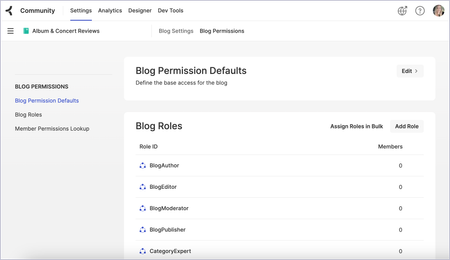
Note: This article refers to setting permissions at the board level of the community. If you’re looking for information about the Boards set of permissions, see About the "Boards" set of permissions. Most permissions that you can set at the community or category level can also be adjusted at the board level. The board permissions page is available for blogs, forums, ideas boards, and knowledge bases, and its name reflects the related board type. If you set a permission at the board level to be different from the community level or its parent category level, the Deny or Grant buttons are selected. Otherwise, the Inherit button is displayed in green to indicate that the permission was set to Grant at the parent level or red to indicate that the permission was set to Deny at the parent level. The board permissions page contains sections for board permission defaults, board roles, and the Member Permissions Lookup. When available, links to more information regarding a feature or permission have been provided. To set permissions for a board: Go to Settings > Community Structure. For the board whose settings you want to configure, open the Settings menu and click Edit. At the top of the page, click [Blog/Forum/Ideas Board/Knowledge Base] Permissions. Alternatively, you can use the place picker on any permissions page to access the board’s settings. Make changes as desired to the following areas: Beside [Blog/Forum/Ideas Board/Knowledge Base] Permission Defaults , click Edit. See Set board permission defaults below. Beside [Blog/Forum/Ideas Board/Knowledge Base] Roles, click Add Role to set permissions for a new board role or open the Options menu for a role and click Edit to change its permissions or add members to it. See Create a role and Add members to roles. Under Member Permissions Lookup, enter a username in the field and view a member’s permissions at the board level. See Look up a member’s roles and permissions. Set board permission defaults Permission defaults at the board level inherit the parent-level place’s (typically the community or a category) permissions automatically. The Inherit button is displayed in green to indicate that the permission was set to Grant at the parent level or red to indicate that the permission was set to Deny at the parent level. On the Edit Board Permission Defaults page, you can override the inherited permissions for base access at the board level by selecting Deny or Grant. Areas include: Accepted Solutions (Forums only) Blogs (Blogs only) Boards Content Escalations (Forums only) Events (Event boards only) Following Ideas (Ideas boards only) Knowledge Bases (Knowledge Bases only) Likes Mentions Moderation Tags Widgets Related topics: About Blogs About Forums About Events About Ideas About Knowledge Bases329ViewsSign in to react to this post0CommentsAurora: About the "Boards" set of permissions
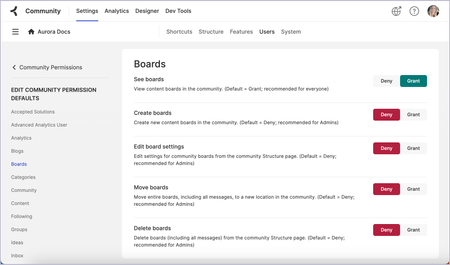
Note: This article refers to the Boards set of permissions available at any level of the community. If you’re looking for information about how to set permissions at the board level of the community, see Set permissions at the board level. You can adjust permissions related to boards at the community, container (category & group), and board level. Some permissions are set to Deny by default while others are set to Grant. At the container and board levels, permission defaults and role permissions are inherited from the parent level. In those cases, the Inherit button is displayed in green to indicate that the permission was set to Grant at the parent level or red to indicate that the permission was set to Deny at the parent level. As an admin, you can manage these permissions. When available, links to more information regarding a feature or permission have been provided. To manage board-related permissions at the community level: Note: To manage this permission at a lower level, go to the [Place] Permissions page and edit the permission defaults for that level. To manage this permission for a particular role, go to the [Place] Permissions page at the desired level of the community and edit the permissions of the individual roles. Go to the Roles and Permissions page for the community. Beside Community Permissions Defaults, click Edit. In the left panel, click Boards. Select Deny or Grant as required for the following permissions: See boards (Grant by default) Create boards (needed for the tasks below; Deny by default except for Admins) Blogs Events Forums Ideas Knowledge Bases Edit board settings (needed for the tasks below; Deny by default except for Admins) Blogs Events Forums Ideas Knowledge Bases Delete boards (Deny by default except for Admins) Move boards (Deny by default except for Admins) Unless you have specified different permissions for certain roles or levels below the community level (a category, group, or board), these selections affect all members of the community.324ViewsSign in to react to this post0CommentsAurora: Configure category settings
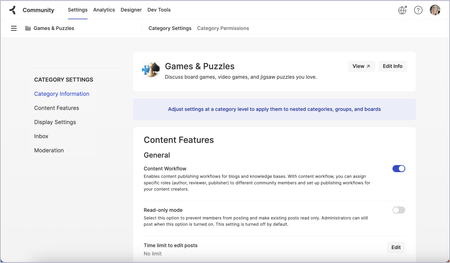
Most settings that you can configure at the community level can also be adjusted at the category level. Settings at the category level apply to any nested places, such as boards or other categories, unless you change settings at a lower-level place. If you configure a setting at the category level to be different from the community level, a PARENT OVERRIDE marker is displayed beside the setting to indicate that you’ve overridden its inherited default. The Category Settings page contains sections for Category Information, Content Features, Display Settings, Inbox, Moderation, and Escalations. Many settings are toggles to turn on or off a feature, but other settings may require additional selections. When available, links to more information regarding a feature or setting have been provided. Note: To edit category settings, you must have the Edit category settings permission. To configure settings for a category: Note: Not all sections may be available depending on which features have been turned on in your community. Go to Settings > Community Structure. For the category whose settings you want to configure, open the Options menu and click Edit. Alternatively, you can use the place picker on any settings page to access the category’s settings. Adjust settings in the Content Features section: General Content Workflow Read-only mode Time limit to edit posts: Click Edit to set the time limit that members have to edit their posts. Accepted Solutions File Attachments Forums Media Image uploads Embed external videos Video uploads Tags Adjust settings in the Display Settings section: Hide category in place widgets, place picker menus, and search Under Inbox, adjust the Send invitations via option that allows members to send group invitations either via the community Inbox (Members Only) or Email (Members and Non-members). Adjust settings in the Moderation section: Spam management Content moderation defaults Adjust settings for Escalations. Related topics: About categories548ViewsSign in to react to this post0CommentsAurora: Change your community's name and SEO information
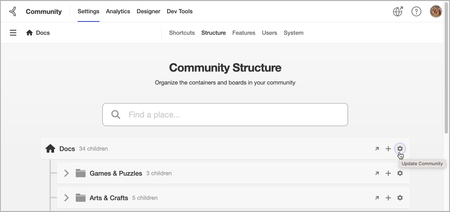
If necessary, an admin can change the community’s name. They can also update SEO information. Open the Account menu and go to Settings > Community Structure. In the structure tree, in the row of the community level, select Settings (gear icon). On the Edit Community Info window: change the community name in the Community name field. enter or change SEO related information in the SEO title and SEO description. Select Save.605ViewsSign in to react to this post0CommentsAurora: Hide places and content from lists, menus, and search
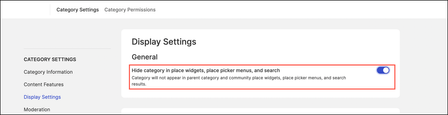
In the community, you can hide any place (board or category) or posts related to a board (Forum, Blog, Knowledge Base, Event, and Ideas) from lists, menus, and search. Doing so hides the places and content from appearing in your community structure but still keeps them available to members via direct link to the content. To prevent search results from boards being directly accessible, you’d need to make the board private. Hide a place from appearing in lists, menus, and search Let’s take an example where you want to hide a category from appearing in the community place widgets, place picker menus, and search results. To hide a category: Open the Account menu and go to Settings > Community Structure. In Community Structure, click the category you want to hide. Go to Display Settings and toggle on Hide category in place widgets, place picker menus, and search. Similarly, to hide a board, you can go to the specific board and toggle on this setting: Hide content from appearing in a category, community content widgets, and search results Let’s take an example where you want to hide discussions in a specific forum from appearing in a category, community content widgets, and search results. To hide forum content: Open the Account menu and go to Settings > Community Structure. In Community Structure, click the forum you want to hide. Go to Display Settings and toggle on the Hide forum posts in content widgets and search. Similarly, you can hide Blog posts, Knowledge Base articles, individual events, and individual ideas of the respective boards from appearing in the category, community content widgets, and search results.549ViewsSign in to react to this post0Comments