Knowledge Base Article content widget configuration
The Knowledge Base Article template contains the Knowledge Base Article content widget that houses the body of an article. While you cannot delete this widget, you can modify some of its features to customize the community experience. Page item elements Date: Shows the date on which the article was published (September 3, 2024) or how long ago it was published (3 days ago) depending on your settings. Versions: A badge displays the version of the article. Helpfulness: Shows the “Was this article helpful?” section with sentiment emojis below the article. Guide navigation: In the left panel, shows the table of contents for the knowledge base guide where this article lives (see About KB Guides). Display contributors as None: No contributors are shown. Link: Select the View Contributors link to open contributors in another window. Detailed panel: The list of contributors shows below the article. Related topics: About Knowledge Bases About KB Guides Guides widget configuration 1.3KViewsSign in to react to this post
 4Comments
Preview published URL
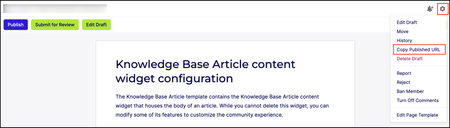
Members who have access to the workflow page of an article, can preview the published URL (the final URL when published) on the workflow page of the draft. They can share this URL with others, who might need to link to this article when it’s published. To view the URL when the artilce or blog post is the in draft state: Open the draft of the article or blog post. Open the Options menu. Select Copy Published URL. The URL will be copied to your clipboard.304ViewsSign in to react to this post0CommentsAbout Content permissions
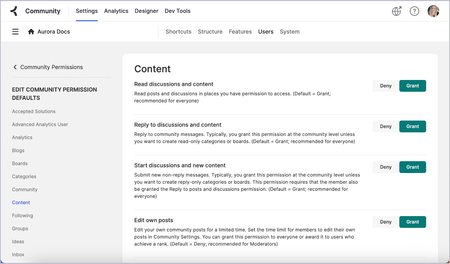
You can adjust permissions related to content at the community, container (category & group), and board level. Some permissions are set to Deny by default while others are set to Grant by default. At the container level and the board level, permission defaults and role permissions are inherited from the parent level. In those cases, the Inherit button is displayed in green to indicate that the permission was set to Grant at the parent level or red to indicate that the permission was set to Deny at the parent level. As an admin, you can manage these permissions. To manage content-related permission defaults at the community level: Note: To manage this permission at a lower level, go to the [Place] Permissions page and edit the permission defaults for that level. To manage this permission for a particular role, go to the [Place] Permissions page at the desired level of the community and edit the permissions of the individual roles. Go to the Roles and Permissions page for the community. Beside Community Permissions Defaults, select Edit. Review permissions in the following areas: Blogs Content Events Ideas Knowledge Bases Select Deny or Grant as required. Unless you have specified different permissions for certain roles or levels below the community level (a category, group, or board), these selections affect all members of the community. Content permissions While Forum permissions are granted by the Content permissions, Blogs, Event Boards, Ideas boards, and Knowledge Bases have distinct permission sections for content type-specific tasks. The Content permissions are provided for general content access and tasks and relate to all content types. Follow the links in the table below to learn more about the tasks granted by these permissions. Permission Default Related permissions in content type sections Read discussions and content Grant Blogs: Read posts and Read comments Ideas: Read ideas and comments Reply to discussions and content Grant Blogs: Comment on posts Events: Comment on events Ideas: Comment on ideas Knowledge Bases: Comment on articles Start discussions and new content Grant Blogs: Start new posts Events: Post new events Ideas: Post new ideas Knowledge Bases: Create, edit, publish, and manage articles Edit own posts Deny Blogs: Edit own published posts Events: Edit own events Ideas: Manage ideas and comments Knowledge Bases: Edit own published articles Edit any post Deny Blogs: Edit any published post Events: Edit all events Ideas: Manage ideas and comments Knowledge Bases: Edit any published article Move content Deny Blogs: Manage any posts and Manage own posts Delete own post Deny Blogs: Manage own posts Events: Delete own events Knowledge Bases: Delete own articles Delete any post Deny Blogs: Manage any posts Events: Delete all events Ideas: Manage ideas and comments Upload file attachments Deny Embed external content Grant Turn on link hyperlinking Grant Use simple HTML in posts Grant Use advanced HTML in posts Deny Use full HTML in posts Deny Make content read only Deny Post read-only content Deny Bypass moderation Deny Blogs: Bypass comment moderation Events: Bypass comment moderation Ideas: Bypass moderation Knowledge Bases: Bypass comment moderation Related topics: About Aurora Community site structure About Aurora Content Types752ViewsSign in to react to this post0CommentsAudit Read, Update, and Delete (CRUD) actions
Administrators can have a comprehensive audit logging for all Create, Read, Update, and Delete (CRUD) actions on KB Guides. The following actions will be recorded in the audit log: Guides: Added, moved, deleted, and reordered Chapters: Added, moved, deleted, and reordered within/to Guides Articles: Added, moved, deleted, and reordered within/to chapters or Guides Additionally, audit logs will cover actions taken on Manually-sorted articles, including: Adding Articles Clearing the List Reordering Articles You can access the audit logs from Settings > System > Audit logs Related topics: About KB Guides Adding KB Guides Guides widget configuration General actions on KB Guides, Chapters, and Articles431ViewsSign in to react to this post0CommentsGeneral actions on KB Guides, Chapters, and Articles
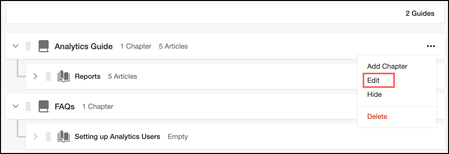
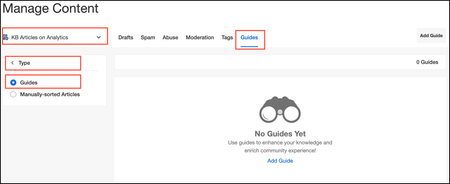
From the Manager Content page you can: For all of these actions: Go to the Manage Content page. Select the knowledge base board where the widget was added. Select the Guides tab > Type > Guides. Edit a KB Guide You can edit any chapter in a guide. Open the Options menu (3 dots) near the guide you want to edit. Select Edit. A window to edit the title or avatar or description of the KB Guide opens. Edit the Title, Avatar, and/or Description of the KB guide. Select Save. The Title is updated. Hide/unhide a KB Guide When creating a KB Guide, such as while drafting articles, you can choose to hide the work-in-progress guide from the community. Once you're finished and ready to publish, simply unhide the guide to make it visible. To hide a KB Guide: Open the Options menu (3 dots) near the guide you want to edit. Select Hide. You get a confirmation that the guide is hidden and the KB guide is tagged as hidden. The Guide is marked as HIDDEN. When you’re ready, select Unhide to make it visible in the community. Delete a KB Guide After a guide is deleted, it is no longer available in the knowledge base board. . However, the articles that were in that KB guide are still available in the community. Open the Options menu (3 dots) near the guide you want to delete. Select Delete. A confirmation window opens. Select Delete. 3. The Guide is no longer available in the knowledge base board. However, the articles that were in that KB Guide are still available in the community. Edit Chapter You can edit any chapter in a guide. Open the Options menu (3 dots) near the article you want to edit. Edit the Title and/or the Description of the Chapter. Select Save. The title of the chapter is updated. Move Chapter You can move a chapter from one guide to another. Open the Options menu (3 dots) near the chapter you want to move. Select Move. A window to select a destination guide opens. Select the Guide to which you want to move this chapter. Select Move. The Chapter along with its articles are moved to the selected guide. Delete Chapter After a chapter is deleted, it is no longer available in the Guide. However, the articles that were in that chapter are still available in the community. Open the Options menu (3 dots) near the chapter you want to delete. Select Delete. A confirmation window opens. Select Delete. The Chapter is no longer available in the guide. However, the articles that were in that chapter are still available in the community. Move Article You can move an article from one chapter to another within the guide or directly under a guide. Open the Options menu (3 dots) near the article you want to move. Select Move. A window opens where you can enter the destination for the selected article. Select another chapter in the same guide or in another guide as a destination. In our example, we choose to move it under the guide called “FAQs.” The article is now under the “FAQs” Guide. Remove Article You can remove an article from a guide. This does not delete the article from the community. Open the Options menu (3 dots) near the article you want to remove. Select Remove. A window to confirm your action appears. Click Remove. The article is removed from the guide. Related topics: About KB Guides Adding KB Guides Guides widget configuration CRUD Action audit logs421ViewsSign in to react to this post0CommentsAdd KB Guides with manually-sorted articles
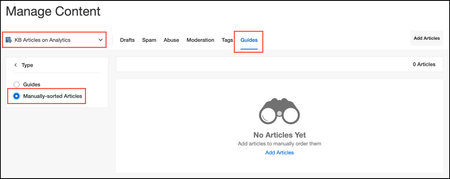
Use this method when you prefer a simple list of articles sorted in a specific order on a knowledge base board without the need for a guide-like structure. Add articles Go to the Manage Content page. Select the knowledge base board where the widget was added. Select the Guides tab > Type > Manually-sorted Articles. Select Add Articles. A window to add articles opens with the options to choose the order in which you want the articles from the knowledge base board to appear. You can also reorder the articles later. In our example, we choose to order them by recency. (Optional) Drag and drop articles to reorder them. Clear the existing Guide To clear the existing list and start fresh to create a new KB Guide: Go to the Manage Content page. Select the knowledge base board where the widget was added. Select the Guides tab > Type > Manually-sorted Articles. The list of articles is displayed. Select Clear List. A window to confirm your action appears. Select Clear. The list is now cleared and the guide is deleted. View the Guide Go to the knowledge base board in the community. You can see the manually-sorted articles on the knowledge base board. Select the title of the guide to open the guide on the page. You can see the guide with the manually-sorted articles. Select the title of the articles displayed on the left panel to navigate through the guide. Related topics: About KB Guides Add structured KB Guides Guides widget configuration General actions on KB Guides, Chapters, and Articles CRUD Action audit logs390ViewsSign in to react to this post0CommentsAdd structured Guides
Use this method to create a structured Guide with Chapters and Articles inside the Chapters. Go to the Manage Content page. Select the knowledge base board where the widget was added. Select the Guides tab > Type > Guides. Select Add Guides. A window opens to add the guide. Enter a Title for the guide. Select Add. The guide is added. Open the Options menu (3 dots) near the title of the guide. Select Add Chapters. Enter a Title for the chapter. Select Add. Below is an example of two empty chapters in the guide. Select Add Articles (plus icon). Search for and add articles to the Chapters. You can refine your search by switching between Knowledge Base and Community. Here is an example of an article in a chapter: Add an article directly to a Guide Select Add Articles (plus icon). Search for and add articles to the guides. You can refine your search by switching between Knowledge Base and Community. In our example, we have added 2 chapters and an article to the guide we created: View the Guide Go to the knowledge base board in the community. You can see the manually-sorted articles on the knowledge base board. Select the title of the guide to open the guide on the page. You can see the guide with articles organized under chapters. Select the title of the chapters and articles displayed on the left panel to navigate through the guide. Related topics: About KB Guides Add Manually-sorted Guides Guides widget configuration General actions on KB Guides, Chapters, and Articles CRUD Action audit logs447ViewsSign in to react to this post0CommentsAdd KB Guides
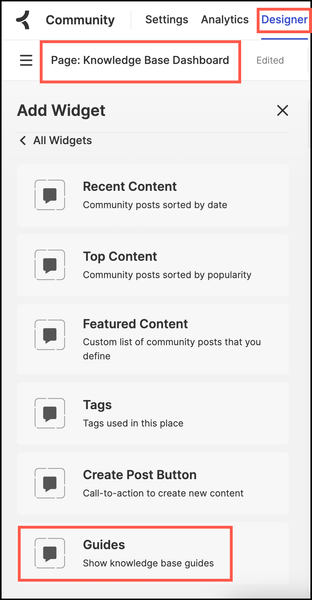
KB Guides can only be added to a knowledge base board. Prerequisites Members with the Create, edit, publish, and manage articles permission on the knowledge base board can add a KB Guide to it. Add the Guides widget to the Knowledge Base Dashboard template associated with the knowledge base where you want to add the KB Guides. Add KB Guides There are 2 two methods in which you can organize articles: Add a structured Guide with Chapters and Articles inside the Chapters. Add a simple list of articles sorted in a specific order on a knowledge base board without the need for a Guide-like structure. Related topics: About KB Guides Add structured KB Guides Add Manually-sorted Guides Guides widget article General actions on KB Guides, Chapters, and Articles CRUD Action audit logs390ViewsSign in to react to this post0CommentsAbout KB Guides
KB Guides is designed to enhance the way you host and navigate knowledge base content within your online community. KB Guides offer a structured and user-friendly approach to presenting valuable information, making it easier for members to find what they need. With KB Guides, brands can efficiently organize and share resources such as training materials, onboarding documents, FAQs, and more. This ensures a seamless and informative experience for community members, helping them access relevant content effortlessly. Enablement KB Guides are enabled by default in Communities Aurora v24.07 and above for all communities using knowledge bases. Permissions Members with the Create, edit, publish, and manage articles permission on the knowledge base board can add a KB Guide to it. Guides widget To start with creating KB Guides, you must add the Guides widget to a Knowledge Base Dashboard template. Set Type in the Guides widget as per your requirement: To view the articles as Type Structured Guide Guides Manually-sorted list Manually-sorted Articles Guides widget configuration Related Topics Adding KB Guides Guides widget configuration General actions on KB Guides, Articles, and Chapters829ViewsSign in to react to this post2Comments