Update on Khoros Rebranding and Agent UI Refresh
In early May, we announced exciting news that the user interface of Khoros Care (formerly Lithium SMM/Response) will be getting a visual refresh. Your agents will see the updated UI when they log in on Thursday morning, July 25th. We expect the update to be released to all customers during the standard update window on Wednesday evening, July 24th / Thursday early morning, July 25th, depending on your region. Why we are making this change While many users love the Care user experience (UX), we have gotten feedback that the interface (UI) looks a bit outdated. We want to improve accessibility, which requires some changes like larger font sizes and AA compliant contrast for low vision. We need to rebrand the UI from Lithium to Khoros. What to expect With this updated Care UI, you'll notice that the platform feels more modern, more accessible, and more aligned with our new Khoros branding. However, the changes are light, visual enhancements (details below), and will absolutely not change the UX layout or disrupt agent workflows. These are the specific enhancements you will see in the updated Care UI (full screen preview here) on July 25th: Slightly larger font sizes and more legible text, following AA standards Better contrast with at least a 4.5:1 contrast ratio for text Fewer gradients Cleaner buttons Better accessibility, improving our overall WCAG2.0 compliance, which helps reduce eye strain for users in the platform all day Style changes that match our Khoros brand look and feel The navigation bar at the top will change to a darker color and display the Khoros logo Key Takeaways The Care UI update does not change the orientation of buttons, layouts, functionality, and most importantly, efficiency (full screen preview here). Agents will simply enjoy a more modern and accessible UI, with all buttons and UI elements in the same location. There is no change to the login URLs on either .response or .app: https://customer.response.lithium.com/account/login https://customer.app.lithium.com/#/login We hope you are as excited about these enhancements as we are! If you have feedback on these changes, we would love to hear it. 21KViewsSign in to react to this post
 18Comments
Migration of SMM Raw Post exports from Supervisor View to Analytics
As part of Facebook’s commitment to user security and privacy, they have been making changes to APIs and infrastructure that all third-party apps use. As part of this ongoing effort, we will be making a necessary backend update on December 9th. At that time, 2 of the 9 Supervisor Exports in Lithium SMM will need to be deprecated on a faster timeline than originally intended. We apologize for the inconvenience and are committed to helping customers who might still be using these legacy exports to migrate to SMM Analytics to access the same data. The Supervisor Reports, which will be fully deprecated in the December Release of SMM, are the “Raw Post” and “Raw Post - Include Agent Actions” exports. Both reports show posts published from an author and the corresponding agent replies sent during the reporting period, as well as data on the conversations that these posts and responses belong to. Specifically: “Raw Post” includes posts that were authored/came into the system during the time period specified. “Raw Post - Include Agent Actions” includes any post that has been authored, claimed, responded to, or closed during the time period selected. This results in duplicate rows appearing when a post is both authored and responded/claimed/closed during the same time period (one row for each action). This same data is available from SMM Analytics, either separated out by distinct reports that focus on post, response, and conversation data, or in the Raw Combined Export, which combines data from the Incoming Post, Response, and Conversation reports. Raw Incoming Post Raw Response Raw Conversation (New, Open, Closed) Raw Combined Export The following table maps the fields in Supervisor Raw Post Exports to the relevant Analytics Exports. Supervisor Raw Post Export Analytics Raw Incoming Post Export Analytics Raw Response Export Analytics Raw Conversation Exports Analytics Raw Combined Exports # Column Name Column Name Column Name Column Name Column Name 1 Beginning of Range - - - 2 End of Range - - - 3 Conversation ID Conversation ID Conversation ID Conversation ID Conversation ID 4 Status - - Status Status 5 Priority Conversation Priority Conversation Priority Conversation Priority Conversation Priority 6 Work Queue Name Conversation Work Queue Conversation Work Queue Conversation Work Queue Conversation Work Queue 7 Assignee - - Assignee Assignee:Authoring User 8 Post Provider Post Provider - Conversation Source Source 9 Provider Type Post Provider - Conversation Source Source 10 Date Post Published Date Post Published Post Responded to Published Time - Published Date 11 Date Post Received Date Post Received Post Responded to Received Time - Created Date 12 Author Name Author Handle - Authors Author Handles Assignee:Authoring User 13 Post Content Post Content Post Responded to Content - Content 14 Auto Tags (Post) Auto Tags - Auto Tags Conversation/Post Tags Note this field contains all tags, it is not limited to auto tags 15 Manual Tags (Post) Manual Tags - Manual Tags Conversation/Post Tags Note this field contains all tags, it is not limited to manual tags 16 Post Sentiment Post Sentiment - - Sentiment 17 Post Language Post Language - Language Tags Languages 18 Author Source Tag Post Source Tag Source Tags Source Tags Source 19 Post ID (Author) External Post ID Post Responded to External ID - External ID 20 Private Post (Author) Post Type - Total Private Incoming Posts Private Post 21 Date Claimed - Date Claimed or Assigned - Date Claimed or Assigned 22 Date Responded - Response Published Date - Published Date 23 Time to Response (h) - Response TAR (min) - Average TAR (min) 24 Responding Agent - Responding Agent Name - Assignee:Authoring User 25 Responding Account - Response Handle Response Handles Used Source 26 Response Content - Response Content - Content 27 Post ID (Agent) - External Response ID - External ID 28 Private Post (Agent) - Response Type Total Private Responses Private Post 29 Customer Satisfaction Survey - - - - 30 Close Notes - - Close Notes Close Notes 31 Permalink Post Permalink - - Permalink 32 Date Closed - - Closed Date Closed Date 33 Author Post Order Post Order - - Total Posts:Order in Conversation 34 Agent Post Order - Response Order - Total Responses:Response Order 35 Author Social UID External Author Handle ID - Assignee:Authoring User ID 36 Agent UID - Responding Agent ID - Assignee:Authoring User ID 37 Agent email - Responding Agent Email - Assignee:Authoring User Email 38 Assignee Team - - - Assignee:Authoring User Team 39 Responding Agent Team - - - Assignee:Authoring User Team17KViewsSign in to react to this post9CommentsFacebook Messenger: 24 Hour Response Policy Change
Facebook Messenger is changing their policy to reflect people's expectations of faster responses. Beginning March 4, 2020, businesses will have up to 24 hours to respond to a customer on Facebook Messenger. The +1 message that allowed businesses to send 1 additional message after the 24 hour window will no longer be available starting March 4th, 2020. This article explains what you need to do now, and, how to keep things in order going forward. What Changed? Facebook has implemented a response-time-limit: it impact both agent (human) and automated (bot) responses to Facebook private conversations. As a Khoros customer your human agents will be able to respond up to 7 days after the last customer engagement in a given conversation: for bots, it's 24 hours. Here are the details of timelines permitted by Facebook for Khoros customers: Within 24 hours of the last customer engagement - Human agents or bots can respond to customers and/or send promotional marketing messages. After 24 hours but before 7 days - Human agents only can respond (but no bots or promotional messages). After 7 days - Any message attempt will fail. Following are some easy actions you can take now to ensure a consistently great experience for your customers. For more information, please review Facebook Messenger's new policy. First, does this change affect you? If you're already answering 100% of Facebook PMs in 15 minutes...this is a non-event. (But do read the next sections to keep it that way!) So check your current response times first: Using Khoros Analytics, create a Response Times widget using a Smart View to isolate Facebook Private Messages. Set the time frame for the prior year, and look at the results. It shows you how many times in the past 12 months you have exceeded the new timing window. If the result is "zero" that's great: keep doing what you're doing. But if the answer is "regularly...." then a workflow review is in order. Our Services, Success, and Coaching teams are all available if you have questions on what to do. Second, keep things running smoothly Once you've affirmed that you're responses all fall within the new response window requirements you'll want to ensure that things stay that way. And it's easy to do using Khoros Analytics. Using the real-time Conversations Awaiting Reply widget you can spot problems well in advance: create the widget using the same Smart View as you used above and then set the SLA for this widget to something like 8 hours. This widget, placed on a shared dashboard, will give your entire team visibility into conversations that are well-past your normal response SLA and therefore in need of attention but still well before the new response timing window closes. Third, ensure zero failures. Want to ensure zero failed replies? Create an alert when out-of-range conditions develop. Build a "Responses Meeting SLA" widget and place it on a shared dashboard, or if you're the analyst or team supervisor with an Analytics role drop this widget on your personal dashboard. Filter the widget to Facebook PM only (using your Smart View), set the SLA to "100% within 8 hours" (or whatever you chose above) and add an alert. Now, if a conversation response ages well past your normal SLA and enters the danger zone...you'll be the first to know. Check out these helpful resources in the Khoros Atlas community. And as always your Customer Success Manager, Professional Services contact, or Khoros Coaching team are available to help you. Additional Resources: Setting Up Smart Views Mastering Smart Views (Khoros Coaching) Creating Alerts for Shared Dashboards17KViewsSign in to react to this post8CommentsImportant: New Setup Instructions for Publishing and Responding on Instagram
Facebook and Instagram are reevaluating the information they share with others and have begun making changes to help protect the privacy of their users. As part of this effort, they recently announced a switch to a new v2 API. Lithium has been working diligently to update our integrations and completely switch to the new required Instagram API. To migrate, you must complete the steps below as soon as possible. By completing these steps promptly, you ensure that your information will continue to flow through Lithium seamlessly. Waiting to complete these steps may result in your integrations failing to work as expected. If you have already completed these steps (including emailing Lithium support as directed in Step 4), no further action is required on your part. 1. Convert your Instagram account to a Business Account and link to your Facebook pages Facebook and Instagram require you to have an Instagram Business Account that is connected to your Facebook page in order to have an Instagram integration in Lithium. Note that you can only connect one Instagram account to one Facebook page, and vice versa, so you must have as many Facebook pages as you have Instagram accounts. This is required for all Instagram accounts managed in Lithium. Note: If your Instagram account is already a Business Account, you must revert it to a Personal Account before proceeding. Reverting to a Personal Account will remove Insight data. Facebook recommends saving your current insight data before performing this step. If you need assistance reverting an Instagram handle to a personal account, contact support so we can walk you through the process. More information about Facebook's current position on this can be found here. Learn how to connect your Instagram account to your Facebook page. During this process you will be prompted by Facebook to upgrade your Instagram account to a Business Account in order to properly link the two handles. 2. Add and verify all your Facebook and Instagram integrations to Lithium SMM Facebook now requires that brands link their Facebook pages to Instagram accounts. This means that, for every Instagram account that you want to add to Lithium SMM, you must link it to a Facebook page. To link your pages, you must add your integrations in Lithium. Learn how to add your Facebook account to Lithium. Learn how to add you Instagram account to Lithium. 3. Reconnect all your Facebook accounts For Lithium to switch you to the new Instagram API, you must reconnect your Facebook account: Sign in to Lithium SMM. Go to Admin > Social Integrations. Click Edit next to the Facebook page you need to reconnect. Click Reconnect. Note: Make sure your pop-up blocker is OFF. If your pop-up blocker is on, the reconnect screen will keep spinning, and it will appear that nothing is happening. Add your Facebook credentials. 4. Toggle each Instagram integration off and then back on You must toggle each Instagram integration off and then back on under Admin > Social Integrations. Be sure to disable the integration for about 10 seconds before turning it back on. 5. Contact Lithium Support to associate your Instagram account with your Facebook page in Lithium Our Support Team will help you link your accounts. You can only map one Instagram account to one Facebook page. They cannot overlap. Fill out the following template and file a case through the portal after you have reconnected your Facebook account. -- Subject: Enable Instagram Publishing To: [email protected] Hello, Support Team! Will you please connect the following Facebook and Instagram accounts? Connection 1: Facebook: [ Facebook Page Name 1 as seen in Admin > Social Integrations ] Instagram: [ Instagram Account Name 1 as seen in Admin > Social Integrations ] Connection 2: Facebook: [ Facebook Page Name 2 as seen in Admin > Social Integrations ] Instagram: [ Instagram Account Name 2 as seen in Admin > Social Integrations ] -- Our Support Team will alert you when they’ve linked your accounts and migrated your integration to use the new Instagram v2 APIs. By completing these steps as soon as possible, you will ensure that your information will continue to flow through Lithium as expected.16KViewsSign in to react to this post6CommentsIntroducing Promoted Search: Boost content in community search results
Community owners and managers always think of hosting the best possible content on community. The best possible content takes different forms. Sometimes it can be official company information and company news, other times it’s event information, news items, new products, reviews. Great content is unique for every brand. From time to time, you might want specific community content to display at the top of the search results list when users search for specific keywords or phrases. With Promoted Search in 18.12, you can now associate specific searches to specific community posts to boost specific pieces of content to the top of the search results list. The content could be any Community content; from an Accepted Solution for a high visibility product issue to announcing a new product launch to publicizing an upcoming company conference. Some examples of what you can accomplish with Promoted Search include: Promote company response to a product question – When your brand knows the conversation around your products, you are often in the best position to provide the best answer for a product question. Boost this content in the search results. For example, if a user searches for a particular printer issue, you might want to highlight a specific result at the top of the search results list. This will be the best resource on this specific printer query. Announce news – Announce company or product news using Promoted Search to provide more visibility. When you launch a new product variant or a new pricing, surface it to users when they search for related products. For example, if a user searches for “wireless hub”, it benefits her, as well as the brand, if she sees a company-written post on “Latest in technology - wi-fi hub A110 launched”. Surface documentation, newsletters - Usually the best time to show company-issued guides, documentation, how-to articles is when users seek help for setting up devices. Publicise events – Broaden your audience for upcoming events. Set a wide range of keywords in your Promoted Search rules so that your events, e.g. customer conferences, reach a maximum audience. How does it work? Promoted Search is built on the principle that the community owner knows which is the best content to boost and in context of which search terms. The set of rules that you set up to show Promoted Search results are key to that. Extending the above example where your brand launched the cutting-edge technology wi-fi hub. A promoted search rule that you might set would be: What this translates to is: If search query contains <keyword>, then show the <content link> And the community end-user experience looks like this: If you don’t want to include the “Recommended” label on your Promoted Search results, you can omit it. This way, your Promoted Search results will merge with the organic results and not seem different. If you want to use a different label, we provide you with a few options. You can read more details about Promoted Search in our release notes. We want to hear how you are using Promoted Search to create more value for your customers. Please share your ideas on how you are implementing Promoted Search in your community, and feel free to ask any questions or provide feedback below.16KViewsSign in to react to this post12CommentsKhoros Rebranding and Agent UI Refresh
We are excited to announce that the user interface of Khoros Care (formerly Lithium SMM/Response) will be getting a visual refresh. This move to the new Khoros branding will modernize the look and feel, and improves some accessibility issues. https://cdn.knightlab.com/libs/juxtapose/latest/embed/index.html?uid=3959f7ce-5d31-11e9-8106-0edaf8f81e27 The only changes to the layout of the user interface will be on the login/password reset pages (for customers that DO NOT have SSO configured). Other changes--primarily font sizes and color adjustments--will enhance the user interface, but will absolutely not change the layout, nor disrupt agent workflows. If you have feedback on these changes, we would love to hear it. This is a change that will be enabled for all customers by Khoros, and individual customers will not have a choice on when/if to enable it. It will be turned on automatically when the cut over date is determined. The Why While our agents love our UI, we have gotten feedback from our customers that it looks outdated. We have a number of Accessibility improvements that require some internal changes including larger font sizes and AA compliant contrast for low vision. As a company, we need to rebrand the interface from Lithium to Khoros. The Changes The login screen will be changing to a Khoros branded login screen with a different layout for those customers that do NOT have Single Sign On configured. Khoros Login Screen V1: temporary to set context of new merger/brand (full screen preview here) Scheduled for end of May 2019 release. Khoros Login Screen V2: long term version which removes context of new merger/brand text The Agent View will have (full screen preview here) Better font sizes following AA standards Better contrast with at least a 4.5:1 contrast ratio for text Fewer gradients Cleaner buttons More legible text Match the new overall brand look and feel The Navigation bar at the top will be changing to a darker color and display the Khoros logo. Better Accessibility improving on our overall WCAG2.0 compliance (helps reduce eye strain for people using the tool all day) Cleaner UI Key Takeaway The Agent View does not change the orientation of buttons, layouts, functionality and most importantly, efficiency. (full screen preview here) Agents will simply have a more modern looking UI, with all buttons and UI elements in the same location. There is no change for the login URLs for both .response and .app: https://customer.response.lithium.com/account/login https://customers.app.lithium.com/#/login15KViewsSign in to react to this post10CommentsIntroducing Khoros Bot Today
We are thrilled to announce today’s release of Khoros Bot, our chatbot now available in Khoros Care. Building on the intelligence in Khoros Care today--like automatically flagging inbound posts as “actionable” for prioritized routing and also analyzing sentiment, Khoros Bot is the next stage in our AI journey. AI is absolutely critical as customer service departments become digital-first. According to Forrester, the three megatrends for customer service in 2020 all revolve around AI, "leveraging automation, data, and agents together to exploit each of their unique strengths." Khoros Care flexibly integrates with Khoros Bot — and any bot provider(s) — to facilitate resolution reporting and conversation continuity between agents and bots across a broad set of messaging channels — including in-app messaging, WhatsApp, Apple Business Chat, Facebook Messenger, WeChat, Twitter DM, among others. By automating predictable parts of the customer conversation, you can shorten time to first response, deliver better customer experiences, and free agents to focus on resolving complex issues. Khoros Bot is ready-to-use and can be deployed within weeks for many critical customer care use cases, including: Welcome Chatbot: Greet consumers, indicate support hours, or offer expected speed-of-answer. Triage Chatbot: Do upfront legwork to determine consumer intent, gather initial information, and hand off context to agents for faster resolution. Top Issue Chatbot: Fully automate resolution for the top volume drivers. Conversation Management Chatbot: Automate select workflows (such as make a payment, track a shipment, etc.) across conversations. Getting a successful bot initiative off the ground (or re-booting an existing initiative) should involve thoughtful cross-functional planning and analysis, which is why Khoros also offers expert guidance on bot strategy through Khoros Strategic Services. Working as an extension of your team, Strategic Services creates the right plan for bots to best represent your brand to customers and deliver ROI, including: Volume driver analyses to identify common patterns and which conversations can be automated. Toolkit creation with brand voice, implementation workflows, and agent handoff process recommendations. Post-launch performance audit and optimization. Khoros Bot is an exciting milestone in our continuing AI journey. We are here to partner with you on your optimal bot strategy and help you achieve fast time to value in automated engagements. Please reach out to your Khoros Account Team or request a demo for more information.13KViewsSign in to react to this post8CommentsWhat does a great experience with a brand mean to you?
https://vimeo.com/album/4467424/video/207830977 What does a great customer experience mean to you? The answer to this question varies depending on the customer and the brand they interact with. But there are some recurring themes, especially when it comes to the digital customer experience. Customers want the same level of service across digital – regardless of whether it’s on email, phone, Twitter, on a chat support module, or any other digital touchpoint. Customers want a fast, concise and accurate reply – not an automated response that fails to meet their needs. And, most importantly, customers want brands to meet them in their location of choice regardless of where that is. #DYK: 83% of customers say a great customer experience is more important than a great product. Don’t forget: nothing is more impactful or long lasting than a positive end-to-end experience with a brand. So now it’s your turn. What does a great experience with a brand mean to you? Let us know in the comments below!12KViewsSign in to react to this post6CommentsLithium Response: Making Measuring NPS and CSAT Even Easier
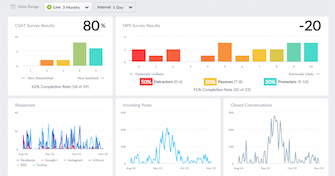
It’s almost 2017 and if you’re not measuring NPS (Net Promoter Score) and/or (CSAT) customer satisfaction (CSAT) – this needs to be your top priority for the New Year. We all know that there’s truly no better way to measure your customer experience – NPS and CSAT metrics give you the insight into your customers’ brand loyalty and their satisfaction with a service or product. Lithium already gives you an easy and effective way to measure both CSAT and NPS across Twitter and your online communities. But we’re making it much easier with our latest feature updates to Lithium Response: 1. Twitter CSAT and NPS widgets: If you collect customer feedback via Twitter using Lithium Response, you can now add widgets to your Shared Dashboards or Monitor Walls to report on the results of these surveys. Lithium’s Shared Dashboards and Monitor Wall analytics help you get actionable insights so you can work faster and smarter. 2. CSAT and NPS Drill-Down: Additionally, you can drill-down into these widgets for more details. For example, you can drill down into the CSAT graph to see individual survey results. This feature gives you a closer look to what your customers are specifically saying. 3. CSAT and NPS Agent Performance: Lithium Response now allows you to add the results from CSAT and NPS surveys to the Agent Performance table in your shared dashboards. This helps your monitor agent performance to pivot where and when needed. The new Lithium Response analytic features will help give you the data visualization tools you need to share your customers’ experience. Check them out and let us know what you think. To dive even deeper via our Lithium Reach & Response Product Notes, click here.11KViewsSign in to react to this post4CommentsWe’ve Joined the Instagram Partner Program!
We’re excited to announce that we are now part of the Instagram Partner Program, a program that helps marketers find the best-in-class technology partners to drive successful results for Ad Tech, Community Management, Content Marketing and Media Buying. Inclusion in the program provides us with deeper access to features that help brands monitor conversations, engage with customers and showcase their visual style on Instagram. With over 500M users, Instagram is a key mobile destination for brands and here at Lithium we are continuing to invest in tools and features that allow our customers to make Instagram part of their Total Community strategy. We have a deep history of incorporating Instagram capabilities into our products, from using the platform to help calculate Klout Scores to implementing it into our newest features for Lithium Reach and Response. In fact, we recently shared that Instagram support for Reach is GA, and users can report on engagement metrics in the Shared Dashboard, Monitor Wall and using exportable reports. Many Lithium customers are currently using Instagram for customer engagement through Lithium Reach and Response including Electronic Arts, HSN, Petco, StubHub and more. Let us know if you’d like to be one too!8.9KViewsSign in to react to this post2Comments