Aurora Product Coaching Session: Spam Management Best Practices
Khoros Communities platform offers several settings and features that allow you to mitigate Spam in your community. Join our Spam Management Best Practices coaching session to identify, filter and deal with spam effectively. Our coaching session will guide you through the practical tips and techniques to help combat spam and help maintain the hygiene of your community. Topics covered in the coaching session Overview of Aurora spam settings and functionality Manage Content dashboard related to spam management and its features Using roles and ranks to configure permissions to check spammers Content Filters Best practice tips Notes - Admin permissions are required to conduct the call. 👉Click here to Sign Up Related Resources Enable Spam Management Community Spam Management Review Posts Captured as Spam Khoros Academy: Communities Moderation Essentials Khoros Academy Instructor Led Training: Spam Management for Communities Aurora 1.1KViewsSign in to react to this post
 0Comments
Getting the Most Out of Atlas
Feeling stuck with getting around Atlas, or just wanting to get the most value out of the platform as you can? Either way, no worries - we’ve got you covered! As you’ll see, the community can be a great resource if you just keep a few pointers in mind. Navigating the community Using search effectively Understanding content types Creating your first post Engaging with community members Exploring your profile Updating your profile Following content Navigating the community The top nav bar is your primary way of getting around Atlas from the top of the community. You can also navigate to related spaces and content within any sub-area using the right side bar that appears in that area. All areas that contain content are under categories - for example, “Learn” is a category that appears in the top nav bar. Areas under these categories can be forums, blogs, or other content types - for example, “About Atlas” is a knowledge base. (You'll learn more about these content types a bit further down.) Using search effectively If you’re looking for specific content within the community, you can click the magnifying glass at any time to search within the area you’re currently exploring on the community, or navigate to the top level of the community to search all community content. As you type terms in the search bar, you have ways to control how you see content. For example, if you only want to see posts that contain an exact phase, use quotation marks around that phrase. You’ll also see Suggested Posts appear below the search bar, which you can click to visit them. If you instead hit Enter on your keyboard, you’ll see the full list of search results, which you can narrow down using the filters at the left side of the page. Understanding content types Khoros communities have different content types, most of which you’ll find in the Atlas community. Here are some common ones you'll see: Forums are where you can converse with your peers about the topic of the board Blogs are where you can read the latest industry news and insights from Khoros and others Idea exchanges are where you can share ideas with Khoros for things you'd like to see improved, like features and content on Atlas Knowledge bases are where you can turn robust conversations into polished knowledge assets Events are where you can join a collection of community-hosted activities like webinars Creating your first post Got a question for the community? Khoros customers and business partners can create posts by logging into their Atlas account at the top right of the Atlas homepage and navigating to a discussion board. Once you’re there, click the “Create New Post” button and the message editor will appear. Add a subject and body text, plus any relevant images, videos, or attachments if necessary. Don’t forget to add any relevant tags to help other users find your question later. Once you’re done, just click “Post” - it’s that simple! You'll automatically be notified of any new comments that users reply with, based on your notification preferences. Engaging with community members Besides posting, you can also learn from and engage with other users’ posts, including liking the post, marking one of the replies as an accepted solution, and mentioning users. If you see a post or reply you found valuable, show your thanks by clicking the thumbs up button at the bottom right of the comment to “Like” the post If someone shared a reply that best answered the question, you can mark it as as an Accepted Solution by clicking the “Mark as Solution” button on the bottom left of any post If you see a question in the community a specific member could chime in on, you can mention that person in your reply or post by typing the @ symbol followed by their username, which notifies the user via email that they were mentioned and includes a link to the post Exploring your profile Your profile is where you can view your achievements and contributions to the community. To explore it, head to the community homepage at community.khoros.com and sign in, then click your avatar at the top right and choose “Profile” from the dropdown. In the profile header, you can see the date you joined and badges earned. You can view all badges earned by clicking “View All Badges” at the right side in your profile header. Below the header, you can see your recent community activity, including topics you’ve participated in, including your posts that are most recent, most liked by others, or that earned an Accepted Solution. Updating your profile To update your profile, sign into Atlas at community.khoros.com and click your avatar at the top right, then “My Settings.” From here, you can edit your community avatar by clicking the pencil icon on your photo under the Personal tab, then selecting one of the default avatars. If you prefer, you can upload your own photo by clicking the pencil icon on the photo and choosing “Upload Image.” You can also update your bio here under the Personal tab, and set your personal pronouns. If you have a personal website you’d like to add for others to see in your bio, you can enter that here too. Finally, to change what notifications you see and when, choose the Follows & Notifications tab. From here, you can choose to unfollow conversations you’re no longer interested in, and choose the type and frequency of notifications you receive via email. Following content The community is filled with lots of interesting and valuable information. To ensure you stay up-to-date with your favorite content, we’ll show you how to follow and unfollow content. To follow topics, click the bell icon at the upper right of any post. This will allow you to see new comments from users on the content, including to any replies you’ve added to the discussion. The same also applies to categories and any of the content types on the community. Finally, to follow posts with a specific tag, simply click on the tag in any area of the community to see all content tagged with that term. Clicking the bell icon at the top right will keep you notified of any posts where a user has used that particular tag. For starters, we recommend following the Khoros Insights blog and our upcoming events. You should also consider following discussions for any Khoros solution you currently use, such as Communities Classic, Communities Aurora, Marketing, or Care. By subscribing to boards and tags, you’ll receive emails whenever new content is posted based on your notification frequency preferences.321ViewsSign in to react to this post0CommentsAurora Upgrade Playbook
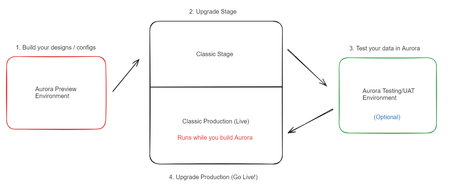
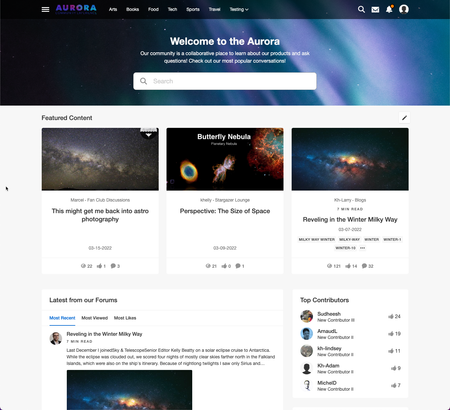
Getting Started What is Aurora? "Aurora is a game-changing update to the industry-leading Khoros Communities solution, with a set of transformative capabilities that make it easier to deliver an exceptional member experience." Aurora is the major upgrade for Khoros Communities (Classic). First released officially on July 31st, 2023, Aurora is a total transformation of our top-notch community platform. We've completely revamped it, utilizing cutting-edge technologies and adopting a modern headless architecture. We have intentionally bolstered Aurora with powerful APIs that provide flexibility and robustness. From the very beginning, we've focused on creating an exceptional user experience, designing it with mobile-friendliness, performance, SEO, and accessibility in mind. It's a fresh start with a foundation built for the future of online communities. Jump to Features. Discovery: Am I ready for Aurora? The first step is to determine your readiness for upgrading to Aurora. There is no rush to move from Classic as of 2024, so it is essential to review where you stand and what you need in order to upgrade successfully. Secondly, it's good to remember that any change to your community presents an opportunity to revisit what success means and how your community experience supports success today and in the future. With this in mind, we encourage you to challenge yourself at each step of planning and ask, "How does this align to and support our business goals?" Getting started Understand Your Goals: While Aurora improves drastically upon the day-to-day community design, admin configuration, moderation, and end-user experience, in evaluating your readiness to upgrade to Aurora, ask yourself: What are your plans for the community in the coming year? How do they align with your business goals & strategy? Do you require certain features or integrations to support your community strategy and day-to-day management? How do you use them? Do you use SSO authentication? How does the authentication process work? (You may need to gather this information from the team that manages SSO at your organization.) How long will it take to gather resources to help you in the upgrade to Aurora? Evaluate Customizations: As a best practice, customizations should be limited to those where there is a clear business value and no alternative feature. With this in mind, we recommend you evaluate existing customizations in line with your community goals, and as part of your upgrade plan, consider your path to sunset any customizations you use today that do not provide measurable value to the community experience and its success. You may have custom features today (like widgets, special pages, etc.)—many of these can now be replaced with Aurora's built-in features. Where you can, we recommend switching to Aurora's features. It will not only save you the cost and effort to rewrite those components using new Aurora development tools but also help maintain your technical debt to that which is absolutely required. You can refer to the feature table on available features in Aurora. If you need help in this step, reach out to your development team, development partner, and/or your Khoros account team for assistance. Scope Customizations: If upon completing evaluation of your existing customizations you identify key customizations you need to maintain when moving from Classic to Aurora, send a request to your Khoros account team to start the process on scoping the Aurora upgrade work and cost for updating your customizations. Structure Changes: The community structure informs the user path through community and supports their ability to find content relevant to their need. As best practice it should be reviewed annually or whenever a change occurs in community or the business (e.g., redesign, product/service changes, etc.) Simply upgrading to Aurora takes your community structure, content, and members as is. As part of your upgrade planning, we recommend that you review the effectiveness of your structure in its current form, identify opportunities to improve, and plan to implement those changes. Structure changes can be made in advance of an upgrade. In fact, we highly recommend that you identify any opportunities to make these changes ahead of time—it can only positively impact the existing experience. If you would like structure changes to be included as part of your Aurora upgrade, this requires a migration to be added to your upgrade scope, which is an additional cost. Please review this need and communicate to your Khoros account team. Consider Previewing Aurora: If you think you might be ready to upgrade to Aurora in the next few months, you can request a temporary Aurora Preview instance with your CSM. Read on for more info on Aurora Preview instance set up. Engage with Khoros: If you have questions, please ask in this forum: Community Aurora Discussions Aurora Upgrade Tasks Overview & Recommended Actions When a community is upgraded to Aurora, automated tasks run in the background to ensure the data from Classic is now supported in Aurora. Here is a run-down on how that works: Upgrade Task What happens in the upgrade? Required Actions for Khoros Customer Tags and Labels Tags and Labels both merge into "Tags" in Aurora. Similar to Labels in Classic, you can set pre-defined and freeform tags. Root-level labels and tags are carried forward as is, but reply-level tags are not. Pre-defined labels are carried forward and set in the Aurora admin as "pre-defined tags." If a particular Tag and Label have names identical to each other in Classic, these will merge into one collective tag in Aurora. Before Aurora upgrade, it is recommended (but optional) to clean up tags and labels as they will come over to Aurora as is when you upgrade your community. If you decide to clean up tags after the Aurora upgrade, you will still have the options to replace and remove tags. URL Redirects URLs to pages in Classic have 301 redirects automatically set to the corresponding pages in Aurora. None Images & Videos Images and videos are now associated with content in Aurora. Images and videos contained within galleries (and not attributed to content) will not be moved to Aurora, but all images and videos within content will be moved forward. User avatars are kept on the upgrade to Aurora. Any custom avatars collections in Assets within Studio are not moved forward into Aurora. If you plan to move forward your custom user avatars, save these assets. Once your stage community has upgraded to Aurora, upload your custom user avatars in Designer. Roles & Permissions All existing roles and permissions configurations will be moved forward to Aurora. None Community Settings (Nodes, Content, Users) All applicable community settings in Classic will be applied in Aurora automatically. Certain settings are not available in Aurora, so expect discrepancies between Classic and Aurora. None Ranks All ranks and existing criteria will be moved forward. The icons will not be moved forward, you will need to add icons back in Aurora. There are new options for visual styles in ranks for the customer to choose. Review ranks and set the new visual style for the ranks that you'd like after the upgrade. Badges All "live" badges and existing criteria and badge icons will be moved forward. Badges in the "Create" tab in Classic will not be moved forward. Badges will be unorganized and placed in a single set right after the upgrade. Badges can now be organized into "sets." Review badges and organize badges into newly created sets after the upgrade. Idea Statuses All predefined idea statuses are carried forward. Statuses will be unorganized and placed in a single set. Idea statuses can now be organized into "sets." Review idea statuses and organize them into newly created sets after the upgrade. Upgrade Process Overview During an Aurora upgrade project, you can expect these steps: Customer Preparation: Use your temporary Aurora Preview environment to configure and design your community. You can request that Khoros import your existing stage admin settings (Structure, Roles/Permissions, and Ranks are supported) to this environment. Upgrade Stage to Aurora: Once you kick off your project, your Stage environment is upgraded first, and Khoros moves your configurations over from your Aurora Preview environment. In this step, configure Stage with structure, ranks, designs, customizations, etc. Test and validate everything on this instance primarily. In this step, you no longer have access to your Aurora Preview instance. Important Note: You are no longer able to use Studio Self-Publish after Stage is upgraded. Testing Your Data in Aurora (optional): Khoros Services team sets up a special temporary environment for you to test your Aurora configurations & designs with a scrubbed (no PII) copy of your production data (with content & members). This step may not be available if you upgrade on your own or with a partner. Final Validation and Launch: After testing and approvals, your Classic Production environment is upgraded to Aurora. Upgrade tasks are run in the background to make your data compatible with Aurora. In this step, you perform final validation and testing for go-live. Completion and Cleanup: Once the upgrade is complete and validated, you have successfully upgraded to Aurora! Aurora Preview Environments Once you have an Aurora Preview instance set up, you can collaborate with your Khoros account team on steps you can take before your Aurora upgrade. We recommend starting to complete these tasks when you first gain access to your preview environment: Explore Aurora features and capabilities. Collect assets, style guide, and taxonomy from your brand. Once you have an admin account, begin to customize the look and feel using the Theme editor (colors, fonts, design). Set up the community structure and create test content as needed. Add badges & ranks, and adjust designs if necessary. Review and validate preset tags. Customize pages using the Page Templates builder (page layouts, widgets, text). Review roles and permissions, and test user access levels. Fine-tune miscellaneous settings such as Robots.txt and Content Settings. We are confident that you will become comfortable with using Admin and Designer tools as you progress through this list, but feel free to leverage the Aurora educational material in Atlas: Getting Started in Aurora. Features Feature Description Accessibility WCAG 2.1 AA VPAT (in progress) Admin & Permissions Content Features, Audit Logs, Roles & Permissions Analytics Dashboards, Reports, Bulk Data API, Analytics APIs Authentication Registration, Sign-In, MFA**, SSO (SAML, OAuth), Multi-Auth (multiple SSOs) Blogs Blog Posts, Content Workflow and Approval, Co-authoring & Contributors, Version History Developer Experience GraphQL APIs, SDK, GitHub, Metadata, Custom Components (Handlebars & React**), Endpoints, Custom Pages, Forms Events Events, Zoom Integration Follows & Notifications Follows, Notifications, Email Templates Forums, Threading & Comments Forums, Solutions, Replies, Comments, Likes, Deep Linking Gamification Ranks, Badges, Top Members Privacy Cookie Banner, Terms of Service, GDPR/CCPA Ideas Ideas, Statuses, Filtering, Reporting Inbox & Private Messaging Inbox, Private Messages, Broadcast KBs Articles, Content Workflow and Approval, Co-authoring & Contributors, Version History Localization** Localized Text, User/Node Settings, Navigation, Text Overrides, Localized Community Rich Media & Video Images, Videos Embed, Video Hosting/Streaming Message Editing & Posting RTE, Attachments, emojis, Embedly, Autosave Content Moderation Abuse/Content Reports, Spam Management, User Bans, Content Filters, Flood Controls, Moderation, DSA Site Structure & Navigation Community Structure, Header, Footer, Breadcrumbs, Hover Cards, Navigation Links, Featured Places & Content, Recent Top Content, Custom Text/HTML Designer Page Templates, Widgets, Theme Editor, Custom Fonts, Avatars, Design Language Elements Search Spotlight, Embedded Search, Auto-Suggest, Related Content SEO Page level SEO, Sitemap, Robots.txt Groups Groups (Open, Closed, Hidden), Group Membership SFDC Integration User Sync, Case Portal, Escalations Tags Preset, Freeform, Management of Tags, Tags Widgets User Profile & Settings User profile, settings **In development The improvements to community in Aurora help community managers easily manage the day-to-day community with low hassle, are more intuitive for building customizations in the community, and allow for greater extensibility to bring outside platforms closer to your Khoros community via integrations. To discover more, check out the following resources: Aurora 2024 Roadmap (Now, Next & Future) Getting Started in Aurora Aurora Release Notes Developer Documentation Frequently Asked Questions Am I able to migrate data into or within my community during an upgrade? In the scenario where you need to migrate another community into your community, it is an option to engage with Khoros Services for migration during your Aurora upgrade project. Consult with your account team to discuss further and define your requirements. Can I update my structure or do a re-structuring during my upgrade to Aurora? When you upgrade your community to Aurora, it will upgrade it 1 to 1. There is no need for a migration map as the upgrade process is not a migration. All content, members, structure, and settings remain in place as your community is upgraded. This means that if you need to move content around in your structure or do a re-structuring during an Aurora upgrade, it is recommended that you do this prior to the Aurora upgrade. If your restructuring is extensive, it may require a migration, which will require scoping with Khoros and additional cost. Will I retain access to Classic Community Analytics (also known as LSI - Lithium Social Intelligence)? After you upgrade to Aurora, you will have access only to Aurora Analytics (metrics definitions can be found here). Though you will no longer have access to Classic Community Analytics dashboards, up to 2 years of historical data will be available in the Aurora Analytics Dashboard. Also, Bulk Data API v3 is available in Aurora, so you will be able to continue usage of the API for your own internal analytics needs.4KViewsSign in to react to this post10CommentsAurora recommended font and image file types and sizes
Throughout the Aurora community, you’ll find many different features that support images, such as page templates, ranks, and badges. Below, you'll find required and/or recommended sizes and file types for various features. Avatars Admins: SVG, JPG, or PNG format Square image required Minimum recommended dimensions: 300px square Badges PNG or SVG format Note: SVG images might not currently load properly in email notifications. Minimum recommended dimensions: 240 px square Custom fonts TTF, WOFF, or WOFF2 format Browser icon (favicon) PNG format Minimum dimensions: 512 px square Hero banner image JPG or PNG format Maximum recommended size: 2000 x 600 px or a similar ratio An image without text or logos is best; the hero area is designed responsively and the visible area may change based on viewport. Logo PNG or SVG format Size is flexible; you can update Logo Height within Designer > Page Templates > Header & Footer. Content images Blog banner images Otherwise, use a large, quality image and it will be resized for you. JPG or PNG Recommended dimensions: 800 x 500px Post images JPG or PNG Member has a choice on size; image will be resized on upload. Place avatars SVG format 400px square Ranks PNG or SVG format Uploaded images are converted to 16 pixels in height and up to 100 pixels in width wherever they appear in the community (square images will be 16 px by 16 px). Note: Your image will be scaled to fit the supported dimensions, so we don’t recommend using a really tall image as it will be difficult to see when it’s scaled to 16 pixels high.1.4KViewsSign in to react to this post9CommentsAurora Product Coaching Session: Introduction to Aurora
Introduction to Aurora Khoros's online Community software helps customers expand their reach by identifying, accessing, and engaging their most valuable customers. If you are new to Khoros Communities or have upgrade from Khoros Classic Communities, this hands-on coaching session will help you get acclimated with the basic functionality and terminology of the Khoros Community along with helping you feel more comfortable when navigating around your Community. What is covered in this coaching session? How to explore and make changes to yours and a users' settings Understand the different elements of a Profile Page Be familiar with basic Khoros Community terminology Navigate the Community landing page and the various Community Places and menus How to create a topic/post and a basic understanding of the Editor options 👉 Click Here to Sign Up Related Resources About Khoros Community: Aurora Glossary of common Community Aurora terms Take a tour of Aurora What's changed in Aurora from Community Classic626ViewsSign in to react to this post0CommentsAurora Product Coaching Session: Roles & Permissions Deep Dive
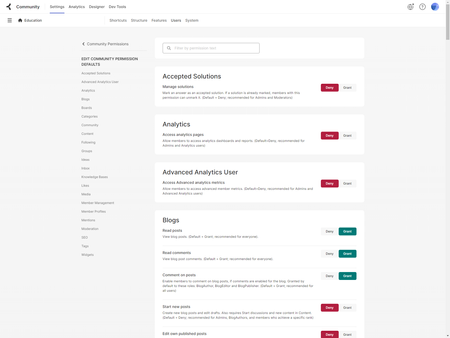
Aurora Roles & Permissions Deep Dive The Khoros Communities platform offers an assortment of permission that allow you to control what features and areas of your community your users have access to use. In this Product Coaching session we will walk you through these permissions, creating roles, and discuss best practices. What is covered in this coaching session? Overview of the Roles and Permissions tab in Community Settings How to set permissions How to create roles Discussion of Inheritance Roles & Permissions best practices 👉Click Here to Sign Up Related Resources About roles and permissions Permission descriptions Best practices: roles and permissions226ViewsSign in to react to this post0CommentsAurora Product Coaching Session: Aurora Community Content Moderation
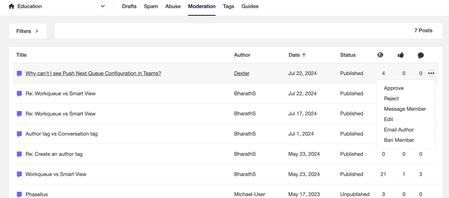
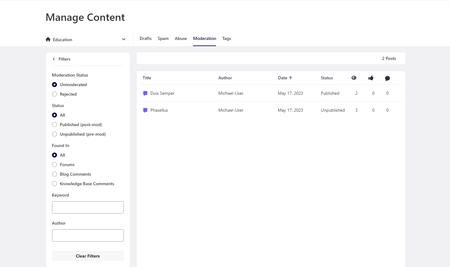
Aurora Community Content Moderation Are you new to Moderating a community, need a refresher, or have recently migrated from Khoros Classic Communities and need to know how the new tools work? This introductory, 1-on-1 coaching session will provide you with an overview of how to Moderate within Khoros Aurora Communities. When managing a Community, you need a way to handle posts that fall outside of your Community guidelines and the people who post them, in a quick and efficient manner. During a 1:1 coaching session, you'll work with a Product expert first walking through your current moderation workflow followed by some hands-on tips, tricks, and best-practices on areas where you can be more efficient, ultimately helping you to be more effective in your daily tasks. What is covered in this coaching session? Moderation workflow efficiencies A review of abuse and filter reports, spam quarantine, and moderation queue Taking action on offending content Moderation best practices 👉 Click Here to Sign Up Related Resources About Moderation About Abuse management About content filters About Khoros Communities spam management299ViewsSign in to react to this post0CommentsAurora Product Coaching Session: Community Settings Overview
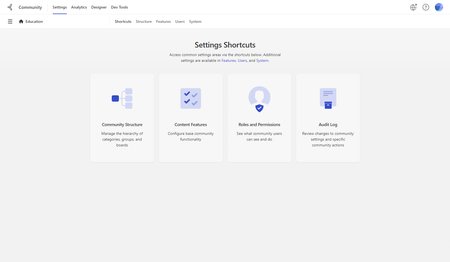
Are you new to using Community Settings, need a refresher or have recently been tasked with administrative duties for your Community? This introductory, 1-on-1 coaching session will provide you with a high level overview of how to navigate and use the Community Settings tool. The Community Settings is the platform tool that allows you to configure various community settings and features so you can optimize your members' community experience and utilize the community platform to its full potential. Building and editing your community structure, editing user roles and permissions, and configuring features are but a few of the items found in the Community Settings. What is covered in this coaching session? Community Settings terminology Navigating the Community Settings Overview of each Settings tab 👉 Click Here to Sign Up Related Resources Site Structure General Feature Settings Roles and Permissions Media Tags Audit Log *Please note that you will need Administrator permissions in your community in order to access the Community Settings.260ViewsSign in to react to this post0CommentsAurora Product Coaching Session: Aurora Community Designer Overview
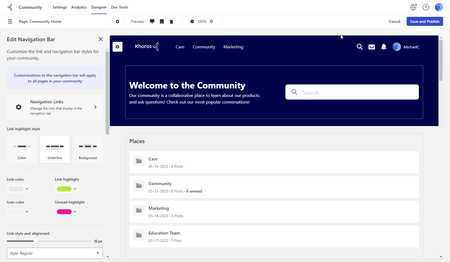
Aurora Community Designer Overview Are you new to using Community Designer, need a refresher or have recently been tasked with administrative duties for your Community? This introductory, 1-on-1 coaching session will provide you with a high level overview of how to navigate and use the Community Designer tool. The Community Designer is the platform tool that allows you to make design and UI focused changes to your community, where you can configure your community branding, color palates, text and widget styling, page layouts, navigation, and more. What is covered in this coaching session? Community Designer terminology Navigating the Community Designer Locate and edit visual elements Add/remove widgets Update the community navigation menu 👉 Click Here to Sign Up Related Resources Themes Page Templates *Please note that you will need Administrator permissions in your community in order to access the Community Settings.287ViewsSign in to react to this post0CommentsAurora Product Coaching Session: Aurora Community Analytics Overview
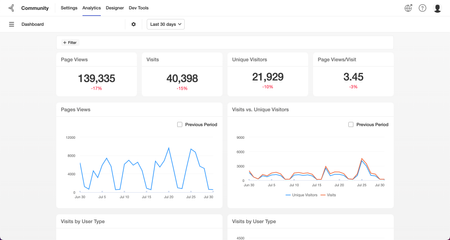
Aurora Community Analytics Overview Are you new to using Aurora Analytics or have recently taken on reporting duties for your Community? This introductory, one-on-one coaching session will help you feel more confident in the tool and reporting on the metrics that matter most! Community Analytics helps you measure and improve the performance of your social programs by gaining insights into your community's health. Providing community managers and executive stakeholders with deep insight into community health and performance, we capture data on billions of interactions each month and use algorithms to help you focus attention on the metrics that matter most. What is covered in this coaching session? Introduction to Community Analytics - what it is and how you can use it Taking actions to view the metrics that matter most to you How to apply filters and export data Navigating the Community Analytics Navigation Panel and the different Page Metrics 👉 Click Here to Sign Up Related Resources About Aurora Analytics Aurora Analytics Metric Definitions Aurora Analytics Dashboard use cases Aurora Analytics Reports285ViewsSign in to react to this post0Comments