Aurora: Bypass flood control
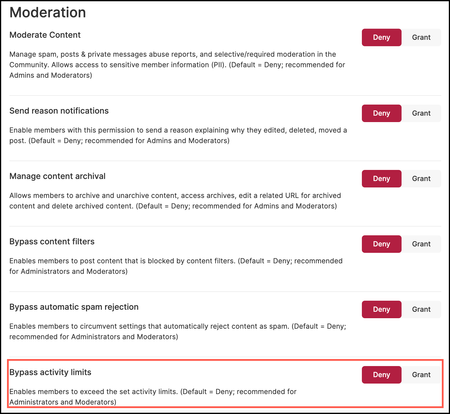
If you want to allow trusted members to publish content without being blocked by flood limits, grant the Bypass flood control permission. To deny or grant this permission for a role Sign in to the community as an Admin. Go to Settings > Users > Roles and Permissions > Moderation. Select Grant or Deny for the Bypass activity limits permission. If this permission is denied for any role and a member with that role exceeds the flood control limit while attempting to publish content, an error message appears at the bottom of the page and the content is not published. Note: Members can be granted this permission from the Activity Limits setting. 418ViewsSign in to react to this post
 0Comments
Aurora: Bypass content filters
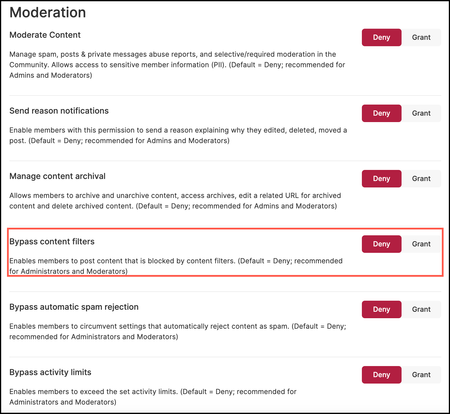
If you want to allow trusted members to publish content without being blocked by any content filters, grant the Bypass content filters permission. To deny or grant this permission for a role Sign in to the community as an Admin. Go to Settings > Users > Roles and Permissions > Moderation. Select Grant or Deny for the Bypass content filters permission. If this permission is denied for any role and a member with that role attempts to publish content containing any words listed under Content Filters, they receive an error message at the bottom of the page. For example, below is a screenshot of the error message when a user without this permission cannot publish their content because the word “cannibalism” is listed under Content Filters.386ViewsSign in to react to this post0CommentsAurora: Redirect user to related content
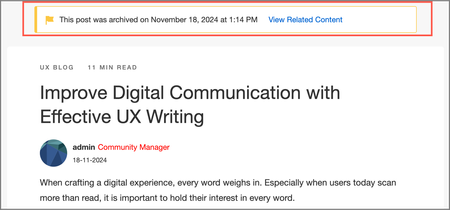
When you archive content, you can provide a permanent redirect link to related content within the community or an external page. Members who attempt to access archived content (via permalink) see a notification indicating that the content has been archived and redirected to relevant information. Though this is optional, it is best practice to provide a related link to relevant content while archiving. For instance, if a Google search result suggests a piece of content that was archived in your community and members select that link, they are automatically redirected to the related content in your community. As the redirection occurs for several members, the Google crawlers understand that the old link is replaced and boost up the new link's ranking instead of the old link. If you didn’t do this when you archived the article, you can opt to add it later from the Archives page. Add a URL to related content Sign in to the community Select Archives on the Manage Content dashboard. Select the Options (...) menu and select Add Link to Related Content. A window to enter the URL opens. Enter a link to the relevant content in your community. Select Add. The entered link is added. After an article is archived: Members who are not admins or moderators are redirected to the page that was added as related content. If no redirect URL is provided, they land on an empty page as shown below. Community admins and moderators land on the original page and see a notification that the page was archived. A link to the related article is provided. Furthermore, you can edit the added link from the archived page by opening the Settings menu and selecting Edit Link to Related Content. Add a URL to an external page You can also redirect members to external pages outside the community. To achieve this, toggle on External URLs under Settings > Features > Moderation > Content Archive.294ViewsSign in to react to this post0CommentsAurora: Unarchive Content
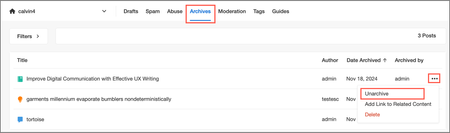
When content is unarchived, it returns to its original location in the community before it was archived. The position of the original board list is also retained. The article's publish/last updated date is retained. Also, you cannot unarchive content whose board has been deleted. Assume that topic B was archived from the board list with topics A, B, C, D, and E. If topic B is later unarchived, it returns to its original position, and the board list again shows topics A, B, C, D, and E and not A, C, D, E, and B. To unarchive content: Go to the Manage Content page. Select Archives. Select the Options menu (...) in the row of the content you want to unarchive. Select Unarchive. The original location of the archived post is selected by default: You can also choose to unarchive the content to another location in the community. 5. Select Unarchive. You receive confirmation that the post is unarchived to the selected location. As shown below, you can also unarchive the content from the content page by opening the Settings menu and selecting Unarchive.189ViewsSign in to react to this post0CommentsAurora: Delete Archived content
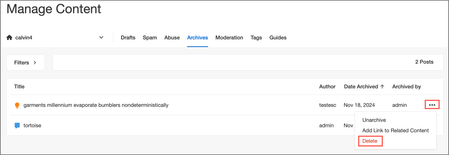
To delete content: Go to the Manage Content page. Select Archives. Open the Options menu in the row of the content you want to unarchive. Select Delete. A window to confirm the delete action opens. 5. Select Delete. The archived content is permanently deleted from the community and cannot be retrieved.262ViewsSign in to react to this post0CommentsAurora: Archive Content
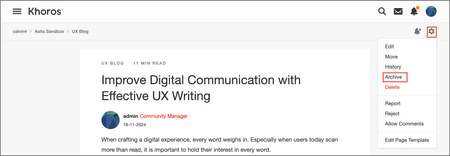
Note: If you archive content from a board and then delete the board, you cannot recover the archived content. No notifications are sent to the members who authored the article that their content has been archived. Moderators can send private messages to community members whose content has been archived. To archive a knowledge base article, blog post, discussion, event, or an idea: Sign in to the community with appropriate roles or permissions. Go to the content you want to archive. Open the Options menu and select Archive. A window to enter a link to redirect users to a page within the community or an external page opens. (Optional) Enter a valid link. Select Archive. You receive a confirmation that the content has been archived. You can view the archived content from the Manage Content dashboard.195ViewsSign in to react to this post0CommentsAurora: About Content Archive
Active communities, especially those of large enterprises, tend to have a lot of content. Over time, these communities can become cluttered with outdated, misleading, or obsolete content, making it more difficult for members to find the content they need. To keep content and conversations fresh and relevant, good content hygiene is important. Admins and moderators should regularly review site content and archive content that is no longer accurate, timely, or relevant. Aurora Communities include a Content Archive feature. When Content Archive is enabled, members with the appropriate permission can: Archive/unarchive knowledge base articles, blog posts, discussions, events, and ideas. Provide links to updated or related content in place of the archived content. Access all archived content from Manage Content dashboard . Note: You can archive only at the main thread. Individual replies or whole boards/categories cannot be archived. All user stats (likes, comments) achieved on archived content are retained. No notifications are sent to members when content is archived/unarchived. Admins and moderators can choose to send private messages to members as deemed necessary. Archival process Permissions Admins, moderators, or members with the Manage content archival permission can archive community content. Enable Content Archive feature To enable content archiving in your community, toggle on the Content archive option under Settings > Features > Moderation > Content Archive. Note: This feature is only set at the community level. Archiving content After the above mentioned roles or permission is granted and the Content Archive feature is enabled, members can see the Archive option from the Options menu on the content page. Select Archive to begin archiving the content. Below is an example from a discussion page. View archived content Admins and moderators or members with appropriate permissions can view all archived content from the Manage Content dashboard on the Archives tab. From here, they can unarchive, delete, or add a link to redirect users to related content.410ViewsSign in to react to this post0Comments
Aurora Product Coaching Session: Spam Management Best Practices
Khoros Communities platform offers several settings and features that allow you to mitigate Spam in your community. Join our Spam Management Best Practices coaching session to identify, filter and deal with spam effectively. Our coaching session will guide you through the practical tips and techniques to help combat spam and help maintain the hygiene of your community. Topics covered in the coaching session Overview of Aurora spam settings and functionality Manage Content dashboard related to spam management and its features Using roles and ranks to configure permissions to check spammers Content Filters Best practice tips Notes - Admin permissions are required to conduct the call. 👉Click here to Sign Up Related Resources Enable Spam Management Community Spam Management Review Posts Captured as Spam Khoros Academy: Communities Moderation Essentials Khoros Academy Instructor Led Training: Spam Management for Communities Aurora1.1KViewsSign in to react to this post0CommentsAbout Abuse Notifications
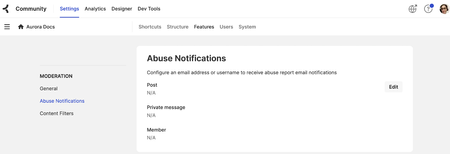
Admins and moderators can specify designated email addresses for receiving abuse reports related to posts, members, or private messages. This ensures that reports are promptly directed to the appropriate members, facilitating timely decisions and actions to maintain community standards and safety. To set the email addresses, Go to Settings > Features > Moderation > Abuse Notification. Select Edit. A window appears on which you can enter the email addresses where abuse reports on Posts, Private Messages and Members can be sent to. Here’s an example of an email received for a post that was reported for abuse. Note: While at the community level you can specify email addresses for receiving abuse reports on posts, private messages, and members, at the category level, you can set them to receive reports only for posts. Below is an example of the abuse notification settings at a board level. Related Topics Abuse management239ViewsSign in to react to this post0CommentsAurora: Consent to add external videos to posts
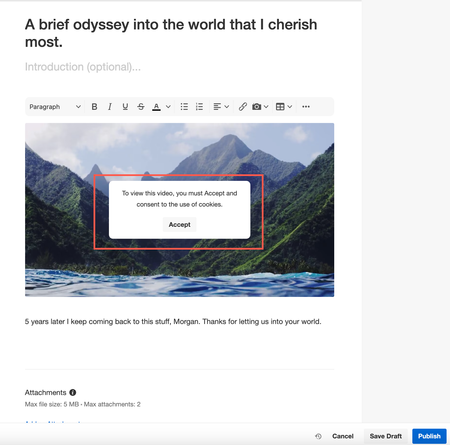
To further comply with the latest privacy regulations, we have introduced a new enhancement to view external videos on the community. We have prioritized member’s compliance by ensuring that external video providers cannot drop cookies without explicit user consent. Members are now required to explicitly consent to the use and storage of third-party cookies from external video providers before streaming content on the community. This measure ensures that both community and external video provider cookies comply with regulations, protecting member data and maintaining compliance standards. Note: This feature is set by default. If you want to change the default settings, contact Support. Below is an example of how this banner appears when you add external videos to Blog posts. Learn more about adding media to your content219ViewsSign in to react to this post0Comments