Reporting Spam
No one likes spammers, including the Khoros Community team! Here are some methods for reporting spam on our community. Spam in Private Messages: Did you receive a suspicious Private Message from another user? To report this issue to our team, click on the gray three-dot menu at the right side of any message and choose Report Message, and we'll handle the abuse as soon as possible. Please include the username and content of the message you received. Spam in Posts: If you spot a forum post, question, or blog comment that appears to be spam, please flag it to the Khoros Community team by clicking the grey gear icon at the top right of a post and select "Report". Be sure to note that the post appears to be spam. Thanks for your help in keeping the Khoros Community spam free! If you are looking for information on how to handle spam on your own community, we recommend that you read our Tips on combatting spam and check out our documentation on the new spam management tools. Please note you'll need to be a customer or partner to view these articles, including having the respective roles on Atlas. Reach out to [email protected] for assistance. 20KViewsSign in to react to this post
 7Comments
About Aurora Email Notifications
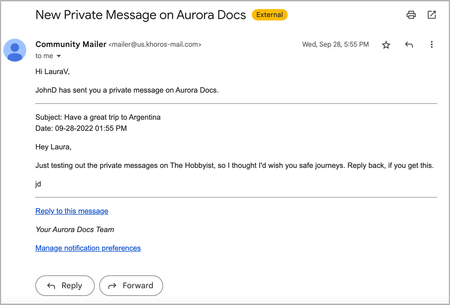
As a community member, you receive email notifications for different types of activity across the community. To manage your email notification preferences, see Manage Follow and Notification preferences for your account. Email notification triggers Email notifications may be sent in a variety of situations. Some may require action while others may be purely informational. Below are descriptions of the notifications you may receive. More email notification types will be available in future releases. Community member notifications Content Workflow notifications Admin-only notifications Community member notifications Notification Description New Accepted Solution A post is marked as a solution on a topic a community member is following Accepted Solution Reminder Reminder to check answers on content and to mark applicable posts as solutions Answer Accepted as Solution A post is marked as a solution on a topic a community member created New Follow (Digest) Daily or weekly digest that provides updates from the community member’s followed content New Follow (Immediate) Immediate notification that provides updates based on the community member’s email notification settings Group Email Invitation Member or non-member is invited via email to join a Group Group Join Request Group owner is notified that someone has requested to join their closed Group Group Membership Accepted Community member is notified that they have been accepted into a Group Group Membership Denied Person is notified of being rejected entry into a Group. Group owners can add an optional description explaining the reason the person was rejected. Group Private Message Invitation Community member is invited to join a Group. They receive a private message invitation to join and an email notification for the new private message. New Private Message Community member receives a new private message in their Inbox Private Message Sent Admin is notified when a broadcast private message is delivered Private Community Invitation Person is invited to join the community by email and receives instructions on how to register via email New Like Community member receives a like on their content New Content Mention Community member’s content is mentioned by another user Member Mention Community member is mentioned by username by another person Email Address Change Confirmation Community member attempts to change their email address (non-SSO authentication) Forgot Password Community member begins the Forgot Password flow Confirm Registration When registered, community member confirms their email address in this notification to complete the registration process (non-SSO authentication) Email Verification Required to Publish Content Community member attempts to publish content when their email address is not verified Email Address Verification Community member requests the verification email to be resent Rank Change Community member achieves a new rank Event Email Invitation Member or non-member has been invited to an event Event Private Message Invitation Member or non-member is invited to an event. They receive a private message invitation and an email notification for the new private message. New Badge Community member is granted a new badge Content Workflow notifications Notification Description Edited Saved Draft Someone edited a saved draft in a place you follow. Submitted for Review Someone submitted a draft for review in a place you follow. Submitted for Publication Someone submitted a draft for publication in a place you follow. Recalled Draft Someone recalled a draft for publication in a place you follow. Schedule for Publication Someone scheduled a draft for publication in a place you follow. Return to Author Someone returned a draft to its author in a place you follow. Return for Review Someone returned a draft for review in a place you follow. Admin-only notifications Notification Description Abuse Report Notification Admin or moderator receives a report of abusive content, private messages, or member profiles. Related topics: About Notifications2.1KViewsSign in to react to this post8CommentsAurora: Searching in the community
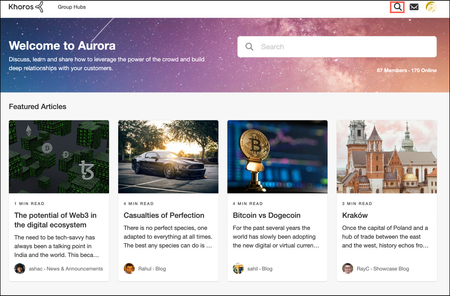
You can perform a community search from almost every page in the community. Where you are on the community site dictates the range of the search you can do. You can search for content, places, or members. Search for content, places, or members across the entire community Search for a content in a specific category or node Filter search results Search for content, places, or members across the entire community Let’s take an example where you want to search for a topic across the entire community and not in the specific place. To perform a search across the entire community: On the main page, click the Search icon to expand the search bar. In the Search field, enter the search text or keyword. When you enter the search keyword, the Search field auto suggests the topics based on the specified keyword. You can either navigate to the respective content from the list or press Enter to navigate to the Search results page and explore more search options. The Search page displays the list of matching topics available across the community based on the specified search keyword. Similarly, you can search for places (category or board) or members across the community. The Search page displays the results under People or Places sections respectively. Search for a member: Search for a place: Search for content in a specific category or node Consider you want to search for a topic specific to a forum and not across the entire community. To perform a search in the specific place: Go to a particular place, enter the search phrase or keyword in the search field, and press Enter. On the Search results page, you can see that the search has been restricted to the specific location and displays the matching records based on the specified search term. To further filter the results, use the filter menus (Last Update, Replies, Location, Author, Content Type, or Tags). Click More Filters to see more filtering options. You can sort the search results by Most relevant, Newest, Most liked, and Most viewed: Filter search results After you have performed your initial search, additional filtering options become available to you. When you apply these filters, your search results update in real time. If a filter option is grayed out, there are no search results that fit that criterion. Each filter criterion displays the count of search results available for the respective criterion: The Search page offers several filters: Last Update: Search for the topics updated on the Past day, Past week, Past month, and Past year. Replies: Search only the topics With replies, Without replies, and With solutions across the community. Location: Search only the topics based on the selected location. Using the Location filter, select the category or board to view the search results for the respective location. For example, if you want to search for a content in a forum, select the respective forum from the list. Author: Search the topics based on the author of those topics. Using the Author filter, you can search by username or rank. Content Type: Search the topics based on the content types such as Blog, Knowledge Base, Ideas, Forum, and Events. Tags: Search for posts that are associated with certain tags. The Tags filter displays the list of tags that have been added to posts, which have matching search results. Exclude replies from search results: Select this checkbox to get matching results only from the topic header and main content area and exclude replies from the search results. Note: On the Search page, members can perform keyboard navigation between the search field and other search filters using the tab and arrow keys and press the return or Enter key to apply the selection to the search results.2KViewsSign in to react to this post11CommentsAbout Aurora Moderation
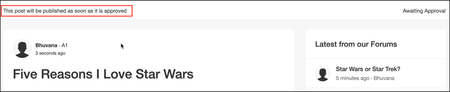
It is important for your community to be a positive space where members feel welcome, safe, and engaged. To foster this environment, moderators constantly monitor community activity by reviewing content for appropriateness, based on the guidelines you’ve put in place for your community. Using the Moderation tab in the Manage Content dashboard, moderators can quickly review and process large volumes of member-generated content. Depending on how you’ve set up your moderation process, content can be reviewed either before or after it is published to the community. From the Moderation tab, you can moderate forum discussion posts and their replies, ideas and their comments, as well as comments on blogs, knowledge bases, and events. Also, you can view the posts or private messages that are rejected as spam, abuse, or for other reasons and take further action on these posts or private messages. Moderation process You can set the moderation mode at the board level. Required: Moderators must moderate content to make it available in the community. (This was previously known as pre-moderation in Communities Classic.) Selective: The content is published, but moderators can moderate it after publication. (This was previously known as post-moderation in Communities Classic.) Auto-approved: Content does not require moderation and is approved automatically. Learn more about configuring moderation modes for various content types. When members post content on the community, the content is immediately routed to the Moderation, based on the moderation settings for that board. Note: When a board is set to Required moderation and members post content on this board, a confirmation message is displayed on the post indicating that post will be published as soon as it is approved from moderators: View Moderation tab Members with elevated permissions (Admins and Moderators) can access the Moderation tab in the Manage Content dashboard. Note that you must enable content moderation at the community level to view the Moderation tab. Members will see the Spam, Abuse, and Moderation tabs. The Moderation tab is where you can review content. By default, the Moderation tab is displayed with the list of unmoderated posts, where the Moderation status is set to unmoderated. The Moderation tab lists: Title: title of the post, reply, or comment Author: authors of the posts and replies Date: the date on which the post or reply is sent for moderation. Status: the publication status (Published or Unpublished) of the posts and replies. Number of views, likes, and comments for each post, reply, or comment. Note: You can sort this list based on the Date. From the Moderation tab, moderators can evaluate the posts and replies. approve or reject posts and replies message authors about their content. ban members When approved, posts are published in the community or remain in the community based on the moderation settings at board level. They are then removed from the Moderation tab. When rejected, the posts are removed from the community. The posts that are rejected as spam can also be viewed in the Spam tab. Learn more about approving or rejecting posts sent for moderation. To view the rejected posts or private messages, go to Filters and set Moderation Status as Rejected. From the Moderation tab, you can: Open any post to view the content Search and filter posts Approve or reject posts Message members on moderation actions about their posts Review the posts or private messages that have been rejected as Spam, Abuse, or other reasons Ban members Refer to the Khoros Communities Moderation Essentials course for training on this feature.1.5KViewsSign in to react to this post0CommentsAurora: Send a broadcast message
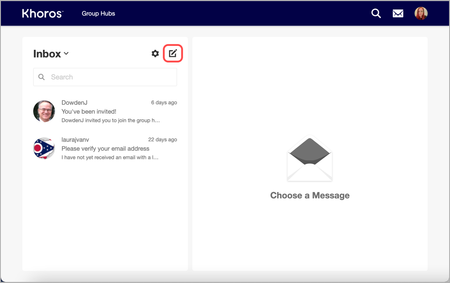
If you have the Send broadcast private messages permission (see Permission descriptions), you can send a broadcast message. These messages are delivered as announcements, and those who receive one cannot see the rest of the recipient list (this is in contrast to multi-user private messages, in which the recipient list can be seen by all those who received it). Broadcast messages have a limit of 10,000 recipients. Refer to About the Inbox for more information about the Inbox. To send a broadcast message: Sign in to the community and click Inbox (envelope icon). In the left panel, click Create (pencil icon). On the Create New Message window, turn on the Send as a Broadcast Message option. In the To field, enter the username of the people to whom you want to send a message. When you start typing a name, search results related to that name display so that you can select the correct person from the list. In the Subject field, enter a subject for your message. Note: “Announcement” is appended to the beginning of all broadcast message subjects. In the content editor, enter your message. See About the Content Editor for more information. Click Send Message. You can view the sent messages in your Sent folder by clicking Inbox in the left panel and selecting Sent. To send a follow-up message from here, enter another response in the Reply… field. When someone receives a broadcast message, “Announcement” always precedes the subject given to the message. Additionally, a microphone icon displays at the bottom right of the sender’s avatar.1.5KViewsSign in to react to this post14CommentsAbout Khoros Aurora Single Sign-On (SSO)
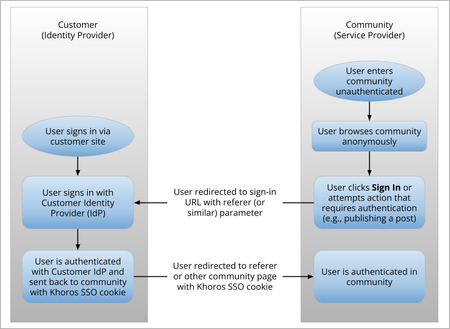
Khoros Single Sign-on (SSO) enables you to integrate your sign-in and registration system with your Khoros community member system. To create a seamless sign-in experience for community members, the Khoros SSO solution enables your user system to: Create a new member account in your community Sign in a member to the Khoros system Change a member's personal profile parameters in the Khoros system by assigning a role Change a member's permission levels in the Khoros system Members sign in as usual through your main site. After they sign in, they are forwarded to the Khoros site and are automatically signed in or registered in the Khoros system. To integrate with Khoros SSO, the client system must: Be able to create Khoros SSO tokens from its user system Have the Khoros SSO libraries installed Have a client-specific C encryption key installed SSO workflow diagrams Khoros supports cookie-based and parameter-based workflows. Cookie-based Khoros SSO Parameter-based Khoros SSO SSO Sign-Out Flow The flowchart below shows where members are directed upon sign-out. Khoros (Lithium) SSO libraries Khoros issues the Khoros SSO libraries (Java, .NET, or PHP) and a unique encryption key for each deployment. Information for all three versions is provided in the attached SSO Guide. Additionally, you can refer to the attached flowchart for a diagram that explains how SSO works with the Khoros Platform. Note: When using the .NET library, you must have the .NET Framework, not just .NET Core available for all requests to operate properly. Related topics: Khoros Aurora auto-sign in Configure SSO settings for the community1.4KViewsSign in to react to this post2CommentsAbout Aurora content filters
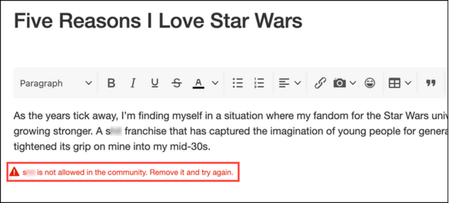
Communities are meant to be a safe space where members should feel welcomed and engaged. Sometimes, members post objectionable content that may offend other members and negatively impact the community’s overall health. Objectionable content can include inappropriate language or any other terms you might not want to see in the community. Aurora offers content filters as part of its moderation tools to prevent objectionable content from appearing in posts, replies, tags, private messages, profile information, and member registration. When members use inappropriate words across the community, content filters identify them and prevent the content from being published or replacing the words with pre-defined replacement terms. In other cases, content filters just record the objectionable content posted across the community without taking any action. Content filters can also be used to ensure that the correct words are used across the community to improve content consistency. For example, you could create a content filter to replace old product names with the correct product name. Aurora includes several default filters that can be triggered when someone registers, posts, adds a tag, sends private messages, or updates their profile information. Default Filter Applies to Filter action Smut Posts and replies Prevents objectionable language from appearing in posts. Replaces offensive terms with neutral or slightly humorous ones, if configured to do so. Remember, you don’t want to prevent members from posting messages; you just want to keep the language clean. You may want to have your moderators keep an eye out for members who repeatedly use filtered language. Keyword Posts and replies Manages specific words or phrases. Content for this filter may include product and company names—both your own and those of competitors. When filtered keywords are used in content, moderators are notified. Optionally, the terms are replaced with more appropriate or the correct term. Login User signups (Registration page) Prevents people from registering to the community with an inappropriate username or profile info (system default action). Note: The Login filter is not applied if you are using an SSO implementation that passes the person’s username to the community. You must have a system on your side to deal with this situation. Tag Tags added in posts and replies Prevents members from tagging posts with objectionable words. Replaces with an alternate tag if configured to do so. You can add terms to these default filters or edit default filters as needed. You can also add new filters to perform these actions when the filter terms are identified in the community: Do not allow: Prevents members from posting content or replies, registering to the community, adding tags, updating profile information, and sending private messages till the filter term is removed. This more heavy-handed approach runs the risk of either challenging members to find a way to defeat it or alienating them. When filter term is identified, the following error message is displayed: Replace term: Replaces the offensive term with another term. This is the most common way of handling smut filter infractions. You can configure what term to replace words that match this filter in the Replacement term field. When the filter term is identified, it is replaced with the configured term after you post the content. Check inline HTML and do not allow: Prevents the members from posting anything that contains a filtered term after ignoring inline HTML. For example, the term “crap” written in inline html format, “c<b>r</b>a<br>p” in any new post is identified as the filter term after ignoring the inline html. Take no action: Does not take any action on the filtered terms that appear across the community, but records in Content Filters dashboard to notify moderators about these terms used across the community. Tip: Replacement terms are often a better management strategy versus preventing members from posting, as some people might take it as a personal challenge and invest tremendous effort in attempting to circumvent your filters. Another way these members may try to circumvent your filters is by using variations of banned words. For that reason, you may want to plan ahead for possible misspellings or other variations when creating your content filters. Note: Content filters are not case sensitive. For example, to filter for “Test,” “test,” and “TEST,” you need to enter only the term “test” while creating the filter.1.4KViewsSign in to react to this post14CommentsAurora: Filter the Analytics Dashboard
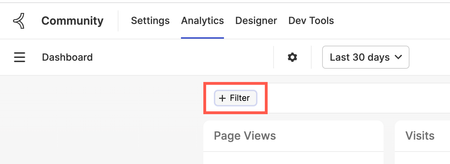
Aurora Analytics enables you to filter data for more granular insights. You can filter based on: Roles Ranks New Topics Username Thread ID To add filters to your dashboard: Open the Account menu and select Analytics. On the dashboard page, select + Filter. Select a filter. Enter relevant values to filter. Select Add. The dashboard displays data for the selected filter. Let's look at an example of filtering data for specific roles. Assume that you want to view metrics and activities by Administrators for the "Products" category in your community for the last 30 days. To filter for this data: Change the scope to Products. Set the date range to Last 30 days. Select +Filter. Select Roles. Select Administrator from the menu. Select Add. The Dashboard displays metrics and activities by Administrators for the "Products" category for the last 30 days. Thread ID You can use this filter to view the metrics related to a particular thread or topic in your community. The Thread ID is the ID found at the end of the community URL. For example, in the below URL, "236502" is the Thread ID for a topic in the community: https://community.khoros.com/kb/supportinformation/khoros-cookies-datasheet-community-care-marketing-khoros-bot/236502 You can add this filter under Dashboard and Reports by selecting the Filter option. You can add more than one Thread ID to the filter. After you select Add, the dashboard displays the metrics for the added Thread IDs or, in other words, the topics with those Thread IDs. Related topics: About Dashboard Settings Scope Analytics data to specific place in the community Set date ranges and data comparison time frame for Aurora Analytics Dashboard Set the Trending Discussions options for Aurora Dashboard View metrics by content type Aurora Analytics Metric Definitions1.3KViewsSign in to react to this post4CommentsAbout Following in Aurora
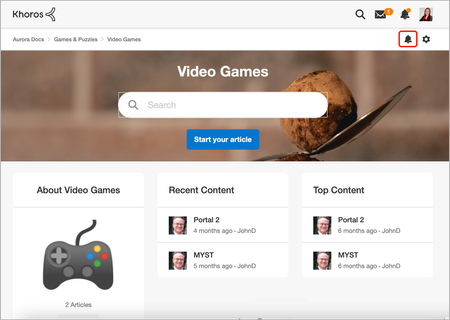
Following places, content, groups, comments, replies, and tags enables you to receive updates regarding those areas or features. For more information about how these types of follows function, review the sections below. Note: If you are the author of a particular discussion, blog post, article, idea, or event, you will automatically receive updates for that content. Additionally, if you comment on a particular piece of content, you will automatically receive updates for that content. When you receive a notification, a dot appears over the Notifications bell icon in the header anywhere in the community. Click this icon to see a list of your notifications. See About Notifications. You can also choose to receive email notifications. See About Email Notifications. Follow Places and Content Follow Boards and Content To follow a board (forum, knowledge base, blog, ideas, or events) or a specific discussion, blog post, article, idea, or event, go to that page and click Follow (bell icon) at the top right of your screen. A confirmation message is displayed. Follow a Category Go to the category you want to follow and click Follow (bell icon). On the Follow window, select one of the following: All Boards in this Category These Boards in this Category If you selected These Boards in this Category, you can select specific boards to follow. Note: If you selected All Boards in this Category, you are subscribed to any boards that are added to the category later. Click Follow. A confirmation message is displayed. Follow a Group To follow a group, go to that page and click Follow (bell icon) at the top right of your screen. A confirmation message is displayed. Follow a Comment or Reply To follow a comment or reply on an article, open the Options menu and then click Follow Comment or Follow Reply, respectively. A confirmation message is displayed. Follow a Tag Following tags enables you to follow specific keywords around the community or a particular board. Any time a piece of content is tagged with a tag you follow, you receive a notification. For example, maybe you want to follow all content tagged with “concerts.” Any time someone creates content and tags it with the “concerts” tag, based on your settings, you receive a notification regarding this content in the community or board. You can follow tags at both the community level and at lower levels based on the scope of the tag page you’re on. To follow a tag: On a piece of content with a tag you want to follow, click the tag. On that tag’s page, click Follow (bell icon). Note: Use the breadcrumbs to scope to the desired area by clicking its linked name before you click Follow. On the Follow window, select between Follow in this Board and Follow across the Community. Click Follow. A confirmation message is displayed. Unfollowing After you’ve chosen to follow boards, content, or categories, you can manage the items you follow in a number of ways: Manage Follow and Notification preferences for your account Unfollow Places and Content Unfollow a Comment or Reply Unfollow a Tag Unfollow Places and Content On the page for any category, group, board, or piece of content, click Unfollow (the icon is now a bell with a checkmark on it to indicate that you’re already following that place or content). For categories, you must either select to Unfollow the entire category or deselect checkboxes below These Boards in this Category to unfollow specific boards in that category. For groups, boards, and content, you do not need to perform additional actions to unfollow. In both cases, a confirmation message is displayed. Unfollow a Comment or Reply To unfollow a comment or reply on an article, open the Options menu and then click Unfollow Comment or Unfollow Reply, respectively. A confirmation message is displayed. Unfollow a Tag On the page for any tag you’re following, click Unfollow (the icon is a bell with a checkmark on it to indicate that you’re following that tag). If you want to unfollow the tag across the entire community, click the highest level link (e.g., “Tag: concerts”) after the community name in the breadcrumbs before unfollowing—otherwise, it will be scoped to a specific place. Once you’ve unfollowed, a confirmation message is displayed. Related topics: Manage Follow and Notification preferences for your account Configure Follow settings for the community1.2KViewsSign in to react to this post6CommentsAurora: Ban members from the community
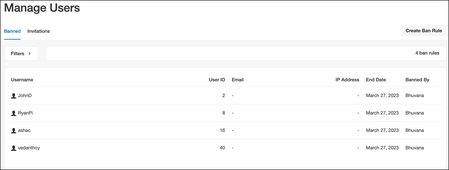
Each member plays a crucial role in the community's growth and is responsible to behave appropriately to create a positive space where other members feel welcome, safe, and engaged. But in some cases, members act maliciously, violate the community guidelines, or are abusive in nature. To avoid such malicious behaviors in the community, Moderators and members with appropriate permissions can ban these members and prevent them from accessing the community. Before banning a member, consider their member history, not just a single action or post. You can temporarily or permanently ban members based on the impact caused. You can ban members using their profile information (username, user ID, and email address) and IP addresses. Use IP address bans as a last resort. IP addresses tend to be dynamic and if a banned member restarts their router, they can get out of the ban and another member may receive the ban. In the community, you can ban members in several ways: Create ban rule from the Manage Users dashboard Ban members from the Content Management dashboard Ban members from the members’ profile page Ban members from the content page Create Ban rule from the Manage Users dashboard Using a ban rule, you can ban single or multiple members from the community. From the Manage Users dashboard, you can create and view the list of ban rules in the community as shown below: To create a ban rule: Sign in to the community as an Admin or Moderator. Open the Account menu and go to Manage > Users. The Banned tab on the Manage Users page is displayed. Click Create Ban Rule. Specify any of the following fields: Username: Enter a member’s username. The entry can include * and ? wildcard characters to ban all members whose usernames match all or part of the username. Example 1: If you enter the username as “Jess*,” any member whose username begins with “Jess” followed by any character will be banned. Example 2: If you enter the username as “Je?s,” the "? " replaces only the single character. The usernames like "Jess," "Jeos," and other matching usernames will be banned. User ID: Enter member’s unique User ID. Email Address: Enter member’s email address. The entry can include * and ? wildcard characters to ban members whose email addresses match all or part of the email address. Example 1: Entering “*@test.com” bans members whose email address begins with any character followed by test.com. Example 2: Entering “[email protected]” bans members with email addresses like “[email protected],” “[email protected],” and other matching email addresses. IP Address: Enter member’s IP address. Note that other members who use the same IP address will also be banned. Match any of the above criteria: Select this checkbox to ban a member who meets any of the criteria listed above. Otherwise, the ban is in effect only if all criteria are met. In the Ban Actions drop-down menu, select the ban Duration. The duration can be temporary or permanent as required. To set a custom duration, select Custom from the drop-down menu and set the duration. (Optional) In Ban Reasons, specify the following reasons for the ban: Internal reason for ban: Only Admins and Moderators can see this reason. They can see this reason when they edit the ban rule. Public reason for ban: Enter the reason that the banned member can see when they fail to sign in to the community. Click Ban. The impacted members are banned and signed out from the community. Ban members from the Content Management dashboard On the Content Management dashboard, you can ban members from the Spam, Abuse, and Moderation tabs using the Options menu > Ban Member. Note that you can only ban one member at a time from the Content Management dashboard. Let’s say you saw malicious content on the Abuse tab and you want to ban the member who created the content. To ban the member: Sign in to your community as an Admin or Moderator. Open the Account menu and go to Manage > Moderation. Go to the Moderation tab where you can view the list of content reported as abuse. To ban a member, open the Options menu and click Ban Member. The Ban Member window opens where the member details are auto-populated: Add information to the fields and click Ban. The Member is banned and signed out from the community. Similarly, you can ban members from the Spam and Moderation tabs. Ban members from the member profile page To ban a member from the member’s profile page: Sign in to the community as an Admin. Go to the member’s profile page by clicking the member account you want to ban on the community. Open the Options menu and click Ban Member. The Ban Member window opens where the member details are auto-populated. Specify the fields and click Ban. The Member is banned and signed out from the community. To modify ban, open the Options menu and click Edit Ban. Ban members from the content page From the content page (forum discussions, blog posts, ideas, and knowledge base articles), you can ban the member who created the content as well as members who posted replies/comments to the content. To ban an author, go to the respective post, open the Options menu, and click Ban member. To ban a member from comments or replies section, go to the comment or reply posted by the member, open the Options menu, and click Ban Member.1.1KViewsSign in to react to this post8Comments